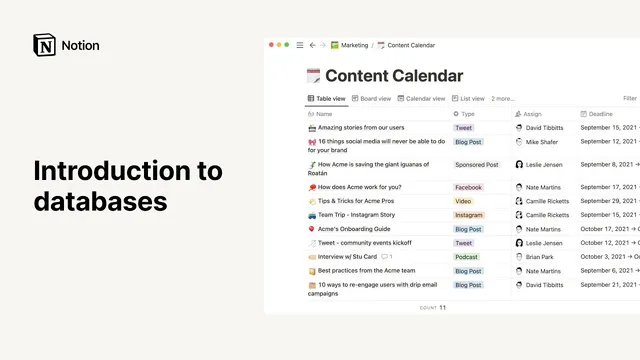
Introduction to databases
Based on Notion's video on YouTube. If you like this content, support the original creators by watching, liking and subscribing to their content.
Notion databases store large sets of records where each entry is a page with shared properties for consistent metadata.
Briefing
Notion databases turn scattered information into structured, reusable “intelligent file cabinets,” letting teams store large sets of records and then view them in multiple ways—tables, boards, lists, timelines, calendars, and galleries—without changing the underlying data. Each database entry behaves like a page, complete with properties (such as text, numbers, dates, or people) that apply consistently across every record. That combination—structured properties plus flexible views—makes it practical to run workflows like editorial planning, sprint tracking, recruiting pipelines, or meeting-note repositories.
The walkthrough builds an editorial calendar for a marketing team to show how the pieces fit together. After choosing a database layout, the process starts with an empty database and a name, then relies on default columns like “name” and “tags.” Each row represents an editorial piece; hovering over an entry and selecting “open” reveals a full page where teams can write drafts, add sections for visuals, and store all the usual Notion content. At the top of every entry page sits “properties,” which act as the database’s shared metadata. Adding a new property—via “add property”—extends it across all entries, not just one page. For example, creating a “select” property for “status” introduces options such as idea, in progress, in review, and published, enabling consistent tracking from draft to release.
The example also shows how teams enrich records with collaboration and categorization. “Tags” can be edited for name and color, supporting multiple keywords per article. “Person” properties let editors and writers be assigned from the workspace member list, and those people receive notifications in their Notion apps when tagged. Additional property types are suggested for real-world workflows, including date fields for deadlines and publication dates, and a URL property for the final link.
Once the database grows, the key advantage becomes managing it at scale. In table views, each property maps to a column, and properties can be renamed, edited, deleted, or reordered by dragging. To keep work organized, Notion supports multiple “views” of the same database—such as grouping by status in a board, grouping by writer, showing only published items in a list, placing cards on a calendar by deadline, or using a timeline for a bird’s-eye view. Each view can be customized with its own filters, sorts, and which properties are visible, using a three-dot menu.
Finally, the transcript explains how to reuse existing database structures. Instead of creating a new database from scratch, users can insert an inline database block by typing “/” and selecting a database view. Choosing a data source creates a filtered, shareable page that reflects the original database’s structure; editing the view changes what’s shown, while editing content affects the underlying records. Inline databases can be expanded to full pages, navigated via breadcrumbs, and moved around like other Notion blocks. The result is a repeatable method for building custom databases and tailoring how teams see the same information to make faster, more informed decisions.
Cornell Notes
Notion databases organize work by storing each record as a page with shared “properties” (metadata) that apply across all entries. The editorial calendar example shows how to start from a blank database, add entries, and define properties like “status” (select options such as idea, in progress, in review, published), “tags,” and “person” fields for editors and writers. Properties become columns in table views and can be reordered, renamed, edited, or deleted. As the database grows, multiple views—board, list, calendar, timeline, and gallery—let teams filter and sort the same data for different purposes without changing the underlying structure. Existing databases can also be reused via inline blocks, where view edits affect what’s displayed while content edits affect the original records.
Why does Notion treat each database entry like a page, and how does that change what teams can store?
What’s the practical difference between adding a property and editing a single entry?
How do “select,” “tags,” and “person” properties support workflow management?
How do database views help teams manage the same data for different goals?
What changes when a database is inserted as an inline block using an existing data source?
What are the main ways to customize a table database’s structure?
Review Questions
- How do database properties enable consistent organization across all entries, and what happens when a new property is added?
- Give two examples of different database views for the same editorial calendar data and explain what each view is optimized to show.
- When inserting an inline database from an existing data source, what’s the difference between editing the view versus editing the content?
Key Points
- 1
Notion databases store large sets of records where each entry is a page with shared properties for consistent metadata.
- 2
Default columns like “name” and “tags” can be extended with new properties such as “status” using a select list of workflow stages.
- 3
Person properties assign editors or writers from workspace members and trigger notifications in their Notion apps.
- 4
Multiple views (board, list, calendar, timeline, gallery) let teams filter and sort the same database data for different purposes.
- 5
In table views, properties map to columns and can be renamed, edited, deleted, added, and reordered by dragging.
- 6
Inline databases can be created from existing data sources or views, where view edits affect display while content edits affect the original records.
- 7
Database blocks can be moved and rearranged within Notion like other content, using standard block navigation and drag-and-drop.