Introduction to Protolyst for Beginners
Based on Protolyst's video on YouTube. If you like this content, support the original creators by watching, liking and subscribing to their content.
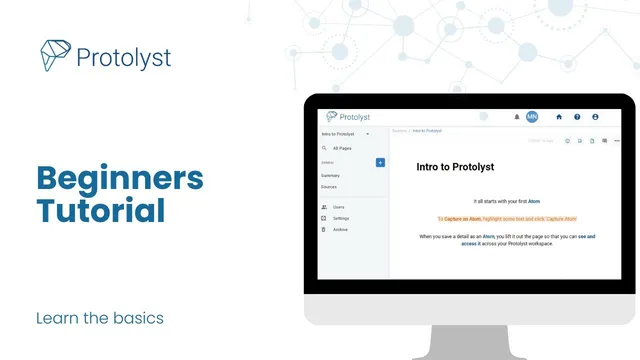
Highlight any text inside a Protolyst page and click “capture atom” to save that snippet as a reusable atom in the workspace.
Briefing
Protolyst’s core workflow turns highlighted snippets into reusable “atoms,” then links every atom back to its original source so users can assemble citations automatically. The process starts simple: highlight text on any imported page, click the “capture atom” button, and Protolyst saves that highlighted fragment as an atom in the workspace. Each captured atom appears in an “all pages”/atom list area, making it searchable and browsable without reopening the original document. Atoms also carry a built-in “source tag,” which acts like a jump link back to the exact page where the snippet came from—complete with a split-screen view that places the source page alongside the atom’s context.
The name “atoms” is framed as more than branding. In science, atoms are building blocks that can be combined into new substances; in Protolyst, atoms are treated as building blocks of knowledge. Users collect small facts, ideas, and concepts from multiple places, then assemble them into new understanding, opinions, and decisions. Protolyst treats all those different “tidbit” styles of highlights under one umbrella term—atoms—so the workspace becomes a kit of reusable knowledge fragments rather than a pile of documents.
Getting information into Protolyst happens through “pages,” which represent sources in different formats. Users add pages via a plus button in the sidebar and can choose a page type: a text editor for personal notes, a file upload for documents from a computer, and a web page option where a URL is pasted and the content is imported as text. As soon as text exists inside a page—whether typed, uploaded, or imported from the web—users can highlight and capture atoms from it.
As the number of sources grows, Protolyst encourages organizing them with a “table” page. Tables include an atoms property that surfaces the collected atoms from each source as rows in a single view. By dragging pages from the sidebar into the table, users can see the most important extracted information immediately, without repeatedly opening and scrolling through each source. Tables also support adding new rows (new pages) directly from the table interface, and they can accept drag-and-drop file batches.
The final step is assembling atoms into a coherent output. Users create a new text editor page (for example, a “summary”), open the sources table in split screen, and drag atoms directly into the writing area. Protolyst inserts the atom text along with in-text citations and a references section. If a user needs to verify interpretation later, clicking a citation jumps back to the exact location in the original source. When the draft is ready, the page can be downloaded as a PDF or document, including the references. Overall, the workflow links capture, organization, and citation-driven writing into one continuous loop: highlight → atom → table view → drag into writing → verify via citations → export.
Cornell Notes
Protolyst organizes knowledge by turning highlighted text into reusable “atoms.” Capturing an atom saves the snippet in the workspace and automatically attaches a source tag that links back to where the text came from, enabling quick verification and context. Information enters the system as “pages,” which can be text notes, uploaded files, or imported web pages; any page with text can be mined for atoms. As sources multiply, a “table” page helps manage them by showing an atoms property—atoms from each source appear as table rows. Finally, atoms can be dragged into a text editor page to build a draft with automatic in-text citations and a references section, and citations can jump back to the original source.
What exactly is an “atom” in Protolyst, and how does it stay connected to its source?
How do users bring different kinds of information into a Protolyst workspace?
Why use a table page instead of keeping everything in the sidebar?
How does Protolyst support writing that includes citations and references?
What split-screen workflow helps users assemble content from multiple sources?
Review Questions
- When you capture an atom, what two mechanisms help you trace it back to its origin and verify context?
- How does a table’s atoms property change the way you search for information compared with opening each source page?
- What steps turn a collection of atoms into a finished document with citations and references?
Key Points
- 1
Highlight any text inside a Protolyst page and click “capture atom” to save that snippet as a reusable atom in the workspace.
- 2
Every captured atom automatically includes a source tag that links back to the exact page where the snippet was taken.
- 3
Import sources as pages using text editor notes, file uploads, or web page URL imports; atoms can be captured from any page containing text.
- 4
Use a table page to organize many sources at once, since tables display an atoms property that surfaces captured snippets as rows.
- 5
Drag atoms from the sources table into a text editor page to assemble drafts with automatic in-text citations and a references section.
- 6
Click citations to jump back to the original source location for verification and context.
- 7
Export the finished page as a PDF or document from the page options to include the references section.