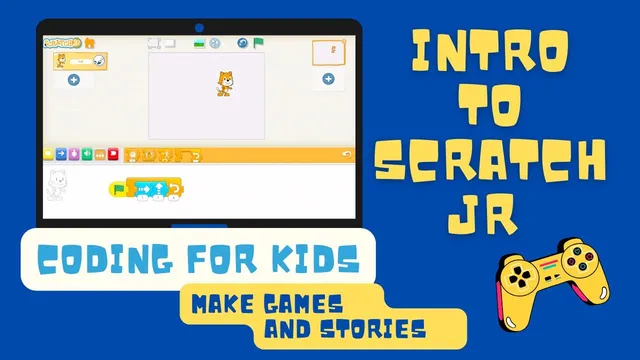
Introduction to Scratch Jr
Based on Obsidian Soft's video on YouTube. If you like this content, support the original creators by watching, liking and subscribing to their content.
Install ScratchJr from the Play Store (or open it later from the home screen) and grant permissions for photos/media/files, audio recording, and video capture as needed.
Briefing
ScratchJr is presented as a kid-friendly way to build interactive stories, cartoons, and simple games on iPads or Android tablets—while learning core coding ideas like sequencing and repetition. The walkthrough starts with installation from the Play Store, then moves into the app’s project workspace, where a “stage” acts as the performance area for digital characters.
Inside ScratchJr, the default setup includes a cat character that can be made to move, change appearance, and react to events using colorful code blocks. Movement is controlled by blue blocks: snapping them together creates step-by-step actions such as moving one step to the right or jumping upward. A green flag serves as the starting trigger for a program, and the cat’s actions run in the exact order the blocks are placed—mirroring how everyday routines work through a sequence of steps.
The guide then expands beyond movement into other block categories. Magenta (purple) blocks change the cat’s look, demonstrated by making the character grow larger and becoming invisible when a different look-change block is used. Green sound blocks are tied to making a “pop” sound, with a note that recording a child’s own voice is possible for later projects. Orange blocks are highlighted as especially engaging because they introduce repetition: a loop block repeats the instructions inside it a specified number of times (shown with a repeat count of four). When the loop runs, the cat performs the same movement pattern repeatedly, returning to its original position after completing the cycle.
To make projects more flexible, the walkthrough shows how to set the cat’s starting position by moving it before running the program, so the green flag begins execution from that new location. A full-screen option is also demonstrated, allowing the story or game to be viewed without the editing interface. Finally, a grid view helps users plan movement more precisely by visualizing steps and spacing, making it easier to control how far the character travels.
Overall, the session frames ScratchJr as a practical entry point to programming: start with an event (green flag), stack instructions in order (sequencing), adjust appearance and sound with specialized blocks, and use loops to repeat actions efficiently. The result is a clear path from installing the app to running a simple interactive animation in full screen—an experience designed to make coding feel creative rather than technical.
Cornell Notes
ScratchJr turns a tablet into a coding playground where kids build interactive stories and games by snapping together visual blocks. A green flag acts as the start event, and the cat follows the blocks in order—an example of sequencing. Movement uses blue blocks, appearance changes use magenta blocks (like growing bigger or becoming invisible), and sound uses green blocks (including pop sounds). Orange loop blocks repeat actions a set number of times, letting the same movement pattern run multiple times efficiently. Full-screen mode and grid lines help creators preview and plan how the character moves.
What does the green flag do, and why does it matter for how ScratchJr programs run?
How do blue movement blocks work in ScratchJr?
What kinds of changes do magenta (purple) blocks make?
How do orange loop blocks change a program’s behavior?
How can creators control where the cat begins and how the project is viewed?
Review Questions
- When you press the green flag, what determines the order of the cat’s actions in ScratchJr?
- How would you use a loop block to make the cat move right and then up multiple times?
- What’s the difference between using movement blocks and using magenta blocks in a ScratchJr project?
Key Points
- 1
Install ScratchJr from the Play Store (or open it later from the home screen) and grant permissions for photos/media/files, audio recording, and video capture as needed.
- 2
Use the stage as the workspace where characters perform actions for interactive stories and games.
- 3
Blue movement blocks create step-by-step motion such as moving right or moving up.
- 4
The green flag is the start event; connected blocks run in sequence after it’s pressed.
- 5
Magenta blocks change the character’s appearance, including making it grow or become invisible.
- 6
Orange loop blocks repeat a set of instructions a chosen number of times, enabling efficient repeated animations.
- 7
Full-screen mode and grid lines help preview the project and plan movement more accurately.