Introduction to Tags in Obsidian
Based on Knowledge Work Nexus's video on YouTube. If you like this content, support the original creators by watching, liking and subscribing to their content.
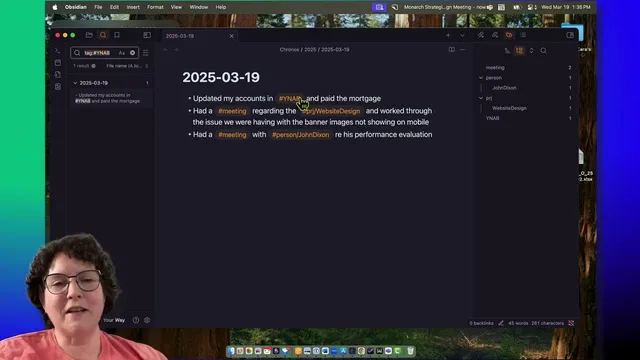
Typing a hashtag in a note automatically creates a tag entry in Obsidian’s tag viewer.
Briefing
Obsidian tags work as more than labels: they double as a built-in search and navigation system that stays fast even in a mostly “vanilla” vault. By typing a hashtag directly into a note (e.g., “#wab” or “#meeting”), tags automatically appear in Obsidian’s tag viewer, where each tag shows how many times it occurs and lets users jump straight to every note containing it. This turns everyday note-taking—daily logs, project updates, and meeting notes—into an instantly retrievable knowledge base.
The walkthrough starts by setting up a clean vault and customizing the interface for speed, including keyboard shortcuts to toggle the left and right sidebars. A new daily note is created via the Daily Notes core plugin, and tags are added by inserting hashtags in the text. When a tag is clicked in the tag viewer, Obsidian opens search results for that tag on the left panel, listing every matching note. The count shown beside a tag reflects multiple occurrences within the same note, reinforcing that tags are tied to actual text matches.
A key feature highlighted is nested tags. Using a forward slash inside a tag (for example, “#person/John Dixon” or “#project/web design”), Obsidian organizes tags into a hierarchy. Editing a tag updates the tag viewer immediately: if a tag is renamed or changed so it no longer exists in the vault, clicking the old tag yields “not found,” because the search has nothing to match. This makes nested tags a practical way to keep categories (like Person or Project) tidy while still tracking specific items under them.
With more notes added, the tag viewer expands into a browsable index. Clicking a project tag such as “#Acme contract” (nested under a broader project category) reveals all pages where that project is mentioned. Those results can be copied and pasted as a link, enabling quick return to the same set of matches later. Searches can also be initiated directly from the tag panel, and then individual notes can be opened from the results.
The lesson also emphasizes workflow uses: tags provide a quick way to scan notes for a person (e.g., “Jenna”), and the list-like presentation can support lightweight practices such as a “sentence a day” journal or a daily template that prompts users to add the right tags. As the vault grows, tags can be sorted alphabetically (A–Z or Z–A), by frequency (most to least), and nested tags can be collapsed or expanded. There’s also an option to disable nesting so every tag appears flat. Overall, tags are positioned as a low-friction, high-leverage tool for organizing and retrieving information—setting the stage for later lessons on extending tags with community plugins.
Cornell Notes
Obsidian tags act as both organization and search. Adding a hashtag in a note automatically creates a tag entry in the tag viewer, including an occurrence count. Clicking a tag runs a search that lists every note containing that tag, and those search results can be copied as a link for quick reuse. Nested tags created with a forward slash (e.g., “#person/John Dixon” or “#project/web design”) keep categories structured and sortable. Tags can be sorted by name or frequency, and nesting can be collapsed, expanded, or turned off for a flat list view.
How does a tag get created and displayed in Obsidian during note-taking?
What happens when a tag is edited so it no longer exists in the vault?
How do nested tags work, and why are they useful?
How can tags function like a search tool for projects and people?
What extra capabilities come from using the tag search results panel?
How can users manage tag clutter as the vault grows?
Review Questions
- What is the difference between a flat tag and a nested tag in Obsidian, and how is nesting created?
- Describe what occurs in the tag viewer when a tag is renamed or removed from all notes.
- How can tag-based searches be reused later without re-running the search from scratch?
Key Points
- 1
Typing a hashtag in a note automatically creates a tag entry in Obsidian’s tag viewer.
- 2
Clicking a tag runs a search that lists every note containing that tag, with occurrence counts reflecting matches in the note.
- 3
Nested tags use a forward slash to create a hierarchy (e.g., category tags like Person or Project with specific items underneath).
- 4
Renaming or removing a tag value from the vault makes the old tag unclickable in practice because searches return “not found.”
- 5
Tag searches can be copied as links so the same set of results can be revisited quickly.
- 6
Tag browsing supports sorting by name (A–Z/Z–A) and by frequency, and nesting can be collapsed/expanded or disabled for a flat list view.