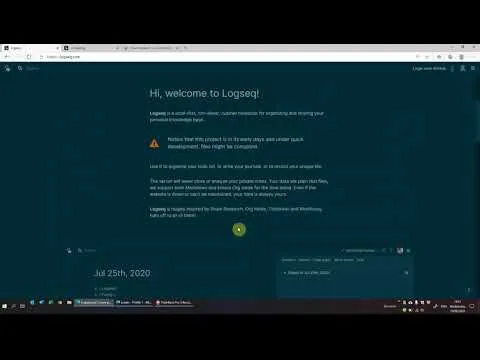
Logseq - A Roam Research Alternative for Notes / PKM / To Do / Journal
Based on Ed Nico's video on YouTube. If you like this content, support the original creators by watching, liking and subscribing to their content.
Logseq stores notes locally in an outliner format while syncing them to GitHub as a backup.
Briefing
Logseq positions itself as a Roam Research-style personal knowledge management tool that keeps notes in a local outliner while also syncing them to GitHub for backup. The pitch is straightforward: avoid losing work to siloed folders or fragile workflows, and instead build a network of linked notes that can be navigated like a wiki.
Setup starts with connecting Logseq to GitHub. After authorizing access, Logseq requests a GitHub personal access token. The transcript walks through generating that token in GitHub’s developer settings, emphasizing that the token value must be copied immediately because it can’t be viewed again. With the token in place, Logseq asks which repository should store the notes. A new private repository can be created (no README needed), and the repository link is used so Logseq can clone and begin syncing. Once connected, a green indicator confirms that all notes are syncing to GitHub, and the journal-style pages appear by date.
In day-to-day use, Logseq’s core interface behaves like an outliner: typing creates notes, indentation creates structure, and sections can be focused on by collapsing or selecting a specific “knot” (a note block). As new entries are added to today’s page, they appear immediately, and the system supports expanding and collapsing at multiple levels.
The standout feature is backlinking and transclusions—mechanisms that create relationships between notes without forcing everything into a strict hierarchy. Instead of burying ideas inside nested folders, users can link concepts together so reviewing one page leads to related pages. The transcript demonstrates this with a “fitness” example: typing a bracketed link (e.g., [[fitness]]) turns a term into a clickable page, and subsequent text can populate that page. Clicking the link navigates to the linked note, while shift-click opens it in a side view for editing alongside the current page. This reduces the friction of jumping back and forth to find the right place to write.
Transclusions add another layer: using an embed block (via a slash command) can insert a referenced section—such as “my goals are”—directly into another page. Editing the embedded content updates the source page, letting users reuse structured snippets without duplicating work.
Logseq also supports practical workflows: a “to-do list for a now and later” pattern where unfinished items roll forward to the next day, plus date-based navigation using commands for yesterday and tomorrow. Pages can be created on demand through search (e.g., creating a “how to take notes” page when it doesn’t exist yet), and search can surface all references to a term across existing notes.
Finally, the transcript highlights safety and visibility. Notes are exported in a markdown-style format into the GitHub repository, and the interface provides tools like recent pages, a page graph showing which pages link to which, theme switching, and command help. The overall takeaway is that linking and transclusions keep information findable over time, while GitHub syncing provides a durable backup for the growing network of notes.
Cornell Notes
Logseq combines an outliner-based note system with wiki-style linking so ideas don’t get trapped in rigid folder hierarchies. Setup centers on GitHub syncing: users authorize Logseq with GitHub, generate a personal access token, and point Logseq to a private repository where notes are stored and synced. In daily use, notes appear as date-based journal pages, while “knot” blocks can be focused, collapsed, and expanded. Backlinks and transclusions let users connect related notes via links (e.g., [[fitness]]) and embed reusable sections (via an embed block) that stay editable in the source. A now/later to-do workflow and date commands (yesterday/tomorrow) help tasks and entries roll forward until completed.
How does Logseq prevent notes from becoming “siloed” in hierarchical folders?
What’s the practical workflow difference between a normal link and a transclusion in Logseq?
How does GitHub syncing work in the setup described, and why does it matter?
What does the “now and later” to-do system do when tasks aren’t completed?
How can users create new pages and find related notes quickly?
Review Questions
- What steps are required to connect Logseq to GitHub, and what information must be saved immediately during token creation?
- Explain how backlinks and transclusions differ, using the fitness example and the embedded “my goals are” block.
- How does Logseq handle incomplete now/later tasks across days?
Key Points
- 1
Logseq stores notes locally in an outliner format while syncing them to GitHub as a backup.
- 2
GitHub setup requires authorizing Logseq, generating a personal access token, and selecting a target repository for syncing.
- 3
Backlinking turns concepts into navigable pages so notes form a web rather than a rigid folder tree.
- 4
Transclusions let users embed editable blocks from one page into another without duplicating content.
- 5
A now/later to-do workflow carries unfinished tasks forward to the next day and removes items when marked done.
- 6
Date-based commands and journal pages support quick retrieval of yesterday/tomorrow entries and related notes.