Logseq Meeting Notes Tutorial - How to Take Effective Meeting Notes
Based on CombiningMinds's video on YouTube. If you like this content, support the original creators by watching, liking and subscribing to their content.
Organize meeting notes around action items, decisions, and optionally insights so retrieval and follow-up are straightforward.
Briefing
Logseq meeting notes work best when they’re built around three trackable outcomes: action items, decisions, and (optionally) insights. The core payoff is fast retrieval—link references and filtering let someone jump back to the exact meeting context, then quickly surface what needs follow-up without hunting through scattered scratch notes.
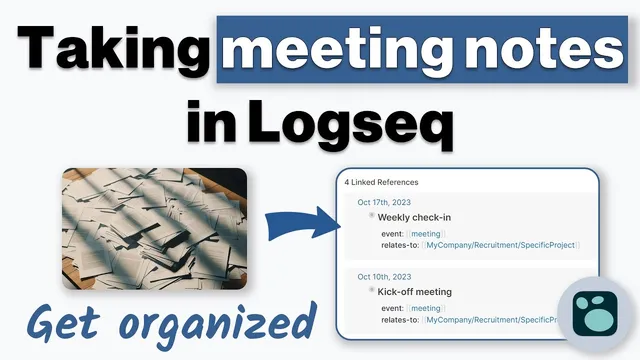
The tutorial starts with a “minimum viable structure” that’s intentionally lightweight: create a meeting page using hashtags like “#meeting” and “#person,” then type the notes directly under that entry. From there, Logseq’s link references (listed in reverse chronological order) act like an index—clicking into the meeting page and filtering by tags or properties makes it easy to find prior notes. Custom styling and plugins can change how nested/indented content looks, but the underlying idea stays the same: indentation and links provide the structure, while the interface provides the navigation.
As the workflow matures, the notes become more structured without becoming heavy. The approach adds Markdown headers plus properties such as event type, related project, attendees (as links), and meeting objectives. Discussion notes and “next steps” then sit in dedicated sections. The presenter emphasizes that this extra structure doesn’t replace the retrieval mechanism; it mainly makes the page easier to scan and keeps the same linking/filtering benefits.
Action items are handled through dedicated tags and Logseq’s task-like features. Examples include an inbox-style tag for follow-ups (e.g., “#inbox” plus a person tag), to-do items created via shortcuts, and “waiting” items for tasks dependent on someone else. Feedback is tracked with tags that associate feedback with a specific person, enabling later filtering for recurring review cycles. Decisions are treated as a first-class category so it’s clear who committed to what.
A key design choice is using pages (not blocks) for major recurring meetings, because pages make filtering cleaner. The workflow also uses queries to build “catch-all” views—such as a meeting page that pulls in all follow-up items from inbox entries and related meetings—so the relevant tasks appear in one place.
The tutorial also includes practical caveats. Logseq is praised for flexibility, drag-and-drop movement, and date-based journaling that supports quick browsing of meeting history and decisions. But it’s criticized for becoming complex as meeting systems scale, and for limitations in project management, collaboration, scheduling, and task completion mechanics (checkbox handling and “mark done” workflows are described as clunky). The overall recommendation: Logseq is a strong starting point for meeting notes and personal knowledge management, but it may not fit highly complex, highly collaborative, or deeply project-managed workflows unless the user commits to a consistent structure.
Cornell Notes
Meeting notes in Logseq are most effective when they’re organized around three categories: action items, decisions, and optionally insights. A lightweight starting point uses hashtags like “#meeting” and “#person,” then relies on link references (reverse chronological) and filtering to retrieve past meetings quickly. As usage grows, the workflow adds Markdown headers and properties—event type, related project, attendees, objectives—plus sections for discussion and next steps. Action items are tracked with tags such as inbox-style follow-ups, to-dos, waiting items, and feedback tied to specific people. The approach works best when recurring “big meetings” are represented as pages (for cleaner filtering) and when queries assemble a single view of what must be followed up.
What is the minimum viable structure for meeting notes in Logseq, and why does it work?
How does adding properties and sections improve meeting notes without losing retrieval speed?
What tagging system is used to manage action items and follow-ups?
Why does the tutorial prefer pages over blocks for recurring “big meetings”?
How are queries used to create a single follow-up view for a meeting?
What limitations are highlighted for scaling beyond personal meeting notes?
Review Questions
- If someone wanted to retrieve meeting context quickly in Logseq, which two mechanisms are emphasized (and how do they work together)?
- How does the workflow distinguish between action items that are ready to discuss now versus items that are waiting on someone else?
- What trade-offs appear when meeting notes become more complex—especially around project management, collaboration, and task completion?
Key Points
- 1
Organize meeting notes around action items, decisions, and optionally insights so retrieval and follow-up are straightforward.
- 2
Use a minimal hashtag-based structure (“#meeting” plus “#person”) to get immediate value from link references and filtering.
- 3
Add properties (event type, related project, attendees, objectives) and section headings as notes scale, without abandoning the linking workflow.
- 4
Track action items with dedicated tags and task patterns: inbox-style follow-ups, to-dos, waiting items, and feedback tied to specific people.
- 5
Represent recurring major meetings as pages rather than blocks to keep filtering and maintenance manageable.
- 6
Use queries to assemble a single “follow-up” view for an upcoming meeting by pulling in items from inbox entries and related meetings.
- 7
Be cautious about Logseq for highly complex project management, collaboration, scheduling, and checkbox-style task tracking unless a consistent ontology is maintained.