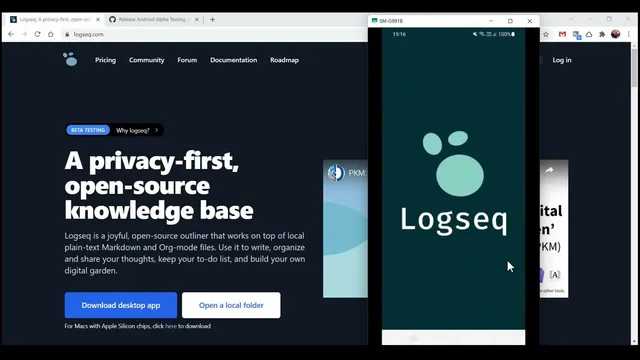
Logseq Mobile App (Android) and Sync with Google Drive. Logseq IOS App Coming Soon.
Based on Ed Nico's video on YouTube. If you like this content, support the original creators by watching, liking and subscribing to their content.
Install the Logseq Android APK (“logseq android 0.1.1 apk”) from GitHub and enable “allow from this source” when Chrome blocks unknown-source installs.
Briefing
Logseq’s new Android mobile app brings the familiar outliner-style note workflow from the desktop/web into a phone-first interface—and the key value is getting an existing Logseq graph from Google Drive onto the device so notes stay usable offline and in sync.
Installation starts with downloading an Android APK from Logseq’s GitHub page (“logseq android 0.1.1 apk”). Because Chrome blocks apps from unknown sources by default, the setup requires enabling “allow from this source” in Android settings, then installing the package (roughly 15–20 seconds). After installation, opening the app lands on a layout that mirrors the desktop/web experience: graphs and page navigation on the left, plus a top-left menu for views like Journals, Flashcards, Graph, All Pages, Favorites, and Recent. A settings area under the three-dot menu includes general options and editor controls.
In settings, the app offers customization that matches common Logseq preferences: theme switching (light/dark), editor file format selection between org-mode and Markdown, and date formatting. Workflow-related options include choices such as “now/later” and task behavior, along with familiar controls for journaling and time tracking. The app also supports the same block-based editing model: typing creates blocks, Enter creates new bullets, indentation/outdent controls adjust hierarchy, and bracket-style actions can create new pages. Tasks can be converted into checkboxes, and items can be marked done—essentially replicating Logseq’s outliner mechanics on mobile.
The second half of the process addresses the real-world problem of existing users: the app initially stores a graph locally on the phone, but many people already maintain their Logseq graph in Google Drive. To reuse that existing graph, the workflow adds an Android sync layer. The guide installs an app from the Play Store called “Auto Sync for Google Drive” (searched as “drive sync” / “auto sync”), then connects it to Google Drive and creates a synced folder. The sync app creates matching folders on both the device and Google Drive (notably named “google drive sync files”), because Android can’t directly access Google Drive files as a live local workspace.
Once the synced folder exists, Logseq on Android adds a new graph and points it to the “drive sync files” location. A synchronization step pulls the existing graph files into the local folder. After syncing completes, Logseq requires a local re-index to register the imported notes; the refresh/status indicator moves during this step, and the time needed depends on how many notes are in the graph. When re-indexing finishes, the user can open the imported pages and continue editing with the same indentation, checkbox, and page-creation behaviors—while changes flow back through the Google Drive sync folder.
Overall, the Android app delivers a desktop-like writing experience, and the Google Drive sync setup is the bridge that turns a phone into a true companion to an existing Logseq knowledge base.
Cornell Notes
Logseq’s Android app (APK “logseq android 0.1.1”) recreates the desktop/web outliner workflow on a phone, including block creation, indentation, page creation, and task checkboxes. After installation, settings let users choose theme, editor format (org-mode or Markdown), date preferences, and workflow options like now/later. The main challenge—using an existing graph stored in Google Drive—is solved by syncing a Google Drive folder to local storage using an Android sync app (“Auto Sync for Google Drive”). Logseq then points a new graph at the synced local folder, syncs files, and runs a re-index so the imported notes become searchable and editable.
What’s the fastest way to get the Logseq Android app installed if Chrome blocks the APK?
Which in-app settings matter most for matching a desktop/web Logseq setup?
How does the Android app handle core note editing compared with desktop Logseq?
Why can’t Logseq on Android just read the Google Drive graph directly, and what workaround is used?
What steps ensure an existing Google Drive graph becomes usable inside Logseq on Android?
Review Questions
- What specific Android sync limitation is addressed by using “Auto Sync for Google Drive,” and how does the synced folder naming (“google drive sync files”) fit into Logseq’s setup?
- After pointing Logseq to the synced folder, why is re-indexing necessary before notes appear and become editable?
- Which editor and workflow settings in Logseq Android help keep note formatting and behavior consistent with a desktop/web setup?
Key Points
- 1
Install the Logseq Android APK (“logseq android 0.1.1 apk”) from GitHub and enable “allow from this source” when Chrome blocks unknown-source installs.
- 2
Use the app’s settings to align theme, editor format (org-mode vs Markdown), and date/workflow preferences with how the graph is used on desktop/web.
- 3
Editing on Android follows the same block model: Enter creates new blocks, indentation/outdent controls hierarchy, and tasks can be toggled into checkboxes.
- 4
To use an existing graph stored in Google Drive, sync a Google Drive folder to local storage using an Android sync app (“Auto Sync for Google Drive”).
- 5
Create a synced folder (the guide notes folders named “google drive sync files”) so Logseq can point to a local directory that stays updated.
- 6
In Logseq, add a new graph pointing to the synced local folder, run synchronization, then perform a re-index so imported notes become searchable and editable.