Logseq Tutorial: 5 Tips to Improve Your Logseq Database
Based on CombiningMinds's video on YouTube. If you like this content, support the original creators by watching, liking and subscribing to their content.
Use backticks to convert identifiers into inline code so they stop generating linked references and reduce reference clutter.
Briefing
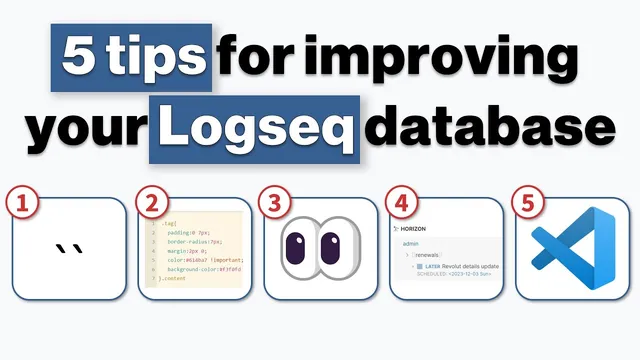
Logseq database cleanup often comes down to small formatting and workflow tweaks—especially when link clutter, code readability, and “missed tasks” start to pile up. A set of five practical adjustments focuses on keeping references tidy, making structured content easier to scan, and using queries and bulk edits to prevent important items from slipping through.
The first fix targets unwanted link references created by inline identifiers. When a number or token (for example, an import ID from Readwise or Omnivore) shows up as a linked reference, switching it to inline code using backticks stops it from being treated like a reference. That simple change helps keep bibliographic or link-heavy sections cleaner, particularly when writing tutorials where linked clutter isn’t desired.
Next comes code block ergonomics. Logseq includes CodeMirror support, which can be inserted by creating a new block and wrapping it with triple backticks. The tutorial shows how to set a language so the code renderer displays the language label in the top-right corner (e.g., specifying HTML). The goal is to make code snippets look and behave more like the familiar Obsidian-style experience, with cleaner presentation and better readability.
For navigation and at-a-glance organization, the guide adds page icons to the left sidebar. This is done through page properties on the first block of a page—adding an `icon` property and then selecting an emoji. The walkthrough notes different shortcuts for opening the emoji picker on Windows versus Mac, so the icon can be chosen quickly.
The most workflow-heavy tip uses Advanced queries inside the Daily Journal to catch tasks that might otherwise be overlooked. A custom query is stored in the global config under “default queries,” then surfaced in the journal to list items scheduled between a week and three months out. The query combines task status (e.g., to-do or later) with a scheduled date, producing a horizon view of renewal and administrative items—like driver’s license or passport-related deadlines—so they don’t fall through the cracks.
Finally, bulk editing in Visual Studio Code is used to clean up repeated template blocks across many Markdown files. After generating a search-and-replace instruction (with help from ChatGPT), the user applies a cautious replacement in VS Code to remove empty or unwanted sections—such as repeated gratitude/dream/affirmation blocks—across dozens of files, then confirms the changes propagate back into Logseq. The emphasis is on verifying before deleting, but the payoff is faster, workspace-wide maintenance without manually editing each page.
Overall, the tips connect presentation (inline code, code rendering, icons) with reliability (advanced queries) and scale (VS Code bulk edits), aiming to make a Logseq database easier to maintain and harder to mismanage over time.
Cornell Notes
The workflow centers on five Logseq tweaks that reduce clutter and improve reliability: convert certain identifiers into inline code with backticks, use CodeMirror code blocks for better formatting (including language labels), add page icons via page properties, and run a custom Advanced query in the Daily Journal to surface scheduled tasks due in the next week to three months. The last step uses Visual Studio Code for bulk edits across many Markdown files, replacing or clearing repeated template sections while leaving non-empty content untouched. Together, these changes make references cleaner, code easier to read, navigation faster, and deadlines harder to miss—especially for recurring administrative tasks.
How does inline code prevent unwanted link clutter in Logseq references?
What’s the practical workflow for inserting CodeMirror blocks and showing a language label?
How are page icons added to the Logseq sidebar?
What does the custom Advanced query in the Daily Journal do, and where is it configured?
How does Visual Studio Code enable bulk edits across many Logseq pages safely?
Review Questions
- When would wrapping a token in backticks be preferable to leaving it as plain text in Logseq?
- What two filters does the scheduled-task Advanced query use to avoid missing items?
- Why is it important to verify matches before running a bulk replace in VS Code for Logseq pages?
Key Points
- 1
Use backticks to convert identifiers into inline code so they stop generating linked references and reduce reference clutter.
- 2
Insert CodeMirror blocks with triple backticks and specify a language after the opening backticks to get a language label in the code block.
- 3
Add page icons by setting an `icon` page property on the first block of a page and selecting an emoji from the picker.
- 4
Store custom “default queries” in the global config so the Daily Journal can show a scheduled-task horizon (e.g., tasks due between one week and three months).
- 5
Build the scheduled-task query using both task status (to-do or later) and a scheduled date to catch deadlines reliably.
- 6
Use Visual Studio Code bulk search/replace to remove or clear repeated template sections across many Markdown files, but review matches first to avoid accidental deletions.