Mac Settings That ACTUALLY Make A Difference
Based on FromSergio's video on YouTube. If you like this content, support the original creators by watching, liking and subscribing to their content.
Trim Finder’s sidebar to only frequently used locations, replacing clutter like iCloud items and Airdrop with practical folders across external drives and cloud.
Briefing
A tight set of Finder, desktop, and system tweaks can make a Mac feel faster, cleaner, and more “personal” within minutes—especially by changing what shows up by default and what the system searches or indexes. The biggest quality-of-life shift starts in Finder: the sidebar is pared down to only frequently used locations, replacing clutter like Tags, Movies, Music, Pictures, iCloud items, and Airdrop. Those removed shortcuts get swapped for practical folders that live across devices, including external-drive work folders and cloud directories.
Finder settings then get tuned for navigation speed and context. Folder windows switch to List view so file size and “Date Modified” are always visible, with the date column shortened for quick scanning. When users get lost inside deep folder trees, enabling the Path Bar provides a breadcrumb-like way to jump between levels, while the Status Bar keeps folder size in view. The toolbar is also customized: unused items such as Tags and Groups are removed, Get Info is dropped (since right-click covers it), and Airdrop is added so files can be sent without relying on the sidebar.
Search behavior is adjusted to match intent. Instead of searching the entire Mac, Finder’s Advanced search setting is changed so searches run within the current folder. File opening defaults are tightened too: by using “Get Info” → “Open with,” users can set specific apps per file type and apply the change to all files of that type.
Recent items get a smarter, less overwhelming approach. Rather than showing every file ever opened, the Recents view is replaced with a custom Smart Folder that shows only items opened within the last 7 days and excludes applications. That Smart Folder is then pinned to the sidebar, and the old Recents version is removed.
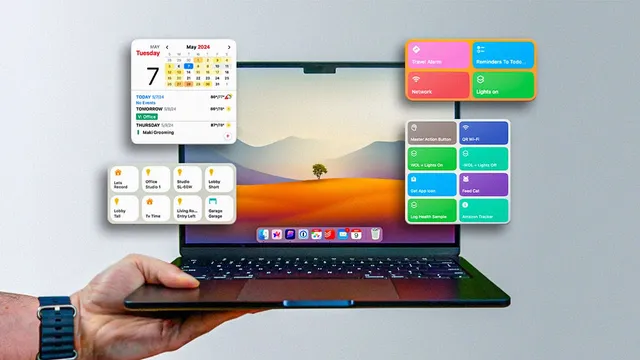
Desktop and Dock tweaks extend the same theme: reduce clutter while increasing usefulness. Widgets are moved onto the desktop so calendar, HomeKit scenes, garage controls, weather, and battery status become interactive at a glance—while a setting in Desktop & Dock controls whether widgets stay colored or monochrome. To keep the desktop tidy, Finder options are unchecked so external drives don’t automatically appear on it.
The Dock is streamlined by removing apps from the Dock, resizing it, and changing minimization behavior so minimized windows collapse into the app icon instead of creating extra Dock spaces. Hot Corners are made safer by requiring a modifier key (Command in this setup) to trigger actions like Quick Notes.
Beyond appearance, system performance and accuracy are tuned. Spotlight indexing is narrowed by disabling categories like code headers, tips, and JSON files, which also benefits Spotlight replacements such as Alfred and Raycast. Trackpad behavior is adjusted for speed, tap-to-click, and scrolling direction (turning off Natural scrolling). Display settings disable True Tone and auto brightness for more consistent color—night work gets Night Shift, with Flux recommended for finer control.
Finally, security and connectivity preferences are handled in System Settings: Apple Watch unlock is enabled, multiple fingerprints can be added, Ethernet is prioritized above Wi‑Fi, and keyboard input sources are simplified by turning off unwanted autocorrect behaviors. The overall result is a Mac that surfaces the right things first—folders, widgets, search results, and controls—without constant manual cleanup.
Cornell Notes
The core idea is to reconfigure macOS so the interface shows what matters and searches what you actually want. Finder is customized heavily: the sidebar is trimmed, folder windows use List view with Path Bar and Status Bar, toolbar buttons are pared down, and searches are limited to the current folder. “Recents” is replaced with a Smart Folder that only includes items opened in the last 7 days and excludes applications. Desktop widgets are added for interactive at-a-glance control (calendar, HomeKit, weather, batteries), while the Dock is cleaned up and minimized-window behavior is changed to prevent clutter. Spotlight indexing is narrowed to improve speed and relevance, and display/trackpad settings are tuned for consistency and comfort.
How does changing Finder’s sidebar and toolbar reduce day-to-day friction?
What specific Finder settings make deep folder navigation and scanning easier?
How is Finder search behavior adjusted to match user intent?
How does the transcript replace the default Recents list with something more manageable?
What desktop and Dock changes increase usefulness without adding clutter?
Which system-level changes target speed, consistency, and accuracy?
Review Questions
- Which Finder changes ensure searches stay within the current folder and not the entire Mac?
- What criteria define the custom Smart Folder that replaces Recents, and why does it exclude applications?
- How do the transcript’s Dock and Hot Corner settings reduce accidental actions and visual clutter?
Key Points
- 1
Trim Finder’s sidebar to only frequently used locations, replacing clutter like iCloud items and Airdrop with practical folders across external drives and cloud.
- 2
Use Finder List view plus Path Bar and Status Bar so file details, folder size, and navigation breadcrumbs are always visible.
- 3
Constrain Finder search to the current folder and set “Open with” per file type so files consistently launch in the intended app.
- 4
Replace default Recents with a Smart Folder limited to the last 7 days and excluding applications to prevent an ever-growing list.
- 5
Make the desktop more functional by adding interactive widgets (Calendar, HomeKit, weather, batteries) and controlling whether widgets stay colored or monochrome.
- 6
Streamline the Dock by cleaning it up, changing minimization behavior to collapse into the app icon, and using modifier keys for Hot Corners to avoid accidental triggers.
- 7
Improve system responsiveness and visual consistency by narrowing Spotlight indexing, tuning trackpad behavior, and disabling auto brightness/True Tone while enabling Night Shift (or Flux).