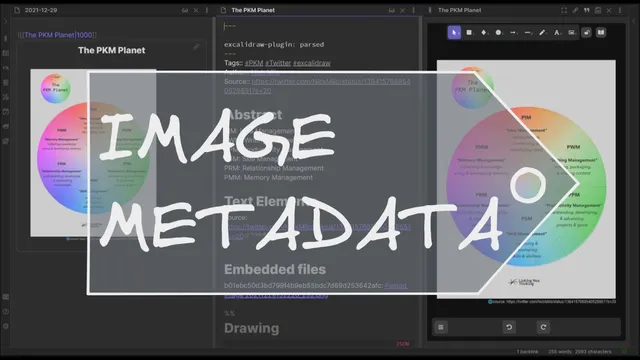
Make all your images searchable in Obsidian by adding rich metadata with Excalidraw markdown
Based on Zsolt's Visual Personal Knowledge Management's video on YouTube. If you like this content, support the original creators by watching, liking and subscribing to their content.
Embed images inside Excalidraw drawings so metadata can live in the drawing’s front matter rather than only in the surrounding note.
Briefing
Adding rich, searchable metadata to images inside Obsidian—by embedding the image in an Excalidraw drawing and storing tags, author, source, and an abstract in the drawing’s front matter—turns ordinary pictures from “attachments” into first-class knowledge-graph entries. Instead of relying on filenames or the note that happens to contain the image, searches can match the metadata attached to the image itself, so queries like “pkm,” “twitter,” or “idea management” can surface the image directly.
The workflow starts with taking an image (from the clipboard, such as a picture found online) and pasting it into an Obsidian note. While Obsidian will auto-generate a filename, the approach here goes further: the image is inserted into an Excalidraw drawing embedded in the active document. Excalidraw then provides a place to attach metadata in a structured way. By switching the Excalidraw pane to Markdown view, the user edits the section between the front matter and the text elements—adding fields like `tags`, `author`, `source`, and an `abstract` copied from the image’s text. The transcript emphasizes that text elements below that boundary should not be altered, since doing so can break the file. Tags are written with double brackets/formatting so they become Dataview-searchable, and a default Excalidraw tag is kept for consistent graph coloring.
Once the metadata is in place, Obsidian search can retrieve the image based on any of those fields. The example uses tags (`pkm`, `twitter`), the image author (Nick Milo), and a tweet link as the source. An abstract field provides additional searchable text, effectively indexing the image’s content in a way that plain image files can’t. To make citation and navigation easier, the drawing also includes a footer with a clickable source link; when the image is embedded in other notes, that footer travels with it, and the link can be opened to return to the original post.
Two practical setup tips address presentation and publishing. First, Excalidraw’s background should be set to transparent (especially in dark mode) so borders and contrast artifacts don’t appear. This is handled via an Excalidraw template that sets transparent background, stroke color, and default font. Second, Obsidian Publisher may not display Excalidraw embeds unless an auto-export step is enabled: turning on “auto export to PNG” (or SVG) ensures a static image attachment exists. With that enabled, the document can embed the PNG version for publishing, while still keeping an “edit in Excalidraw” path back to the editable source drawing.
The transcript also notes a timing quirk: after creating or updating the Excalidraw drawing, the embedded image in Obsidian may not refresh immediately. Navigating away and back forces the update. Overall, the method combines Excalidraw’s metadata-friendly front matter with Obsidian’s search and Dataview-compatible tagging, producing images that are searchable, citable, and publishable like structured records rather than static files.
Cornell Notes
Embedding images inside Excalidraw drawings lets Obsidian index the image using structured front matter metadata. By editing the Markdown view between the front matter and the text elements, metadata such as `tags`, `author`, `source` (a tweet link), and an `abstract` can be added so searches match the image content context—not just filenames or containing notes. Tags are formatted for Dataview search, and a footer link makes citations reusable wherever the image is embedded. For Obsidian Publisher, Excalidraw embeds may not render, so auto-export to PNG (or SVG) is enabled and the PNG is embedded for publishing while an “edit in Excalidraw” link preserves the editable source. A refresh timing issue may require navigating away and back to see updates.
How does embedding an image in Excalidraw make it searchable in Obsidian beyond filenames?
What metadata fields are added, and why do they matter for retrieval?
Why is the exact location of edits in Excalidraw important?
How are tags formatted to work with Dataview?
What changes are needed so Excalidraw images work with Obsidian Publisher?
Why might the embedded image not update immediately after edits?
Review Questions
- When adding metadata in Excalidraw Markdown view, what part of the file should be edited to avoid breaking the drawing?
- Which metadata fields in the example are used to support both search and provenance (and what does each field contribute)?
- What Publisher-specific setting ensures Excalidraw content renders reliably, and what refresh behavior may still be required?
Key Points
- 1
Embed images inside Excalidraw drawings so metadata can live in the drawing’s front matter rather than only in the surrounding note.
- 2
Edit only the section between Excalidraw front matter and text elements in Markdown view; changing text elements can break the file.
- 3
Add searchable fields such as `tags`, `author`, `source` (tweet link), and an `abstract` copied from the image’s text.
- 4
Format tags so they work with Dataview search, enabling graph-style filtering by metadata.
- 5
Use a footer with a clickable source link so every embedded instance keeps citation and a return path to the original.
- 6
Set Excalidraw background to transparent via a template to avoid dark-mode border/contrast artifacts.
- 7
Enable Excalidraw auto-export to PNG (or SVG) for Obsidian Publisher, and expect occasional refresh timing issues that require navigating away and back.