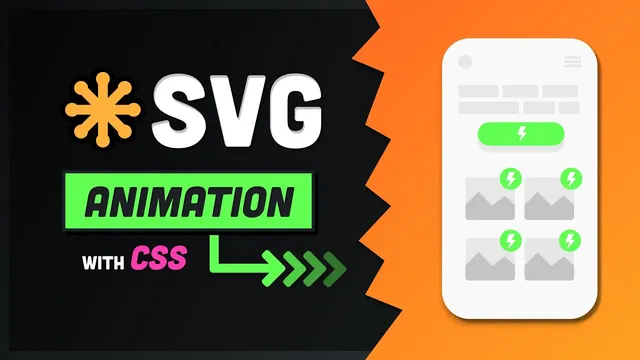
Make Awesome SVG Animations with CSS // 7 Useful Techniques
Based on Fireship's video on YouTube. If you like this content, support the original creators by watching, liking and subscribing to their content.
Design SVG artwork in a vector tool and export with stable IDs so CSS can target individual shapes and groups reliably.
Briefing
CSS-driven SVG animation can turn simple vector shapes into interactive, themeable icons and looping UI sequences—without heavy libraries or complex tooling. The core workflow is to design the artwork in a vector editor, export clean SVG with stable element IDs, then use CSS variables plus transforms/opacity to animate colors and motion. The payoff is twofold: icons become easy to restyle (duotone themes) and motion becomes controllable both on hover/click and on an automatic loop.
The tutorial starts by grounding what SVG actually is: unlike raster formats such as PNG or JPEG (fixed pixel grids), SVG stores geometry and math. That means a viewBox defines a coordinate grid, and shapes scale cleanly because the browser recomputes the math at any size. The most flexible SVG primitive is the path element, but the practical advice is to avoid hand-writing graphics code. Instead, build shapes in tools like Figma, Illustrator, or Inkscape and export to SVG.
To recreate an animated duotone triangle icon, the process begins with reverse-engineering a real example using Chrome DevTools’ Animations panel, which reveals keyframes and which DOM elements they affect. A key detail emerges: what looks like two triangles is actually four—two are positioned off-canvas so the animation can slide them in and out.
In Figma, the author sets a frame sized to match the SVG viewBox (120 by 100) and draws the triangles with the polygon tool. Each triangle gets a custom layer name (e.g., dark 1, dark 2, light 1) so the exported SVG uses those names as element IDs. For duotone styling, triangles are grouped by color, producing SVG <g> containers (e.g., dark group and light group). Export settings matter: include IDs on export and remove the frame fill so the SVG contains only the intended artwork.
Back in code, the SVG is inlined into HTML so CSS can target it directly. The tutorial then removes hardcoded fill attributes from the SVG paths and replaces them with CSS variables defined on the root element. Those variables are assigned to the dark and light groups via their IDs, making the icon themeable. Hover animation uses CSS transitions: triangles are shifted with translateX and faded with opacity. The “hidden” triangle starts off-screen (translateX(-100%)) and slides into place on hover, while the top dark triangle moves and fades out.
Interactivity goes further with JavaScript: on click, a function picks a random color from an array and updates the CSS variables on document.documentElement. Because the elements already have transitions, the duotone colors shift smoothly rather than snapping.
Finally, the tutorial builds a looping animated sequence (phone outline, skeleton text, and falling bolt icons) using keyframes. Skeleton text fades upward via a simple fade-in-up animation. The bolt icons use a staggered drop-in keyframe over an 8-second cycle, with animation delays computed from per-icon CSS variables. Each bolt group gets an inline variable order, and the stylesheet sets animation-delay using calc(order * 200ms), ensuring consistent staggering even in a looping timeline. The result is a reusable pattern for interactive duotone icons and background UI animations powered by SVG plus CSS.
Cornell Notes
SVG stores shapes as geometry, so a viewBox-based coordinate grid lets artwork scale without pixelation. After designing triangles in Figma and exporting SVG with stable element IDs, the icon becomes themeable by removing inline fills and using CSS variables assigned to color groups (<g> elements). Hover motion is handled with CSS transitions by moving triangles with translateX and fading with opacity, including triangles that start off-canvas. Click interactivity updates the CSS variables in JavaScript, and the existing transitions animate the color change. For looping sequences, keyframes drive fade-in and drop-in effects, while staggered timing is achieved by assigning an order variable per icon and computing animation-delay with calc(order * 200ms).
Why does SVG scale cleanly compared with PNG or JPEG?
How do element IDs in exported SVG make CSS animation practical?
What’s the duotone theming trick for SVG icons?
How does the hover animation work without complex keyframes?
How can click events randomize the icon’s colors smoothly?
How is staggered looping animation achieved for multiple bolt icons?
Review Questions
- When exporting from Figma, what settings and naming choices ensure CSS can target the right SVG elements?
- How do CSS variables enable both theming and animated color transitions in the duotone icon?
- What keyframe timing considerations matter when staggering multiple elements in a looping animation?
Key Points
- 1
Design SVG artwork in a vector tool and export with stable IDs so CSS can target individual shapes and groups reliably.
- 2
Use viewBox-based SVG scaling to keep icons crisp at any size, then animate with transforms and opacity for smooth motion.
- 3
Create duotone themes by removing inline fills from SVG paths and driving group fills via CSS variables.
- 4
Implement hover interactions with CSS transitions by shifting triangles with translateX and fading with opacity, including off-canvas starting positions.
- 5
Add click interactivity by updating the same CSS variables in JavaScript; existing transitions will animate the color change.
- 6
For background motion, use keyframes for fade-in and drop-in effects, and stagger multiple elements using per-element order variables plus calc-based animation delays.