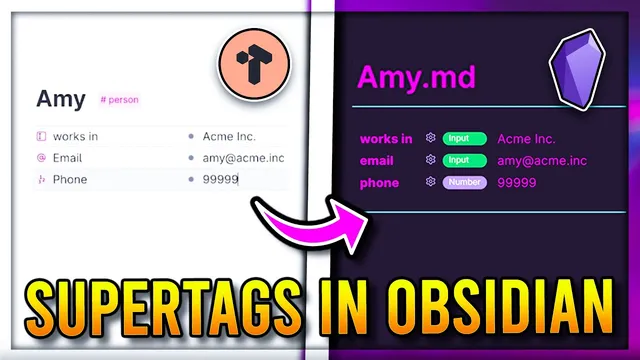
Make Tana Supertags 🦸 in Obsidian using the Metadata Menu Plugin
Based on John Mavrick Ch.'s video on YouTube. If you like this content, support the original creators by watching, liking and subscribing to their content.
Install and enable the Metadata Menu community plugin in Obsidian to create schema-driven metadata editing.
Briefing
Obsidian can mimic Notion-style “super tags” by using the Metadata Menu community plugin, letting users define structured metadata (fields) for notes and edit those fields through a clean UI—whether clicking a link, working in a table, or editing inline. The core move is creating a “file class” schema: a tag name (like `person`) becomes the blueprint for what metadata a note with that tag must contain, including field types such as text, select lists, multi-selects, booleans, numbers, links, and dates.
Setup starts in Obsidian Settings → Community plugins, where the Metadata Menu plugin is installed and enabled. The plugin’s key feature is “file class.” Users create a folder to store file classes, then add a file class named to match the tag they want to use (for example, a `person` file class). Once the file class exists, fields are added by right-clicking the class and creating new fields. Each field can be configured to accept any value (free text), a multi-select list (with predefined options like “Obsidian,” “anime,” or “coding”), or a boolean (true/false for something like “friend”). The result is a consistent metadata schema that appears automatically when a note is tagged with the file class name.
After defining fields, the workflow becomes practical: create a note titled with the tag (e.g., `#person`) and the plugin surfaces the metadata UI. Users can add fields in a chosen location within the note, then fill values directly—either by typing field names (with auto-suggestions) or by selecting from configured options. Editing also becomes “link-aware.” If another note links to a `person` note, the linked note can expose an interface to edit its metadata right from the link, reducing the need to open and manually edit the target note.
For power users, the plugin integrates with Dataview and Dataview JS to edit metadata from tables. A Dataview table can list fields like address, interests, and friend across all notes tagged with `person`, while filtering out unwanted folders such as `templates` and `file class` directories. With JavaScript query support enabled, the table can render editable controls—using a wrapper function that binds each row’s page and field to an interactive editor.
Beyond basic organization, the plugin supports more advanced metadata logic. Lookup queries can pull metadata from other notes and compute results—such as averaging ages across multiple `person` notes for habit tracking or analytics. Schemas can also be combined by using multiple file classes (e.g., one for `person` and another for `co-worker`) to attach different sets of fields like working hours or preferences. The overall payoff is a flexible, schema-driven system that goes beyond folders and simple tags, bringing structured “super tag” behavior to Obsidian with minimal friction.
Cornell Notes
Metadata Menu turns Obsidian tags into structured “super tags” by defining file class schemas. A file class (named to match a tag like `person`) specifies which metadata fields a note should have and what types they accept—free text, multi-select lists, booleans, dates, links, and more. Once fields are defined, notes tagged with that file class automatically get a UI for editing metadata, including editing from links and from Dataview tables. With Dataview JS enabled, tables can render interactive editors for fields like address, interests, and friend across many notes. Lookup queries and multiple file classes enable computed metadata and richer cross-note workflows.
What is a “file class” in Metadata Menu, and how does it relate to tags?
How do field types work, and what examples were used?
How can metadata be edited without opening the target note directly?
What role does Dataview JS play in table-based editing?
What are lookup queries used for?
How can multiple schemas be combined for richer note types?
Review Questions
- When creating a `person` schema, what must be true for a note to automatically show the metadata UI?
- How does enabling Dataview JS change what a Dataview table can do with metadata fields?
- Give one example of how multi-select and boolean fields differ in how values are entered.
Key Points
- 1
Install and enable the Metadata Menu community plugin in Obsidian to create schema-driven metadata editing.
- 2
Create a “file class” whose name matches the tag you want to use (e.g., `person`) so notes with that tag get the right fields.
- 3
Define fields inside the file class with specific types such as free text, multi-select lists, and booleans (true/false).
- 4
Insert metadata UI into notes by adding the field at a chosen location; field names can auto-suggest as you type.
- 5
Edit metadata directly from links to tagged notes, reducing the need to open each note manually.
- 6
Use Dataview JS to render editable metadata controls inside tables, with filters to exclude `templates` and `file class` folders.
- 7
Leverage lookup queries and multiple file classes to compute derived values and support different note categories with different field sets.