Managing Tasks in Reflect
Based on Reflect Notes's video on YouTube. If you like this content, support the original creators by watching, liking and subscribing to their content.
Checkboxes are lightweight visual markdown items that do not appear in Reflect’s Tasks tab, while tasks (circular check) are tracked and managed there.
Briefing
Reflect’s tasks system draws a hard line between simple checkboxes and trackable tasks: checkboxes are lightweight, visual markdown items, while tasks (the circular check) are collected in Reflect’s dedicated Tasks tab and can be scheduled, filtered, archived, and organized across notes. That distinction matters because it lets users track only the work that needs follow-through—without cluttering the Tasks tab with habits or “done/not done” items that shouldn’t carry over.
Checkboxes are meant for items that shouldn’t be tracked in the Tasks tab. The practical litmus test offered is carryover: if skipping something today shouldn’t create a backlog tomorrow, it belongs as a checkbox. Examples include “getting email inbox zero,” taking a walk, taking medication, or picking up kids—things that may be daily or habit-like, where the goal is to mark completion for the day but not manage them as an ongoing queue.
Tasks are for commitments that must happen eventually, even if they’re not daily. Creating a new consulting landing page, setting up an outbound email system, following up with client leads, or producing testimonials are treated as tasks because they represent work that can be deferred and then scheduled. Tasks can also be placed in different notes, not just the daily note, and Reflect keeps useful context: tasks retain the label of the note where they were created.
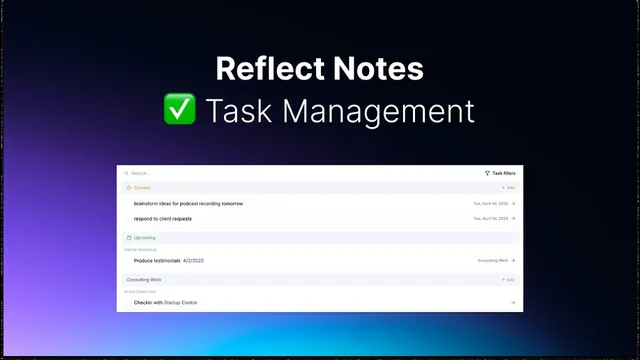
Inside the Tasks tab, organization goes further. Tasks can be grouped by parent bullets within a note—so a “consulting work” section can contain tasks under parent categories like “internal marketing,” “sales,” or “active client work,” preserving the hierarchy when those tasks appear in the global tasks view. Backlinks also play a key role: when tasks are scheduled using a date backlink (e.g., linking to “today”), they move into the “current” bucket automatically after leaving the note.
Scheduling creates three main states: “current” tasks (tied to the daily note), “upcoming” tasks (scheduled for the future), and “overdue” tasks (scheduled in the past). Clicking a scheduled backlink takes users to the daily note where the task is displayed, with the task also showing up in the incoming backlinks section—because the task itself lives in its original note and the daily note is effectively where it’s being referenced.
On desktop, tasks and checkboxes can be created via shortcuts (turning bullet points into checkboxes, and then into circular tasks using command + shift variants) or manually using markdown syntax (square brackets for checkboxes, plus sign for tasks). The Tasks tab also supports adding items with relative dates, filtering what appears, and then archiving or converting completed items into checklists—actions that remove them from the active tasks list.
A typical workflow starts by dumping everything for the day as checkboxes, then selecting the true “core work” to convert into tasks that will be tracked and managed through the Tasks tab. The same approach carries to iPhone: the Tasks tab mirrors desktop functionality for checking off, adding, scheduling, archiving, and filtering. On iOS, toggling between bullet, checkbox, and task is done through tap-based controls rather than keyboard shortcuts. Finally, Reflect’s tasks are positioned as minimalist; users needing recurring tasks or deeper integrations may need a more feature-rich alternative like Todoist.
Cornell Notes
Reflect distinguishes between checkboxes and tasks in a way that changes how items are managed. Checkboxes are simple visual markdown elements meant for items that shouldn’t be tracked or carried over—like habits or daily chores where missing today shouldn’t create a backlog. Circular “tasks” are tracked in Reflect’s Tasks tab, can be organized across notes (including under parent bullets), and support scheduling into current, upcoming, and overdue states. Scheduling is handled via date backlinks or a schedule control, and tasks appear in daily notes through backlinks even when the task’s original location remains elsewhere. The same system works on iPhone, using tap toggles to switch between bullet, checkbox, and task.
What’s the practical difference between a checkbox and a task in Reflect?
How does the “carryover” litmus test determine whether something should be a checkbox or a task?
How can tasks be created quickly, and what shortcuts or manual methods are mentioned?
How does Reflect organize tasks across notes and within a note?
What do “current,” “upcoming,” and “overdue” mean, and how does scheduling work?
How does the workflow differ on iPhone compared with desktop?
Review Questions
- When would an item like “take a walk” be better as a checkbox than a task, and what carryover behavior supports that choice?
- Describe how a task scheduled with a date backlink ends up in the Tasks tab and how it appears on the daily note.
- What organizational signals does Reflect preserve for tasks created under parent bullets within a note?
Key Points
- 1
Checkboxes are lightweight visual markdown items that do not appear in Reflect’s Tasks tab, while tasks (circular check) are tracked and managed there.
- 2
Use checkboxes for items that shouldn’t carry over to tomorrow when skipped; use tasks for work that must happen eventually.
- 3
Tasks can be created from bullet points using desktop shortcuts or manually via markdown syntax (square brackets for checkboxes; plus sign for tasks).
- 4
Reflect organizes tasks in the Tasks tab by note labels and can preserve parent-bullet categories within a note.
- 5
Scheduling moves tasks into current, upcoming, or overdue states using date backlinks or the schedule control.
- 6
Tasks appear on daily notes through backlinks (the task’s original location remains elsewhere), and they also show up in incoming backlinks for interaction.
- 7
The iPhone app replicates the Tasks tab workflow, using tap toggles to switch between bullet, checkbox, and task instead of keyboard shortcuts.