Master Google Calendar = Master your Productivity
Based on Ali Alqaraghuli, PhD's video on YouTube. If you like this content, support the original creators by watching, liking and subscribing to their content.
Define a small set of life categories and write a clear goal for each, then keep those goals pinned at the top of Google Calendar for months.
Briefing
Mastering Google Calendar is presented as a practical system for turning goals into scheduled work—so productivity stops being a motivation problem and becomes a time-allocation problem. The core move is to categorize life, assign a clear goal to each category, and keep those goals visible so daily distractions and incoming emails don’t quietly pull attention off course. Color-coding then makes the calendar’s priorities legible at a glance, revealing whether the time actually matches the ambitions.
The method starts with deciding how many “categories of life” matter right now—examples include a job, a side business, learning a skill, and fitness. For each category, a specific goal is written and pinned to the top of the calendar using long-running events that persist for months. Those goals act as a compass: when new messages or opportunities arrive, checking the calendar’s top goals makes it easier to judge whether the new item aligns with current direction or should be deferred. In the creator’s setup, categories are color-coded (e.g., separate colors for two businesses and a NASA job), and the resulting distribution of blocks shows where most time is going. That visibility can expose a mismatch—such as wanting progress on a business while allocating only a small fraction of time—prompting a straightforward fix: adjust the schedule to reflect what truly matters.
To make the plan stick, the transcript emphasizes two reinforcement layers. First, Google Calendar Tasks are used as an integrated to-do list tied to the same categories. Tasks can be broken into concrete actions that fit available time blocks; once completed, they visually “scratch off” and remain as evidence of follow-through. That evidence is framed as especially helpful for procrastination and low self-esteem: stacking small completed tasks builds momentum and confidence, making it easier to tackle harder work later.
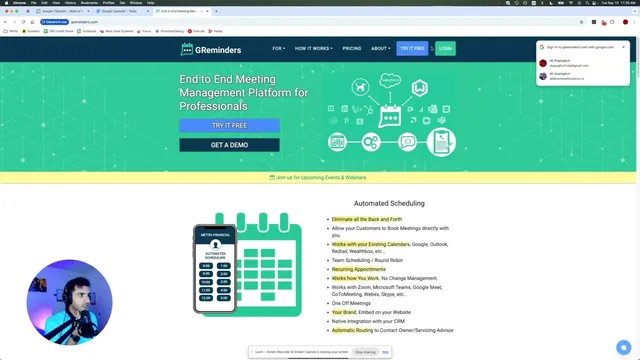
Second, reminders and phone behavior reduce the chance of missing scheduled blocks. A plugin called G reminders sends email alerts ahead of calendar events, but the advice is to use it selectively—only for high-impact items (for example, one key focus per day) so reminders don’t lose meaning. The biggest reason people fall off, though, is described as not reaching the calendar page amid distraction and notification overload. The solution is app blocking on the phone: during set hours, only essential apps like Calendar and Notes remain usable while messaging, social apps, and other distractions are removed or hidden. A calendar widget placed on the phone keeps the schedule constantly in view, and cross-platform access ensures the same goals and blocks guide both computer and phone time.
Overall, the transcript links calendar mastery to intentional categorization, visible goals, task-to-block scheduling, proactive reminders, and a phone setup that protects attention—turning planned time into completed work.
Cornell Notes
The system for “mastering” Google Calendar centers on turning life goals into visible, color-coded time blocks. First, life is split into a small set of categories (like job, one or more businesses, and skill-building), and each category gets a clear goal that stays pinned at the top of the calendar for months. Color-coding then reveals whether time allocation matches priorities. Google Calendar Tasks are used as an integrated to-do list tied to those goals, with completed tasks leaving a visual record that supports momentum and self-esteem. Finally, reminders (via G reminders) and phone app blocking reduce the two main failure modes: forgetting scheduled events and getting distracted before opening the calendar.
How does keeping category goals visible prevent calendar plans from drifting when new emails or opportunities arrive?
Why does color-coding matter beyond aesthetics in this scheduling system?
What role do Google Calendar Tasks play compared with a separate to-do app?
How does G reminders reduce missed commitments, and what’s the caution about using it?
What’s the biggest reason people fail to stick to a calendar schedule, and how does app blocking address it?
Review Questions
- If you had to choose 3–5 life categories for the next quarter, what specific goals would you pin to the top of Google Calendar, and how would you use them to filter new opportunities?
- How would you convert one broad goal (e.g., “progress on a business”) into 2–4 Google Calendar Tasks that can be scheduled into existing free time blocks?
- What combination of reminders and phone restrictions would you set up to ensure you actually open the calendar at the right time, without turning reminders into background noise?
Key Points
- 1
Define a small set of life categories and write a clear goal for each, then keep those goals pinned at the top of Google Calendar for months.
- 2
Use color-coding to make time allocation visible, so mismatches between priorities and scheduled hours are obvious and fixable.
- 3
Turn goals into concrete Google Calendar Tasks that can be placed into available time blocks rather than left as vague to-dos.
- 4
Leverage the visual “scratch-off” completion effect of Tasks as evidence of progress to build momentum and self-esteem.
- 5
Use G reminders selectively for high-impact events (for example, one key focus per day) to avoid reminder fatigue.
- 6
Treat phone distraction as a scheduling failure mode: use app blocking and a calendar widget so the calendar stays in view and accessible.
- 7
Keep the system cross-platform so the same goals and time blocks guide both computer and phone work.