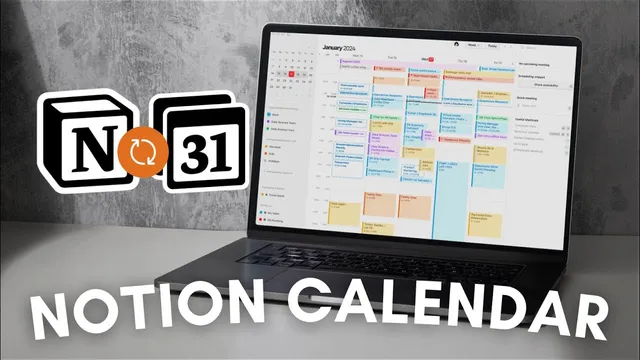
MASTER your schedule with Notion Calendar? | Full Guide (2024)
Based on The Organized Notebook's video on YouTube. If you like this content, support the original creators by watching, liking and subscribing to their content.
Notion Calendar merges Google Calendar and Notion database calendars into one view, enabling side-by-side scheduling.
Briefing
Notion Calendar brings Google Calendar and Notion database calendars into one shared scheduling view—so events created in either system appear side by side, with Notion’s database structure powering richer organization. That “single place for both” is the core value: people who plan in Notion but also rely on Google can finally stop context-switching and manage everything from one calendar interface.
Setup starts with connecting a Notion workspace to Notion Calendar through Integrations. Once connected, users can add Notion database calendars directly from the left sidebar by selecting a Calendar View database (and optionally Timeline View). A key constraint matters early: linked view databases won’t show up in Notion Calendar, so the calendar must exist as a Calendar View in the main database. After adding a database, existing items appear immediately, and users can also add events from within Notion Calendar—either by typing to create a new entry or by dragging on the calendar grid. Those Notion Calendar-created events then sync back into the underlying Notion database.
Filtering is handled through Notion database views. By tagging events (for example, “personal” vs “work”) and duplicating filtered views, users can open separate filtered calendars inside Notion Calendar. Toggling these views on and off lets the same database power multiple calendar layers—showing only the events that match each filter. The tradeoff: the filtered calendar names aren’t editable in the calendar interface itself, so users must rely on the filter naming shown beneath.
Google Calendar integration follows a similar pattern: connect Google accounts in Notion Calendar settings, then toggle which Google calendars appear. Google events retain familiar Google features like repeats, participants, conferencing, and location. Notion Calendar events, by contrast, show a simpler view inside the Google-style calendar layer, but can be opened in Notion for full details. Users can also add events from either side: dragging and creating events in Notion Calendar sync into Notion databases, while creating in Google Calendar syncs into Google.
A standout workflow connects Notion pages to Google events. Through Google Calendar’s docs/links area, users can create a new Notion page (or add an existing one) for meeting notes and attach it to a specific event—turning scheduling into a documentation pipeline. Notion Calendar also supports a macOS/desktop-style menu bar experience: enabling the menu bar shows upcoming events in the top bar even when the main app is closed, with controls for how many days appear and whether to include all-day events or events lacking participants/conferencing.
Power-user features round out the guide: keyboard shortcuts (including Command/Control K for command search), quick switching between month/week/day views, and time zone support (available in week/day views) to display multiple zones like PST and EST. For availability management, Notion Calendar enables event blocking on Google calendars (showing busy vs full details) and offers shareable availability links similar to Calendly, where users mark open time slots and send a link for others to pick times. Customization includes adding icons and colors to events, making different event types easier to scan at a glance.
Cornell Notes
Notion Calendar unifies Google Calendar and Notion database calendars in one interface, letting users see and create events across both systems without switching apps. It starts by connecting a Notion workspace, then adding a Notion database Calendar View (linked view databases won’t appear). Users can create filtered “personal” and “work” calendar layers using tags and duplicated filtered views. Google Calendar accounts can be connected too, with Google events keeping features like repeats, participants, conferencing, and location, while Notion events can be opened for full details. The guide also highlights menu bar event previews, command search (Command/Control K), time zone display, busy-blocking on Google calendars, and shareable availability links for scheduling.
What’s required for a Notion database to show up as a calendar inside Notion Calendar?
How can a single Notion database power separate “personal” and “work” calendars?
What changes when viewing Google Calendar events versus Notion Calendar events inside the unified calendar?
How do users attach Notion pages to Google Calendar events for meeting notes?
Which features help with scheduling across time zones and managing availability?
How does event blocking work between Notion Calendar and Google Calendar?
Review Questions
- Why do linked view databases fail to appear in Notion Calendar, and what alternative view type must be used?
- Describe a workflow to create separate personal and work calendar layers from one Notion database.
- What are the main differences in how Google Calendar events and Notion Calendar events display, and how can users access full details for Notion events?
Key Points
- 1
Notion Calendar merges Google Calendar and Notion database calendars into one view, enabling side-by-side scheduling.
- 2
A Notion database must use a Calendar View (linked view databases won’t show) to appear in Notion Calendar.
- 3
Filtered calendar layers can be built by tagging events (e.g., personal/work) and duplicating filtered views, then toggling them in Notion Calendar.
- 4
Google Calendar integration preserves Google features like repeats, participants, conferencing, and location, while Notion events require “open in notion” for full details.
- 5
Notion Calendar supports adding events from the calendar interface and syncing them back into the underlying Notion database.
- 6
Menu bar settings let users preview upcoming events system-wide, with controls for what types of events appear.
- 7
Time zone display, busy-blocking on Google calendars, and shareable availability links help coordinate meetings across people and schedules.