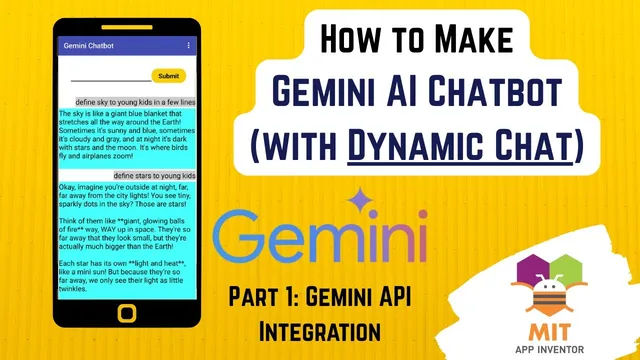
MIT App Inventor Chatbot using Google AI - Gemini (Dynamic Chat ) - Pt 1: Gemini API - Full Tutorial
Based on Obsidian Soft's video on YouTube. If you like this content, support the original creators by watching, liking and subscribing to their content.
Get a Gemini API key through Google’s developer flow and keep it private to avoid unauthorized usage.
Briefing
A working MIT App Inventor chatbot can be built by wiring a Web component to Google’s Gemini API and then parsing the returned JSON into text for display. The payoff is immediate: user questions typed into a text box trigger a POST request to Gemini, and the app receives a model reply that can be shown in the interface—laying the groundwork for a chat-style UI.
The build starts with getting a Gemini API key from Google’s developer flow (“Start building” → “Gemini API” → “Get your API key”). The tutorial emphasizes that the key must be kept private, especially if usage moves to a paid billing plan. It also notes practical limits for student-level experimentation—roughly 500 requests per day—before moving into the app setup.
In MIT App Inventor, the interface is arranged for chat input and scrolling output. A horizontal layout holds a bold “question txt” text box (about 70% width) and a bold orange “submit button” (about 20% width). Beneath that, a vertical scroll arrangement (about 75% height) is reserved for chat messages. A temporary label is placed inside the scroll area solely to confirm connectivity; it will later be replaced by the dynamic message components.
On the logic side, a submit-button click event constructs a Gemini API URL and sends a web request using the Web component’s post-text procedure. The curl-style request is translated into App Inventor blocks: headers include content type application/json, and the JSON body is built through nested dictionaries and lists. The request body follows Gemini’s chat schema, sending the user’s question text under the appropriate “contents” → “parts” → “text” structure. After the request is sent, the question text box is cleared to prepare for the next prompt.
When the response returns, the app decodes the JSON response content into a dictionary using App Inventor’s JSON text decode with dictionaries. From that decoded structure, the reply is extracted by navigating keys and list indices—specifically pulling the first candidate’s content parts text. The tutorial highlights the need for careful spelling and correct “not found” fallbacks (empty lists/dictionaries) so the app doesn’t crash if the response shape differs.
Finally, the extracted reply text is placed into the temporary label to verify the end-to-end flow. The chatbot is confirmed to work by seeing Gemini’s response appear after submitting a question. The tutorial then tees up the next step: upgrading the UI to a WhatsApp/messenger-like chat experience using MIT App Inventor’s dynamic components extension, with the dynamic message labels using different background colors for user versus Gemini responses—handled in a follow-up part of the series.
Cornell Notes
The core build wires MIT App Inventor to Google’s Gemini API so a user can type a question, press submit, and receive a model-generated reply. The app constructs a JSON POST request (with content type application/json) by nesting dictionaries and lists to place the user text into contents → parts → text. After the Web component returns a response, JSON text decode with dictionaries converts it into a dictionary, and the reply is extracted from the first candidate’s content parts text. A temporary label is used first to confirm connectivity before replacing it with dynamic chat message components in the next tutorial part. This matters because it turns a static app into a functional AI chat client with a clear path to a polished chat UI.
How does the app send a user’s question to Gemini from MIT App Inventor?
Why is JSON parsing the most fragile part of the integration?
What does the tutorial use to confirm the API connection before building the full chat UI?
What practical constraint is mentioned for using the Gemini API key at student level?
How does the UI layout support a chat experience even before dynamic components are added?
Review Questions
- What exact JSON nesting does the app use to place the user’s message into the Gemini request body?
- Which keys and list positions are used to extract the model’s reply from the decoded Gemini response dictionary?
- How does the temporary label help validate the integration before dynamic chat bubbles are implemented?
Key Points
- 1
Get a Gemini API key through Google’s developer flow and keep it private to avoid unauthorized usage.
- 2
Build the MIT App Inventor UI with a horizontal input row (question txt + submit button) and a vertical scroll area for outputs.
- 3
On submit, send a Web component post-text request with headers set to content type application/json.
- 4
Construct the request JSON using nested dictionaries/lists so the user text is sent under contents → parts → text.
- 5
Decode the returned JSON using JSON text decode with dictionaries and extract the reply from candidates → content → parts → text.
- 6
Use “not found” fallbacks (empty lists/dictionaries) to prevent crashes when response fields are missing.
- 7
Verify end-to-end behavior by placing the extracted reply into a temporary label before upgrading to dynamic chat components.