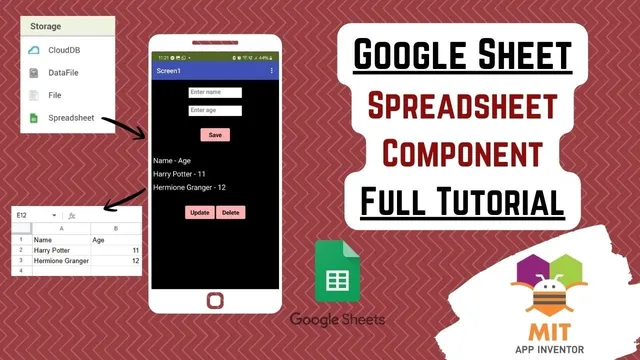
MIT App Inventor Google Sheets Tutorial (Easy) - Google Sheets App Inventor (Spreadsheet component)
Based on Obsidian Soft's video on YouTube. If you like this content, support the original creators by watching, liking and subscribing to their content.
Enable both the Google Sheets API and Google Drive API in Google Cloud Console for the service account to access sheet data.
Briefing
MIT App Inventor’s built-in spreadsheet component can read and modify Google Sheets rows—but only after setting up Google Cloud credentials and wiring the sheet ID and JSON key into App Inventor’s Storage settings. The workflow starts in Google Cloud Console: create a project, enable the Google Sheets API and Google Drive API, then generate a service account key (JSON). That service account email must be granted access to the target Google Sheet via the sheet’s Share dialog. Once the JSON file is uploaded into App Inventor and the spreadsheet ID is pasted, the spreadsheet component becomes usable inside the app.
After setup, the app’s logic centers on treating sheet data as a list of rows. On screen initialization, the app calls “Read Sheet” for the worksheet name (defaulting to “sheet one”). When the “Got Sheet Data” event fires, it clears a global students list and rebuilds it by iterating through each returned row. Each row’s first two columns—name and age—are combined into a single display string using a separator (space-hyphen-space). That combined list then populates a ListView, enabling the UI to show and select entries.
CRUD operations follow a consistent pattern: validate selection, call the appropriate spreadsheet method, then reload the sheet when the operation finishes. The delete button checks the ListView selection index to ensure the user selected a real data row (index > 1), preventing accidental deletion of the header row (column titles). If valid, it calls “Remove Row” with the sheet name and the selected row index; on “Finished Remove Row,” the app reads the sheet again and shows a confirmation alert. If nothing valid is selected, it uses a notifier alert to prompt the user to choose a proper data row.
The save button doubles as both “add” and “update.” It first verifies that both the name and age text boxes are not empty; otherwise it alerts the user to enter both fields. It then uses the ListView selection index to decide whether to insert a new row (selection index == 0) or update an existing one. For adding, it calls “Add Row” with a two-item list containing the entered name and age. For updating, it calls the “Update Row” procedure using the selected row index and the same two-item payload. After “Finished Add Row” or “Finished Write Row,” the app reloads the sheet and clears the input fields.
The update button performs similar validation and selection checks, but it also reconstructs the separate name and age values from the ListView’s joined string. It splits the selected text at the separator (“ - ”) to recover two items, then writes them back into the name and age text boxes so the user can edit. The tutorial closes by noting that the spreadsheet component supports more than row-level CRUD—such as updating specific columns, filtering data, and reading particular cells—once the credential and spreadsheet ID setup is in place.
Cornell Notes
The tutorial shows how to connect MIT App Inventor to Google Sheets using the Storage spreadsheet component. The key steps are enabling the Google Sheets API and Google Drive API in Google Cloud Console, creating a service account, downloading its JSON key, and granting that service account access to the target sheet. In App Inventor, the JSON key is uploaded into the spreadsheet component settings, and the spreadsheet ID is extracted from the sheet URL. The app then reads rows on screen initialization, builds a ListView from the first two columns (name and age), and implements CRUD: delete removes a selected data row (not the header), save adds or updates based on selection index, and update repopulates text boxes by splitting the selected “name - age” string.
What Google Cloud Console steps are required before App Inventor can access a Google Sheet?
How does the app turn Google Sheets rows into something a ListView can display?
Why does the delete button check the ListView selection index, and what rule does it enforce?
How does the save button decide between adding a new row and updating an existing one?
How does the update button restore separate name and age values from the ListView selection?
Review Questions
- What exact combination of Google Cloud API enablement, service account permissions, and App Inventor spreadsheet settings is necessary for authentication to work?
- Describe the data transformation pipeline from Google Sheets columns to the ListView display string, including the separator.
- How do the delete, save, and update buttons each use ListView selection index to avoid touching the header row and to choose the correct spreadsheet operation?
Key Points
- 1
Enable both the Google Sheets API and Google Drive API in Google Cloud Console for the service account to access sheet data.
- 2
Create a service account, download its JSON key, and upload that JSON into App Inventor’s spreadsheet component credentials.
- 3
Grant the service account email editor access to the target Google Sheet via the sheet’s Share settings.
- 4
Extract the spreadsheet ID from the sheet URL and paste it into the spreadsheet component configuration (the ID between the URL path segments).
- 5
On screen initialization, read the sheet and rebuild a ListView-friendly list by joining the first two columns (name and age) with a consistent separator.
- 6
Use ListView selection index checks to prevent deleting or updating the header row; require selection index > 1 for delete.
- 7
Implement save as add-or-update by branching on selection index, then reload the sheet after the corresponding finished event.