My Task and Project Management Workflow in Obsidian MD (Plugins, Templates, Guide, and Tips)
Based on John Mavrick Ch.'s video on YouTube. If you like this content, support the original creators by watching, liking and subscribing to their content.
Every task and project is stored as its own Obsidian note, and Dataview queries assemble them into hub dashboards and daily views automatically.
Briefing
A modular task-and-project system in Obsidian is built around one core idea: every project and task lives as its own note, while Dataview queries and task-creation plugins keep those notes automatically organized into “hub” lists for planning and execution. The payoff is an all-in-one planning workflow that works on both PC and mobile, with tasks filtered by due date, completion status, tags, and project time frames—so daily planning stays fast even as the backlog grows.
The setup starts with a small set of hub notes that act like dashboards. A main projects note tracks active projects by time frame and also lists completed ones. Each project note contains a task list plus planning prompts, so breaking a project into sub-tasks feels like extending a traditional to-do list rather than starting over. In parallel, a to-do hub note aggregates all tasks, with separate notes used to isolate project-related items and “someday/maybe” tasks. Daily planning is handled in a daily note that pulls in tasks sorted by size, giving a quick view of what matters most and what fits the day.
To make the system work, the workflow relies on community plugins—especially tq, Templater, and Dataview. tq provides a UI for creating tasks that then become separate notes via search queries, enabling tag- and value-based organization. Templater is used more lightly, but it becomes important for the project template: the template can be inserted automatically when a project note is created. Dataview powers the indexing and filtering that populate the hub notes and daily views. Optional add-ons include Quick Add for macros, Admonition for styled blocks, and Checklist for a more visual task UI.
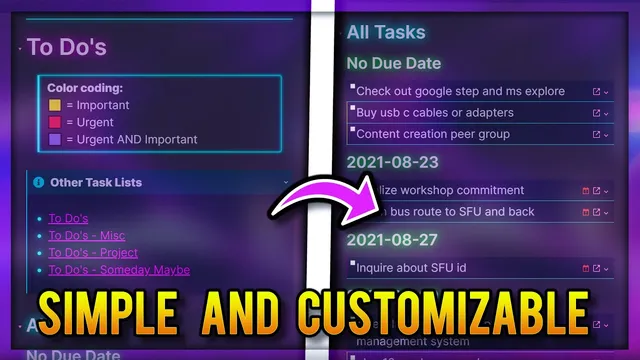
The notes and templates are organized so they can be copied from a GitHub repository. The “to-dos hub” includes a legend for color coding, a tag strategy for Dataview indexing, and Dataview queries that group and sort tasks by due date as well as list completed tasks. Project notes add required fields—most importantly a completed status used by Dataview queries—along with time-frame grouping (though importance, deadlines, or other categories can be used instead).
Templates are where customization happens. The task note itself is treated as fixed, but the project template is built from scratch and can be modified. The only mandatory value is completed, while additional fields like deadline or hibernating can be added. The workflow also borrows a meta-template approach inspired by Brian Jenks: project notes can be prefixed with a tilde so the project template auto-inserts when the meta template runs.
Execution ties everything together through consistent tagging. Tasks are created with tq and labeled by importance/urgency using the Eisenhower decision matrix, plus size tags (small/medium/large) so the daily note can sort them. Dailies and habits can be handled either inside Obsidian or via Habitica; the transcript notes that dailies and habits are incorporated into Habitica, while one-time tasks are handled as Obsidian notes. A practical example walks through creating a weekly project note, filling in fields like deadline and completed, tagging it for Dataview filtering, then creating sub-tasks (e.g., downloading templates and notes, planning projects) with due dates and tags so they appear immediately in the to-dos list. When tasks are checked off, they move into completed sections; when a project is marked completed, it drops out of the active list and reappears under completed projects.
Cornell Notes
The system turns projects and tasks into individual Obsidian notes, then uses Dataview queries to assemble them into hub dashboards and daily views. tq creates tasks as separate notes, while Templater injects a project template automatically (via a tilde prefix and a meta-template approach inspired by Brian Jenks). Project notes require a completed field so Dataview can filter active versus finished work, and tasks use consistent tags for due date, size, and Eisenhower-style importance/urgency. The result is a planning workflow where daily scheduling stays quick because the right tasks and project sub-tasks appear automatically based on tags and time frames.
How does the workflow keep projects and tasks organized without manual copying between lists?
What roles do tq, Templater, and Dataview play in the system?
Why is the “completed” field on project notes so important?
How does the system prioritize tasks and make daily planning manageable?
How are dailies and habits handled compared with one-time tasks?
What is the practical tagging workflow when creating a weekly project and its sub-tasks?
Review Questions
- What metadata fields and tags must exist for Dataview queries to correctly populate the to-dos hub, projects hub, and daily note?
- How does the tilde-prefix + meta-template approach change the speed of creating new project notes?
- In what way do size tags and Eisenhower priority tags work together to shape the daily task list?
Key Points
- 1
Every task and project is stored as its own Obsidian note, and Dataview queries assemble them into hub dashboards and daily views automatically.
- 2
tq is used to create tasks as separate notes, enabling tag-based organization and fast creation via hotkeys.
- 3
Project notes require a completed field so Dataview can reliably separate active projects from finished ones.
- 4
Consistent tagging—time frame, project category, task category, size, and Eisenhower importance/urgency—drives sorting and filtering across the system.
- 5
Templater is used primarily to auto-insert a project template when new project notes are created, using a tilde-prefix meta-template pattern inspired by Brian Jenks.
- 6
Daily planning is powered by Dataview queries that sort tasks (notably by size), keeping scheduling focused and quick.
- 7
Dailies and habits can be managed in Habitica, while one-time tasks remain Obsidian notes created through tq.