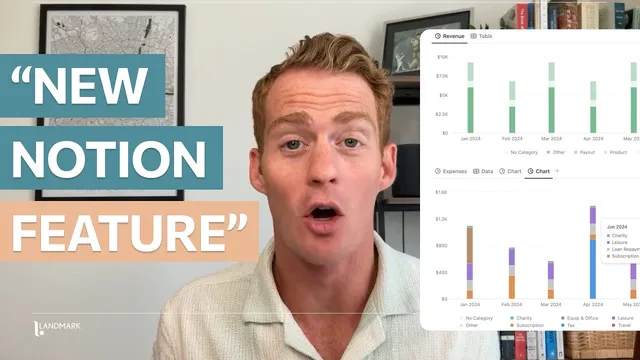
NEW: How To Create Your Own Charts In Notion (Finally!) Full Tutorial
Based on Landmark Labs's video on YouTube. If you like this content, support the original creators by watching, liking and subscribing to their content.
Notion Charts always pair a visualization with a database data source—either an existing table or a new database created by a blank chart.
Briefing
Notion’s newly released Charts feature turns any database into interactive visuals—without leaving the workspace—by pairing a chart visualization with a data source. The practical payoff is speed: instead of rebuilding charts in spreadsheets, users can generate bar, line, and donut-style views directly from existing tables (like an expenses database), then filter, group, and style them to match the exact questions a dashboard needs.
Charts work as two linked components. First comes the database: a chart always has a data source, either an existing one or a blank chart that creates its own new database. In the tutorial’s financial example, the expenses database includes fields such as expense name, a numeric value, a category tag, a payment status, and a formula-derived “overdue/paid/upcoming” indicator. The second component is the visualization layer, where Notion maps database properties into chart axes and aggregation settings.
To build a chart, users create a chart view and choose a database source. Notion then prompts for the x-axis and y-axis logic. For a bar chart of expenses over time, the x-axis is set using the due date property. Notion offers granular breakdowns—day-by-day or month-by-month—so choosing “month” automatically buckets items into calendar months. On the y-axis, Notion defaults to counting items, but for numeric fields like “value,” it provides aggregation options such as sum, average, min, and max. Selecting “sum” produces a month-by-month total of expenses, yielding a clean bar chart that highlights spending patterns and outliers.
The same mechanics extend beyond time series. Using a category property on the x-axis enables category breakdowns of spending, and switching to a donut chart can make those proportions easier to read. Line charts are positioned as the better fit for time-based trends and cumulative totals—such as tracking expenses as they accumulate across the year.
A key upgrade is “group by,” which adds a third variable. With group by enabled, each bar can be split by category, producing a stacked-style breakdown with an on-hover legend that highlights which categories contribute to each month’s totals. Charts also inherit database filtering: users can apply simple filters (e.g., exclude “Living and Leisure” categories) or advanced filters (e.g., show only expenses where value exceeds $100), and the chart updates instantly.
Once a chart looks right, Notion supports exporting it as an image via “Save chart as,” making it easy to share visuals with a team or embed them into dashboards.
Beyond the core feature, the tutorial shares workflow hacks for faster dashboard building. One approach uses an automation that pre-creates a chart database with 12 months of dummy data and a link to a target, so adding new KPIs becomes mostly a matter of renaming and filling values. Another tactic duplicates an existing chart view to preserve its structure and filters, then adjusts only what’s needed. Finally, styling tweaks—like turning off crowded data labels, resizing chart height, and removing axis names—help keep dashboards readable when multiple charts sit side by side.
Cornell Notes
Notion’s Charts feature creates visuals by combining a chart visualization with a database data source. Users can build bar, line, and donut charts by mapping a property to the x-axis (time buckets like months or categories) and choosing what to measure on the y-axis (count or numeric aggregations such as sum). “Group by” adds a third variable, letting each month’s totals break down by category with an interactive legend. Charts support both simple and advanced filters, so dashboards can show only the relevant subset of data (for example, excluding personal categories or showing only expenses above a threshold). Charts can also be exported as images, and the tutorial recommends automation and duplication tactics to speed up dashboard setup.
How does Notion’s Charts feature connect visuals to data?
What determines what appears on a chart’s x-axis and y-axis?
Why switch from day-by-day to month-by-month for expenses?
When should a line chart or donut chart be used instead of a bar chart?
What does “group by” add to a chart, and how does it change interpretation?
How can filters be used to tailor charts for dashboards?
Review Questions
- What two components must exist for a Notion chart to work, and how do they relate to each other?
- Describe how you would build a monthly expenses chart from an expenses database, including the x-axis choice and the y-axis aggregation.
- How do group by and advanced filters change what a dashboard chart communicates?
Key Points
- 1
Notion Charts always pair a visualization with a database data source—either an existing table or a new database created by a blank chart.
- 2
For time-based charts, use due-date bucketing (like month) on the x-axis to avoid overly granular day-by-day clutter.
- 3
For numeric metrics such as expense “value,” switch the y-axis from count to an aggregation like sum to get meaningful totals.
- 4
Use donut charts for category proportions and line charts for time series or cumulative trends.
- 5
Add a third dimension with “group by” to break each bar into category contributions, with hover-based legend highlighting.
- 6
Apply simple and advanced filters directly on the chart to exclude categories or threshold values (e.g., value > $100).
- 7
Speed up dashboard creation by duplicating chart views or using automation to pre-generate a chart database with a time structure (like 12 months).