NEW Recurring Automations in Notion! | Best Use Cases & Tutorial
Based on The Organized Notebook's video on YouTube. If you like this content, support the original creators by watching, liking and subscribing to their content.
Recurring database automations in Notion run on a repeating “every” schedule and require a database plus a Plus (or higher) plan.
Briefing
Notion’s new recurring database automations let users schedule database actions on a repeating cadence—then pair those actions with edits, page creation, and even custom notifications. The practical payoff is that routine workflows (daily journaling, status rollovers, periodic check-ins) can run automatically on a set schedule, without manual reminders or one-off template setups.
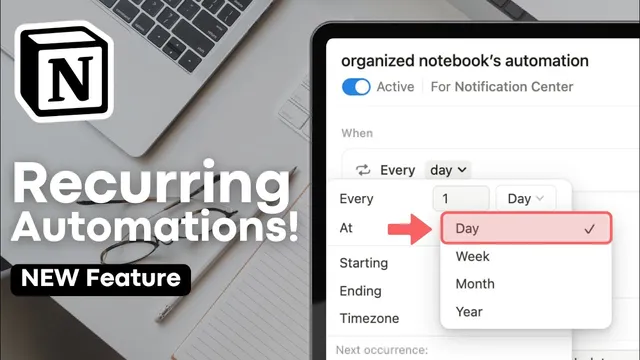
The setup starts with a database and a plan of Plus or higher. Users open the lightning-bolt automation menu, add a single trigger labeled “every” (with options like every day or every week), choose a time, set when the automation starts and ends, and confirm the next occurrence. Once added, the automation runs on that schedule and can perform actions such as adding a page to the database or editing an existing page. A key detail: the recurring trigger is the only trigger available in this automation type, but the actions can be broad—Notion can also send emails or notifications even when the automation isn’t tied to the database content.
A first use case demonstrates how to turn a daily journal into a scheduled prompt. Each day, the automation adds a new journal entry page to a “daily journal recurring” database and sends a notification to the user. The notification message can include a link to the newly created page by referencing the “page added” object, so the reminder isn’t generic—it jumps straight to that day’s entry. The result is a daily email-style message like “remember to journal today,” with a clickable link to the correct page.
Another example uses the recurring automation to run independently of a database workflow: every three months, it sends an email inviting employees to fill out a form (created via “/form”). The email includes a subject line, a custom message, and a link to the survey, and it can be configured to send to a group while showing BCC details.
For task management, the automation supports scheduled status transitions. A tasks database can hold columns such as “tomorrow” and “today.” At a set time (suggested before waking), the automation edits pages whose status equals “tomorrow,” changing them to “today.” That effectively rolls the queue forward daily, so tasks appear in the right column without manual moving.
The most elaborate workflow builds recurring, customized update emails using intermediary databases and formulas. One database (“daily task statuses”) relates to the main tasks database and computes counts and linked task lists via formula properties—such as number of overdue tasks and tasks due today—using filters like “not done” and due-date comparisons against today. A third “notification center” database acts as the email packaging layer: a daily automation adds a page to the notification center and sends an email whose body is assembled from the computed properties, including clickable links to the relevant tasks. The approach produces dynamic daily summaries that go beyond Notion’s native notifications, with email links working better than phone notifications for navigation.
Cornell Notes
Recurring database automations in Notion schedule database actions on a repeating cadence (e.g., every day or every three months). After setting a single “every” trigger with start/end times and time zone, users can add pages, edit pages, and send notifications or emails—sometimes even without referencing the database in the message.
Common workflows include creating a daily journal entry and notifying the user with a link to that day’s page, sending periodic form invitations by email, and rolling task statuses forward automatically (e.g., moving “tomorrow” tasks into “today”). For richer updates, the system can generate customized daily emails by using intermediary databases and formula properties to compute overdue counts and due-today task links, then assembling those values into an email body.
How does a recurring database automation get scheduled, and what constraints come with the trigger?
What’s the simplest way to use recurring automations for daily journaling reminders?
How can recurring automations send emails that aren’t directly tied to database updates?
How does the “status rollover” workflow work for tasks?
How can Notion generate a customized daily email summary with counts and clickable task links?
Review Questions
- When configuring a recurring automation, which settings determine the schedule (frequency, time, start/end, time zone), and how can users verify the next run time?
- In the daily journal example, how does the notification message become linked to the specific page created that day?
- For the daily task status email, what formula filters are used to distinguish overdue tasks from tasks due today?
Key Points
- 1
Recurring database automations in Notion run on a repeating “every” schedule and require a database plus a Plus (or higher) plan.
- 2
The recurring trigger is the only trigger available for this automation type; actions can include page creation, page edits, and sending notifications or emails.
- 3
Daily journaling can be automated by creating a new journal page each day and sending a reminder that links directly to that page.
- 4
Periodic outreach can be automated by scheduling email sends (e.g., every three months) that include form links, without needing the database to drive the email content.
- 5
Task status rollovers can be automated by filtering tasks with status “tomorrow” and editing them to “today” at a set time each day.
- 6
Dynamic daily summary emails can be built by using intermediary databases, relations, and formula properties to compute counts and task links, then assembling those values into an email body via a notification center workflow.