Note-taking in Notion? | Best Tips to Get You Started
Based on The Organized Notebook's video on YouTube. If you like this content, support the original creators by watching, liking and subscribing to their content.
Build dedicated Notion templates for Cornell, Review, Lecture, Charting, and Outline so each page matches a specific study workflow.
Briefing
Notion can be set up to support multiple note-taking styles—each with its own structure—so studying, reviewing, and tracking tasks becomes faster and easier to navigate. The core approach is to build dedicated page templates (Cornell, Review, Lecture, Charting, and Outline), duplicate them as needed, and then use Notion’s formatting and navigation tools (headings, toggles, callouts, comments, mentions, and embedded content) to make notes more searchable and actionable.
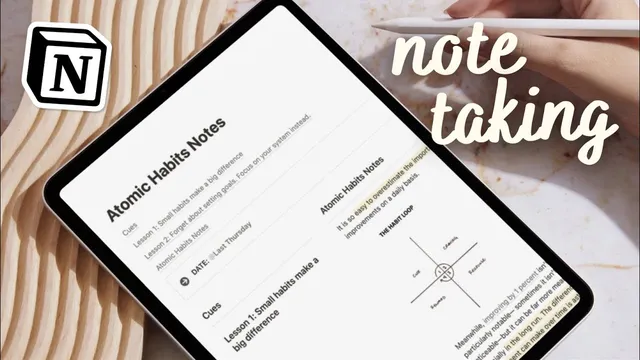
The Cornell note layout starts with a clear title and space-saving settings like “small text” and “full width.” A callout box is used for the date (including quick stamping via “@today”), followed by a two-column structure: a left column for cues and a right column for the actual notes. The workflow is straightforward—write notes on the right (using bullets and sections), then add cue labels on the left (e.g., Q1, Q2) so recall is built into the page. A final callout box at the bottom serves as a summary of the entire set of notes.
For exam prep and self-quizzing, a Review-style page organizes content as main topics paired with questions and answers. The structure relies on collapsible sections using toggles, so each question can be hidden or revealed during practice. Once the format is working for one topic, it can be duplicated quickly (via the “six dots” menu or Control/Command D), and pasted to create additional topics with consistent formatting.
Lecture notes combine reference management with study structure. A callout box captures the lecture date, then a “Resources” section holds bookmarks (duplicated as needed) so key references stay one click away. Below that, headings for “Summary and Key Points” and “Questions” keep the learning organized, with toggles used for question-and-answer blocks. An “Action Plan” section uses a to-do list to track follow-up tasks like homework or review items.
When topics share similar attributes, the Charting method uses a table to compare categories side-by-side. Columns represent topics, while rows or category headers hold comparable fields (such as language, cultural features, or other attributes). Visual formatting—like gray column backgrounds and bold headers—helps the table read clearly, and column widths can be adjusted for longer notes.
For simpler organization, the Outline method breaks content into a main topic, subtopics, and supporting examples. Subtopics are created as separate lines, and Tab is used to indent supporting details under each subtopic. A callout box at the end provides a summary, reinforcing retention.
Beyond building note pages, Notion’s template workflow is emphasized: duplicate existing pages using the “six dots” menu, or store templates in a note database using “plus new template,” then paste in the formatted page content. The transcript also highlights practical productivity features—text highlighting (bold, underline, background color), comments with resolution and reactions, mentioning other pages to link notes, generating a table of contents from headings, and embedding external resources like Google Drive items, tweets, GitHub content, Google Maps, and Figma files directly into notes. The result is a system where notes aren’t just written—they’re structured for review, navigation, and follow-through.
Cornell Notes
Notion can be organized into repeatable note templates that match how people study: Cornell for cue-based recall, Review for question-and-answer self-quizzing, Lecture for resources plus summaries and action items, Charting for side-by-side comparisons, and Outline for hierarchical chunking. Each template uses Notion building blocks like callouts, columns, toggles, dividers, headings, and tables to keep content structured and easy to revisit. Templates can be duplicated quickly or stored in a database as selectable options, speeding up new note creation. Built-in navigation tools—headings powering a table of contents, page mentions linking related notes, and embedded references—make long notes easier to find and use. Together, these features turn note-taking into a workflow for review and action, not just storage.
How does a Cornell note page in Notion support recall?
What makes a Review-style note page effective for studying?
What sections should a Lecture note template include for both reference and follow-up?
When should the Charting method be used instead of a linear outline?
How does the Outline method create structure in Notion?
What Notion features help turn notes into an interconnected, navigable system?
Review Questions
- Which template structure would best support cue-based recall, and how is the cue area separated from the notes area?
- How do toggles change the way a Review-style page is used during studying?
- What’s the difference in purpose between the Charting method’s table layout and the Outline method’s indented hierarchy?
Key Points
- 1
Build dedicated Notion templates for Cornell, Review, Lecture, Charting, and Outline so each page matches a specific study workflow.
- 2
Use Cornell’s two-column cue/note layout and add a bottom summary callout to strengthen recall and retention.
- 3
Create Review pages with toggles for question-and-answer practice, then duplicate sections to scale across multiple topics.
- 4
For lectures, combine a resources area (bookmarks), structured summary/key points, Q&A toggles, and an action-plan to-do list.
- 5
Use the Charting method when comparing items with shared attributes, and format tables with bold headers and background colors for readability.
- 6
Duplicate templates quickly via the “six dots” menu or Control/Command D, or store templates in a database for one-click selection.
- 7
Leverage Notion’s navigation and interaction tools—headings with a table of contents, page mentions, comments, and embedded references—to make notes easier to revisit and connect.