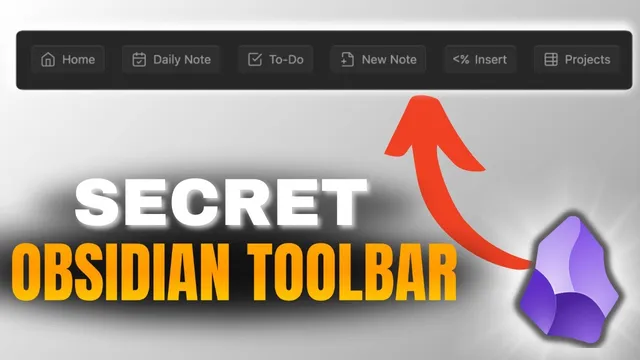
Note Toolbar: The Plugin Every Obsidian Mobile User Must Have
Based on Prakash Joshi Pax's video on YouTube. If you like this content, support the original creators by watching, liking and subscribing to their content.
Note Toolbar pins a customizable toolbar to the top of Obsidian notes, making common actions faster on mobile.
Briefing
Note Toolbar is an Obsidian plugin built to keep frequently used actions within thumb reach—by pinning a customizable toolbar at the top of notes. Instead of digging through menus or repeating multi-click workflows on mobile, users can add one-tap commands, file links, and URLs directly into a persistent toolbar. The payoff is most obvious on phones: creating a note from a template, jumping to daily notes, opening dashboards, or closing a note can otherwise require several taps in sequence.
A typical setup starts with creating a toolbar and giving it a unique name. Each toolbar item can be configured with an icon (or a label), a tooltip, and a target type: URL, file, or command. For example, one toolbar can include a link that creates a new note from a template via a command, a command to open today’s daily note, a command to open a task dashboard, and a close-note action. The plugin also supports light/dark switching commands, letting the toolbar act as a control panel rather than just navigation.
The plugin’s display rules determine where the toolbar appears. One approach uses a note property: when a note contains a property like “node toolbar: M toolbar,” the toolbar shows up on that specific note. Another approach uses folder mappings, which apply a toolbar across an entire folder (or set of folders). This matters when different note types need different toolbars—for instance, a general toolbar on “Home” notes versus a specialized toolbar on daily journals.
The transcript walks through stacking multiple toolbars for different contexts. After creating a daily-focused toolbar (with items like previous day, next day, weekly note, and links back to home), folder mapping is used to apply it to journal folders. When both toolbars apply to the same note, ordering becomes important: the daily toolbar can be moved above the general toolbar so it appears first.
Beyond touch navigation, Note Toolbar adds keyboard support. Hotkeys can be assigned for “note toolbar focus,” enabling users to move focus to the toolbar and then use arrow keys to select items—useful even on desktop when speed matters.
Finally, the plugin supports “call outs,” which allow toolbars to be embedded anywhere inside a note rather than only at the top. Using the toolbar call out syntax, users can place a toolbar mid-page, style it (including button-like appearance and borders), and even render dynamic content such as bookmarks via a data view query inside the toolbar area. The result is a flexible pattern: persistent mobile controls at the top, plus on-demand toolbars embedded throughout notes for dashboards, navigation, and quick access lists.
Cornell Notes
Note Toolbar for Obsidian creates customizable toolbars that stay visible at the top of notes, letting users trigger commands, open files, and follow URLs with one tap—especially helpful on mobile where multi-click workflows are slow. Toolbars are built from items configured as URL, file, or command targets, with icons, tooltips, and optional styling. Visibility is controlled either by note properties (show toolbar only when a note has a matching “node toolbar” property) or by folder mappings (apply toolbars across entire folders). Multiple toolbars can be stacked and reordered, and hotkeys can shift focus to the toolbar for keyboard navigation. “Toolbar call outs” extend the idea by embedding toolbars anywhere in a note, including styled button layouts and dynamic bookmark lists via data view queries.
How does Note Toolbar reduce friction on Obsidian mobile compared with manual navigation?
What are the main ways to define what appears inside a toolbar item?
How can a toolbar be shown only on specific notes versus across a whole folder?
What happens when multiple toolbars apply to the same note, and how is the order controlled?
How does keyboard control work for toolbars?
What are toolbar call outs, and how do they differ from top-of-note toolbars?
Review Questions
- When would you choose note properties over folder mappings for displaying a toolbar, and what exact property naming pattern is required?
- Describe how you would build a toolbar item that opens yesterday’s note if your setup uses the journals plugin rather than daily notes.
- How can toolbar call outs be used to create a dynamic bookmarks toolbar, and what role does a data view query play?
Key Points
- 1
Note Toolbar pins a customizable toolbar to the top of Obsidian notes, making common actions faster on mobile.
- 2
Toolbar items can target URLs, files, or commands, and each item can be given an icon/label plus a tooltip.
- 3
Visibility can be controlled per note using a “node toolbar” property or across folders using folder mappings.
- 4
Multiple toolbars can be stacked on the same note, and their display order can be adjusted so the most relevant toolbar appears first.
- 5
Hotkeys can shift focus to the toolbar, enabling keyboard navigation with arrow keys.
- 6
Toolbar call outs let users embed toolbars anywhere in a note and apply styling such as borders or button-like layouts.
- 7
Dynamic toolbars are possible by combining toolbar call outs with data view queries (e.g., rendering bookmarks).