Notion AI Custom Agents are HERE! | How to get started guide & tutorial
Based on The Organized Notebook's video on YouTube. If you like this content, support the original creators by watching, liking and subscribing to their content.
Custom Agents in Notion can run automatically via triggers like schedules, Slack messages, Google Calendar events, and email events.
Briefing
Notion’s new Custom Agents turn AI from a chat you prompt into an always-on workspace teammate that can run automatically—on schedules, in response to Slack messages, and when calendar or email events occur. The practical payoff is straightforward: teams can automate recurring work like weekly project summaries, keep internal help desks responsive by pulling from a company wiki, and sync data between Notion and external systems without stitching together multiple third-party automation tools.
Custom Agents are created from Notion’s left sidebar by adding a new agent (via a chat prompt, a template, or a blank setup). Once created, an agent gets an instructions area—structured like a Notion page—where it can be configured with slash commands and other block types. The agent’s behavior is then shaped by settings for tools and access: web access can be enabled or disabled, and access can be restricted to specific Notion pages to keep answers grounded in approved sources. A model can be selected, and an allow list of URLs can be used to bypass confirmation prompts for specific sites.
The most important control is triggers. Instead of manually asking the agent to act, triggers let it run automatically on a schedule (for example, weekly), in Slack when messages are posted, on Google Calendar events (such as when an event is created), or when emails are received to quickly generate tasks. Connections extend what the agent can do: with calendar access, the agent can read, create, update events, find time for participants, detect conflicts, reschedule meetings, and manage multiple calendar accounts. The transcript frames this as a way to replace “glue” automation that many teams previously handled with external tools.
A key governance layer is sharing and permissions. Custom agents can be shared with different access levels: full access (edit settings, interact, get notified, and share), can edit (edit settings and interact), or can view and interact (view settings but not change them). Only workspace members can chat with and use shared agents, and the setup supports a privacy pattern where departments can surface information from private databases without granting broad access—effectively enabling Q&A over restricted content.
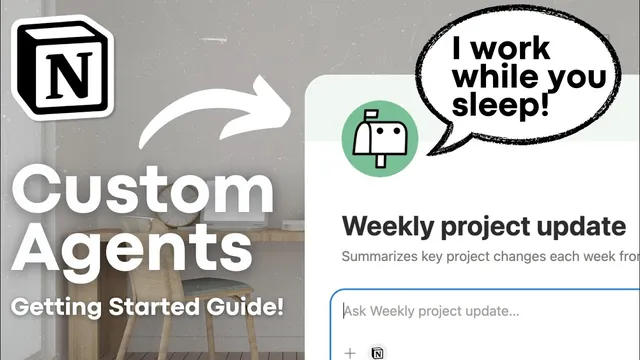
Real-world examples make the automation concrete. A “Workspace Help Desk Agent” answers questions by referencing a team wiki, with web access removed and page access limited to the wiki so answers stay accurate. A “Calendar Notion Sync” agent listens for triggers like event created/updated and property updates, then populates Notion from Google Calendar events. A “Weekly Project Update” agent runs every Friday at 12 a.m., adds pages to a weekly updates database, and sends an email with the compiled updates.
Finally, Notion AI settings add administrative controls over who can create agents (workspace members, owners only, or owners plus groups). Pricing is limited to Business and Enterprise plans, with an exploratory usage window until May 4th, after which credits will be required on a monthly basis for the workspace.
Cornell Notes
Custom Agents in Notion are configured AI assistants that can act automatically in a workspace—without needing someone to prompt them each time. They’re built with instructions (like a Notion page) plus tool/access settings (web access on/off, page restrictions, model choice, and URL allow lists). Triggers determine when they run: schedules, Slack messages, Google Calendar events, and email-based workflows. Sharing controls let admins limit who can edit agent settings and ensure only workspace members can use the agent. Examples include a help desk grounded in a team wiki, a Google Calendar-to-Notion sync, and a weekly project update agent that creates database pages and sends emails.
What makes a Custom Agent different from a typical AI chat in Notion?
How do instructions and access settings work together to keep answers reliable?
What trigger types are most useful for real automation?
How does calendar connectivity translate into concrete actions inside Notion?
How do sharing permissions support both collaboration and privacy?
What are the pricing and rollout constraints mentioned for Custom Agents?
Review Questions
- If you wanted a Custom Agent to send a weekly report, which trigger would you use and what additional connection might you need for email delivery?
- How would you configure a help desk agent so it answers only from a company wiki rather than the open web?
- What differences in sharing permissions would you apply if you wanted employees to use an agent but prevent them from changing its settings?
Key Points
- 1
Custom Agents in Notion can run automatically via triggers like schedules, Slack messages, Google Calendar events, and email events.
- 2
Agent behavior is shaped by instructions plus tool/access settings, including optional web access and restricted page access for grounded answers.
- 3
Connections expand what agents can do; calendar connectivity supports reading, creating, updating, conflict detection, and rescheduling.
- 4
Sharing controls determine whether others can edit agent settings, interact only, or also share and manage the agent.
- 5
Custom Agents can enable Q&A over private databases without granting broad database access to the whole workspace.
- 6
Notion AI agent creation can be restricted to workspace owners or owners plus groups through Notion AI settings.
- 7
Custom Agents are limited to Business and Enterprise plans, with an exploratory window until May 4th before credit-based pricing begins.