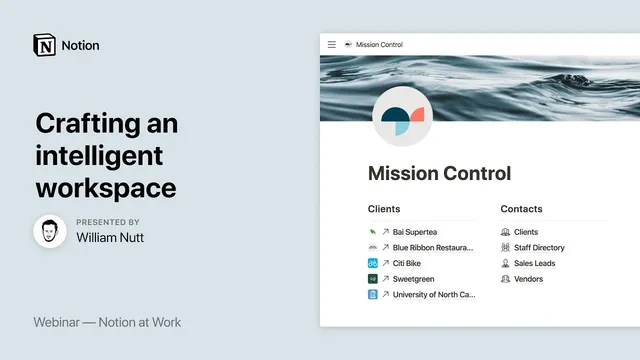
Notion at Work: Crafting an Intelligent Workspace
Based on Notion's video on YouTube. If you like this content, support the original creators by watching, liking and subscribing to their content.
Build an intelligent Notion workspace in two layers: centralize data in master databases, then create a separate home base for navigation.
Briefing
An “intelligent workspace” in Notion can be built by separating storage from access: centralize work into master databases, then create a home base that routes people to the right views. The payoff is a system that keeps information tidy through structured relationships, while still staying flexible as new projects, resources, and Notion features evolve.
The approach starts with centralizing information using PARA—an organizational method associated with Thiago Forte. PARA divides knowledge into four buckets: Projects (initiatives with outcomes and deadlines), Resources (reference materials used during projects), Areas (ongoing categories like Marketing or Accounting, often including client work), and Archives (completed or inactive items). In the demonstration workspace, a single top-level “data” page holds four master databases: Areas, Projects, Tasks, and Resources. Each database includes key properties that make the system workable at scale: Areas uses a select property to distinguish “internal” versus “client”; Projects includes a status select, a person property for the project manager, and an end date; Tasks includes a person property for the task owner, a date property for deadlines (without an end date), and a checkbox for completion; Resources stores files and media.
The real engine is Notion’s relational linking between those databases. Areas link to Projects via a relation property, creating a reciprocal “area” relation inside Projects. Projects link to Tasks the same way, producing a “project” relation inside Tasks. Resources link back to Areas, so resources can be filtered and surfaced by the relevant area. With those links in place, the system can use rollups and formulas—such as calculating project progress as a percentage of completed tasks and estimating days remaining for projects that are in progress or planned.
After the master databases are connected, the workspace becomes useful by populating them and then generating templates. Opening an Area page shows a snapshot: an overview, a table of contents, a projects board (a linked database filtered to only projects tied to that area, grouped by status), and a resources list (also a linked, filtered view). The same pattern repeats for Projects: a project page includes documents and, most importantly, a task list that’s a linked database filtered to tasks belonging to that project. Templates make duplication fast—copying the area and project page structures so new areas and projects automatically get the right layout.
The second prong creates access. A separate top-level “home base” page acts as the team’s navigation layer. It begins as a simple bullet list of what people need most often—typically Areas and Resources, with Projects reached through Areas and Tasks reached through Projects. Those items are converted into categorized columns with links. Some links jump directly to area or resource page blocks; others open new pages that host filtered linked databases—such as a staff directory gallery filtered to a specific team, a sales pipeline board grouped by pipeline stage, and tables for clients and vendors. The home base can also pull in recent newsletter posts via a linked database stored as a resource.
In short: master databases provide structure and automation through relations, while the home base provides intuitive entry points. Together, they create a workspace that’s both clean enough to manage and flexible enough to grow.
Cornell Notes
The system for an “intelligent workspace” in Notion relies on two layers: central storage and guided access. Central storage uses PARA-style master databases—Areas, Projects, Tasks, and Resources—on a single “data” page, with properties that capture status, ownership, and deadlines. Relation properties connect the databases (Areas→Projects, Projects→Tasks, Resources→Areas), enabling rollups and formulas like project progress and days remaining. Templates then turn those linked views into repeatable area and project pages. Finally, a “home base” page provides navigation by linking to filtered views (boards, lists, galleries) so teams can quickly reach the right information without digging through the master databases.
How does PARA map onto the database structure used for the workspace?
What do relation properties unlock once the master databases are connected?
Why use linked databases and filters inside Area and Project pages?
How does the “home base” page improve day-to-day usability?
What’s the recommended way to handle completed projects and hide finished tasks?
Review Questions
- If you had to add a new Area (e.g., “Operations”), what steps would you take to ensure it automatically gets the right projects board and resources list views?
- How would you design the properties and relations so that project progress can be calculated from task completion?
- Where should one-off tasks for individual staff members live in this system, and why?
Key Points
- 1
Build an intelligent Notion workspace in two layers: centralize data in master databases, then create a separate home base for navigation.
- 2
Use PARA-style buckets—Areas, Projects, Tasks, and Resources—mapped directly to four master databases on a single data page.
- 3
Connect databases with relation properties (Areas→Projects, Projects→Tasks, Resources→Areas) to enable reciprocal links, filtering, and rollups.
- 4
Use rollups and formulas on top of relations to compute metrics like project progress and days remaining.
- 5
Populate area and project pages using linked databases filtered to the relevant area or project, then duplicate the structure with templates.
- 6
Create a home base page that links to filtered views (boards, lists, galleries) so teams can find what they need without browsing master databases.
- 7
Handle completed work by filtering task lists using the Tasks “completed” checkbox rather than manually deleting or reorganizing items.