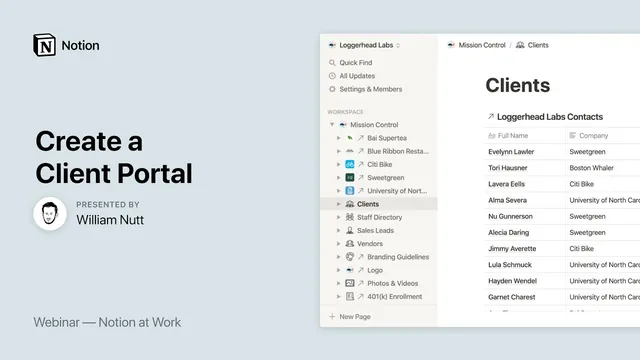
Notion at Work: Create a Client Portal
Based on Notion's video on YouTube. If you like this content, support the original creators by watching, liking and subscribing to their content.
Create a client-facing home page that acts as a gateway, and keep master databases on a separate internal data page.
Briefing
A client portal built in Notion can replace a constant stream of emails and scattered links by centralizing everything into one bookmarkable URL—then tailoring what clients see through filtered, linked views. The core idea is to keep “master” databases in a rarely visited data page, while clients interact with a polished home page that acts as a gateway to projects, updates, requests, resources, and accountability.
The setup starts with two pages: a data page (where the master databases live) and a client-facing home page (where clients actually work). The data page can be simple and even minimally branded because it’s meant for internal use. The home page is where the experience matters: it’s named for the client and company, uses a client-relevant icon and cover, and contains linked database blocks that present curated views of the underlying information.
From there, the portal’s structure is built around several “universally applicable” master databases. A Projects database tracks initiatives with fields like status (planned, in progress, complete), start and end dates, and a priority/sequence property to enforce focus—helping prevent clients from juggling too many requests at once. Relation properties connect each project to other master databases, enabling the portal to show only what’s relevant to a specific project.
An Events and Updates database logs client meetings (calls, video conferences, in-person sessions) and also stores client-facing updates that might otherwise arrive as long emails. Each entry includes a category, date range support, and a relation back to the Projects database. For meetings, the portal uses a template-driven structure: agenda items, meeting notes, and action items with owners and due dates. Templates reduce repetition and keep every meeting page consistent.
To keep clients accountable, a Requests database lists information the client must deliver. Each request includes status and urgency, detailed notes, and a relation to the relevant project—so outstanding items remain visible and referenceable. Finally, a Resources database serves as a catch-all for deliverables and supporting materials: files and media, policies and procedures, testimonials, product catalogs, tutorials, and even reusable templates like a project overview framework.
The home page then becomes a set of curated linked views. It typically shows only active projects (filtering out completed ones by status), frequently viewed resources (using a checkbox property), and a calendar-style view of meetings and events. Requests appear in a default view filtered to outstanding items, with an alternate view for delivered requests.
A key practical takeaway is that Notion’s single-URL sharing model reduces link sprawl: clients bookmark one destination and return to it for everything. For friendlier URLs, the workflow suggests using a service like Rebrandly to create memorable links such as company.com/client.
In Q&A, limitations surface: sharing filtered views of a database without granting full access isn’t available in the way this ideal setup would require, so task visibility often needs separate databases for client-accessible tasks versus internal task management. Still, the portal design demonstrates how far relational databases, templates, and linked views can go toward a structured, accountable client workflow.
Cornell Notes
The portal design centers on one client-facing Notion home page that links to internal “master” databases stored on a separate data page. Clients get a single bookmarkable URL, while the underlying structure uses relational database links to show only what matters for each project. Projects are tracked with status and a priority/sequence field to prevent scope drift and keep work focused. Meetings and updates are organized in an Events and Updates database, supported by templates for agendas, notes, and action items. Requests and Resources add accountability and deliverables, with the home page filtering to show outstanding requests and frequently viewed materials by default.
Why split the workspace into a rarely visited data page and a client-facing home page?
How does the Projects database keep clients from losing track of priorities?
What role do relation properties play across the portal’s databases?
How are meeting pages standardized without rebuilding structure each time?
How does the portal create accountability for client deliverables?
What limitation came up regarding sharing database views with clients?
Review Questions
- If a client portal shows only active projects by default, what specific database property and filter behavior make that possible?
- How would you use relation properties to ensure that a project page displays only its relevant requests and resources?
- What template elements would you include to standardize meeting agendas and action items for repeatable client collaboration?
Key Points
- 1
Create a client-facing home page that acts as a gateway, and keep master databases on a separate internal data page.
- 2
Use a Projects database with status and a priority/sequence field to control focus and manage expectations.
- 3
Store meetings and client updates in an Events and Updates database, and standardize meeting structure with templates for agenda, notes, and action items.
- 4
Track client deliverables in a Requests database with status and urgency, and default the home page view to outstanding requests.
- 5
Centralize deliverables and supporting materials in a Resources database, using properties like category and a “frequently viewed” checkbox to filter what clients see first.
- 6
Build the home page from linked database blocks that filter by relations (project-specific) and by client-friendly criteria (active only, frequent resources only).
- 7
Use a single memorable URL (optionally via Rebrandly) so clients bookmark one destination instead of juggling many email links.