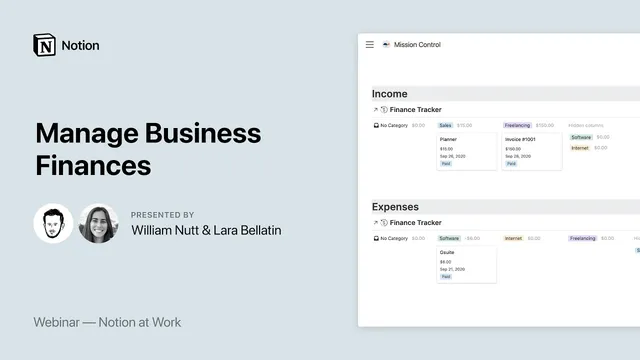
Notion at Work: Manage Business Finances
Based on Notion's video on YouTube. If you like this content, support the original creators by watching, liking and subscribing to their content.
The system separates planned vs paid cash flow using Notion formulas so expected transactions don’t inflate month-end totals.
Briefing
A Notion-based finance system can run a small business end-to-end—tracking income and expenses, generating month-end reports, and tying invoicing and client updates to the same project timeline—without manual spreadsheet juggling. Laura Bellatine’s setup centers on three linked layers: a finance tracker for transactions, a reporting engine for time-range summaries, and a per-project “client side” workspace that bundles proposals, invoices, payment status, and a client portal.
The finance tracker acts as the operational backbone. Transactions are organized with categories (like materials, software, and cells), amounts, statuses, and dates, plus relations to the relevant project and—when working in teams—an assigned owner. Crucially, it distinguishes planned versus paid cash flow using Notion formulas. A planned expense or expected income can be recorded with a future payment date; until it’s marked paid, it doesn’t count toward that month’s totals. Bellatine also builds multiple views for different decision styles: a status board for quick drag-and-drop triage, a payment calendar to visualize when money is expected to land, and category-grouped boards for spotting where spending or revenue concentrates.
For reporting, the system borrows the logic of payment summaries seen in tools like PayPal. A date-range “picker” at the top drives the rest of the page, and every view is filtered automatically so new pages inherit the same constraints. Month-end reporting becomes a matter of selecting a start and end date, then reviewing income and expenses by category and totals for paid items. The same underlying data can feed charts and embeds, letting financial summaries flow into dashboards rather than living in separate documents.
The third layer connects finance to client work. Each client project uses a template that includes a proposal (with a table of contents, callout blocks for emphasis, business “about” content, objectives, process steps, pricing, and a schedule), an invoice (minimal but structured with company and client details, due dates, line items, taxes, totals, paid and balance fields), and a client portal that mirrors the proposal and exposes accounting and objectives. A project timeline ties delivery milestones to tasks and payments, and the finance tracker is embedded within the project so clients and internal teams can see payment status in context. Bellatine also highlights a newer Notion feature—backlinks—so invoice entries can link directly to the invoice page with a single click.
In the Q&A, the discussion shifts to automation and permissions. Notion’s API for integrations is described as “around the corner,” with bank-account transaction imports expected once the API enables communication with financial services (similar to how tools like QuickBooks or FreshBooks pull transactions). On collaboration controls, granular column-level edit permissions aren’t available for shared databases; sharing individual pages is the workaround, sometimes paired with filtered public views and rollups to expose only what clients should see. Bellatine’s template is offered as an add-on-style “freemium” version—focused on contacts, timeline, and finance—so it can plug into existing Notion setups rather than forcing a full system rebuild.
Cornell Notes
Laura Bellatine presents a Notion system for managing business finances using three connected parts: a finance tracker, a reporting workspace, and a per-client project area. The finance tracker records transactions with statuses (planned, pending, paid, cancelled) and uses Notion formulas to separate expected cash flow from cash that has actually been received or spent. A reporting page uses a date-range “picker” to automatically filter transactions and summarize income and expenses by category for month-end reviews. Each client project includes proposal, invoice, and a client portal linked to the same timeline and embedded finance status, keeping delivery milestones and payments aligned. The setup matters because it turns financial operations into a single source of truth inside Notion, reducing manual reconciliation and keeping clients in the loop.
How does the system prevent planned transactions from distorting monthly totals?
What role does the “picker” play in reporting?
Why are multiple views (board, calendar, category grouping) useful in the finance tracker?
How does the client portal keep clients aligned without exposing everything?
What makes the proposal and invoice templates practical for repeat use?
What automation is expected next, and what’s not available yet?
Review Questions
- If a transaction is marked as planned with a future payment date, what fields or formula logic ensure it does not count toward the current month’s totals?
- How does the date-range picker change the reporting workflow compared with manually adjusting filters for each view?
- What permission limitation exists when sharing a database in Notion, and what workaround is suggested to control what clients can edit or see?
Key Points
- 1
The system separates planned vs paid cash flow using Notion formulas so expected transactions don’t inflate month-end totals.
- 2
A date-range “picker” drives reporting by automatically filtering transactions across all report views.
- 3
Multiple finance views (status board, payment calendar, category grouping) support different operational decisions and timelines.
- 4
Each client project bundles proposal, invoice, timeline, and an embedded project finance tracker to keep delivery milestones and payments aligned.
- 5
Notion backlinks can link invoice entries directly to their invoice pages for one-click navigation.
- 6
Granular edit permissions for specific database properties aren’t available when sharing a database; sharing individual pages is the recommended workaround.
- 7
Bank-account transaction automation is expected once Notion’s API enables integrations, but it isn’t available yet in the current setup.