Notion at Work: Manage Projects
Based on Notion's video on YouTube. If you like this content, support the original creators by watching, liking and subscribing to their content.
Build an “Actions” database with workflow statuses (New → Next Up → In Progress → In Review → Done) so work progresses consistently.
Briefing
Project management in Notion is built around one idea: structure work as a database with multiple views, then standardize the “how” with templates so teams can move tasks forward without losing context. The core setup is an “Actions” database that tracks every project or action item through a shared status pipeline, assigns clear owners, and uses timelines and reminders to make workload visible. Instead of relying on scattered email threads or one-off spreadsheets, teams can filter to what matters—like “assigned to me”—while still keeping a single source of truth for history and accountability.
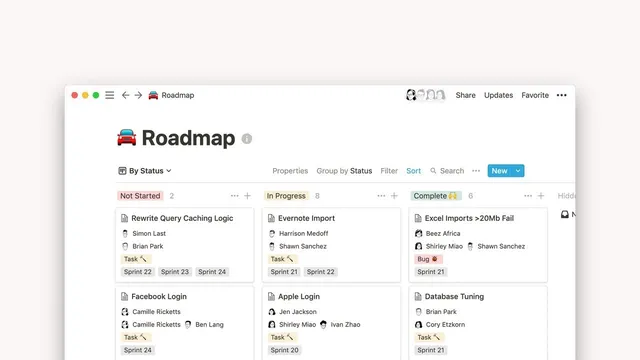
The walkthrough starts with a practical workspace design: a top-to-bottom database that includes a description for onboarding, plus views that match different working styles. A board-style view supports left-to-right progression (new → next up → in progress → in review → done), while a table view helps scan everything at once. A calendar view ties items to due dates and durations, letting teams see what’s coming and when. There’s also a dedicated “unassigned” filter so incoming work doesn’t stall—items can be given a timeline, team, and owner so they immediately disappear from the backlog of unowned tasks.
Statuses are treated like sprint-style stages: “new” for items needing more detail, “next up” for planned work not ready to start, and “in progress” and “in review” for active execution and feedback loops. Each action item can nest additional pages or even other databases, which means a single card can hold deeper project context rather than forcing teams to open separate documents. Timeline properties go beyond a single due date by supporting durations (e.g., a week-long span) and reminders (day-of or one day before), which reduces last-minute surprises.
To prevent teams from rewriting the same project paperwork repeatedly, the session leans heavily on Notion page templates. A “Project brief” template preloads fields like goals, objectives, target audience, timeline, and budget, plus inline discussion and to-do subitems. A “Weekly team huddle” template provides recurring prompts (what got done, roadblocks, wins, birthdays/recognition), and a “Team member onboarding” template acts as a checklist with embedded videos and links to tools like Slack and Notion apps. Templates also support notification workflows: assigning a reviewer (e.g., a team lead) triggers a comment-based review loop directly inside the page.
After building the database from scratch, the Q&A adds operational details: views are team-wide, but filters control what each person sees (e.g., “assigned to me” uses an owner filter so each member sees only their items). The session also demonstrates relations—linking action items to brands, contacts, and pipeline stages—so teams can navigate from a task to the account it supports and back again. For email-driven workflows, a “Save to Notion”/“Notion Later” Chrome extension can capture a webpage title and link back to the original email thread when content permissions prevent full capture.
Finally, sharing is handled with page-level access. Clients can be invited with comment-only permissions, and they only see the specific page shared (not the entire internal database), enabling controlled collaboration without exposing unrelated work. The overall message is that Notion becomes a project operating system when databases, views, templates, relations, and permissions work together to keep teams aligned and moving.
Cornell Notes
The session shows how to manage projects in Notion by building an “Actions” database with multiple views and clear workflow stages. Work moves through statuses like New, Next Up, In Progress, In Review, and Done, while owners, teams, and timelines make responsibility and deadlines explicit. Views such as “Assigned to me,” calendar, board, and “Unassigned” filters help different roles see the right slice of work without losing the shared source of truth. Templates (Project brief, Weekly team huddle, Team member onboarding) standardize repeated processes and keep collaboration in-context through inline comments and to-dos. Relations and page-level sharing extend the system to connect tasks with brands/contacts and to collaborate with clients safely.
How does the “Actions” database keep a team aligned without overwhelming people with everything at once?
Why are statuses and timelines treated as first-class fields rather than optional labels?
What makes Notion templates more than just “copy/paste” forms?
How do relations change project management from a flat task list to a connected system?
How can clients collaborate without seeing the entire internal workspace?
What’s the practical role of the “Unassigned” view?
Review Questions
- If a team member needs to see only their own tasks, which property and filter logic should the view use?
- How do templates like “Project brief” and “Weekly team huddle” reduce repeated work and improve collaboration?
- What is the difference between using statuses alone versus pairing statuses with timelines and reminders?
Key Points
- 1
Build an “Actions” database with workflow statuses (New → Next Up → In Progress → In Review → Done) so work progresses consistently.
- 2
Use multiple views (Assigned to me, board, calendar, unassigned) and rely on filters to keep each person’s workload focused.
- 3
Add timeline durations and reminders to make deadlines actionable rather than just informational.
- 4
Use page templates (Project brief, Weekly team huddle, Team member onboarding) to standardize recurring processes and keep reviews in-context via comments.
- 5
Leverage nested pages and sub-databases inside action items to store project details without scattering documents.
- 6
Use relations to connect action items to brands, contacts, and pipeline stages so context travels with the work.
- 7
Share at the page level with comment-only permissions to collaborate with clients without exposing the entire internal database.