Notion at Work: Master the Timeline View
Based on Notion's video on YouTube. If you like this content, support the original creators by watching, liking and subscribing to their content.
Timeline view is designed for database items with a time span—each item needs a start and an end to display correctly.
Briefing
Notion’s new Timeline view turns database items into a chronological, Gantt-style display—complete with start/end date handling—so teams can spot scheduling overlaps and capacity issues at a glance. The feature is built for databases where each item spans time, such as project tasks, event series, or any sequence of work that has both a beginning and an ending. Timeline view sits alongside other database formats (table, list, calendar, board, gallery), but it adds a linear visual layer that makes duration and sequencing easier to understand than a standard spreadsheet-like layout.
The walkthrough starts with the basics of how to set up a timeline. A database item needs a date range: either a single date property that includes both a start and an end, or two separate properties—one for start and one for end. When creating a timeline view, users choose which date property (or which pair of start/end properties) determines where each item lands on the timeline. From there, sorting controls the “waterfall” order: sorting by the start date produces a chronological flow, while sorting by other properties (like owner) can group items in ways that support different planning questions.
Timeline customization goes beyond placement. Users can decide which properties appear in the table alongside the timeline and which show up directly on the timeline bars. That includes practical fields like task names, assignees (shown as headshots), and completion checkboxes. Notably, the bars aren’t just visual: users can interact with checkbox properties directly on the timeline, and they can drag bars from one date to another—updating the underlying date values.
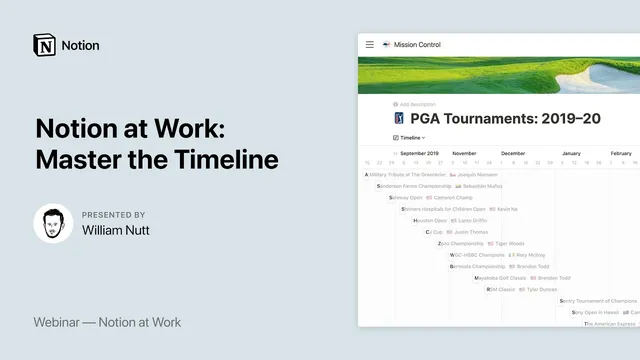
A second example demonstrates why timeline views matter for real-world event planning. Using a PGA tournaments dataset, the setup splits start and end dates into separate properties and links each tournament to a separate winners database via a relation field. That relationship lets the timeline display winner information with visual cues (like the winner’s icon and headshot) pulled from the related database. The result is a timeline that functions like a compact event dashboard—useful for tracking seasons, conferences, or any multi-day series.
The session also highlights two other recent Notion updates. First, database page “hidden properties” let users hide specific properties inside individual item pages—either always, or only when they contain no value—cleaning up item views when certain fields are only needed for calculations or timeline logic. Second, child pages now inherit parent sharing settings but can be tightened: a parent can remain publicly shared while a child page can be restricted, addressing a limitation where sharing could previously only be loosened, not tightened.
In Q&A, the timeline is framed less as a data-entry tool and more as a visualization and capacity-planning tool—especially when items overlap in time. Users also raise common feature requests, including more dynamic date dependencies and more flexible title/ID generation, but the core message remains: timeline view is designed for anything that spans time and benefits from seeing sequencing, overlap, and duration in one place.
Cornell Notes
Notion’s Timeline view converts database items into a linear, Gantt-style display, making it easier to see how tasks or events unfold over time. The key requirement is time range data: each item must have a start and end, either via one date property with both ends or via separate start/end properties. Users can sort the timeline (typically by start date), choose a scale (month/quarter/year), and control which properties appear in the bars and in the side table. Timeline bars are interactive—checkboxes can be toggled and bars can be dragged to update date values. Related databases (via relation properties) can enrich timeline items with winner details, icons, and other linked content. The update also adds per-page hidden properties and tighter sharing controls for child pages.
What makes a database item eligible for Timeline view in Notion?
How does a user decide which date(s) Timeline view uses?
What timeline controls help with planning and readability?
What can be customized about what appears on the timeline bars and the side table?
How do interactions work inside Timeline view?
How does linking databases improve timeline usefulness?
Review Questions
- When would you choose a single date property with an end date versus two separate start/end date properties for a timeline?
- How would sorting by owner differ from sorting by start date in how the timeline helps with capacity planning?
- What are two ways Timeline view can update data directly through interaction (not just visualization)?
Key Points
- 1
Timeline view is designed for database items with a time span—each item needs a start and an end to display correctly.
- 2
Choose which date property (or start/end pair) drives placement using the timeline’s “Timeline by” settings.
- 3
Sort and scale settings control how the timeline reads: start-date sorting creates chronological order, while scale changes zoom level (month/quarter/year).
- 4
Timeline bars can display selected properties and support interaction, including toggling checkbox fields and dragging bars to update dates.
- 5
Relation properties let timeline items pull in details from other databases, enabling richer event dashboards (e.g., winners linked to tournaments).
- 6
Per-page hidden properties let users clean up item views by hiding fields always or only when they’re empty—useful when some properties exist mainly for timeline logic or calculations.
- 7
Child pages now inherit parent sharing settings but can be tightened, allowing a publicly shared parent page while restricting specific child pages.