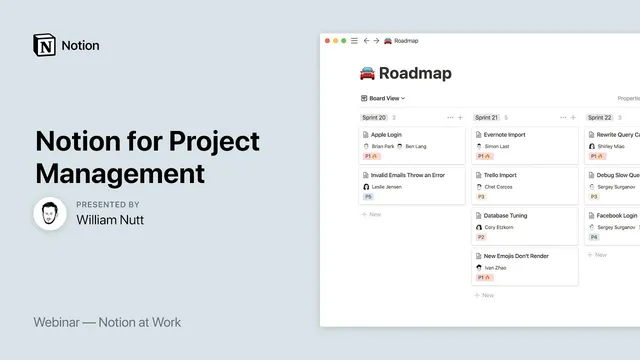
Notion at Work: Notion for Project Management
Based on Notion's video on YouTube. If you like this content, support the original creators by watching, liking and subscribing to their content.
Build three master databases—Projects, Tasks, and Resources—and connect them with Notion relations so every view is driven by the same underlying records.
Briefing
Project management in Notion works best when all work lives in a small set of master databases—then every page, dashboard, and team view becomes a filtered window into those same records. The core setup is a Projects database (initiatives with timelines and ownership), a Tasks database (work items linked to projects), and a Resources database (documents and materials linked to both projects and higher-level categories). Once those relationships are in place, Notion can automatically calculate project completion and display it as a progress bar, while linked databases show only the tasks, resources, and meetings tied to the project currently being viewed.
The framework starts with a “centralize, then contextualize” approach. Instead of scattering project info across many pages, the system keeps projects, tasks, and resources as separate databases and connects them using Notion relations. Each project gets a time span, a project manager (person), additional team members (team as a person property), and a relation to a categorization database (called “buckets,” “areas,” or “pillars,” depending on the PARA-style model). That bucket relation is what later powers filtered dashboards—client pages show only their projects, department pages show only their projects, and individuals see only the projects where they’re assigned.
Tasks are built as their own master database with an assignee (“responsible”), a due date, and a separate “DO date” to distinguish planning from actual completion timing. A checkbox marks completion. Every task links back to exactly one project via a relation property, which enables reciprocal linking: when a project is opened, the tasks list can be filtered to show only tasks connected to that project.
Resources are also centralized. Each resource includes a name and description, relates to a bucket (so materials can be categorized by client or department), and can relate to multiple projects through a “projects” relation. That multi-project linkage matters for shared assets like research, brand guidelines, or reusable templates.
To measure progress, the system adds a rollup property on the Projects database that pulls the “complete” checkbox from all related tasks and converts it into a percentage. A visual progress bar then reflects that percentage, giving a quick status signal without manually tracking counts.
The final step is building project pages that automatically show the right information. Each project page uses linked databases with filters based on the project relation, producing a “snapshot” containing: a gallery of resources, a list of tasks sorted by due date, and a list or calendar of meetings/events tied to the project. To avoid recreating this layout for every new initiative, the system uses a template with self-referencing filters so linked databases automatically populate for the newly created project.
Dashboards complete the loop. A home page can show active projects via date filters; client pages can show projects filtered by bucket; personal dashboards can show projects and tasks filtered by where a person appears in the project’s manager/team properties. The result is a scalable project management system where adding a task or resource in the right filtered view automatically attaches it to the correct project, and every dashboard stays consistent because it’s all driven by the same underlying master records.
Cornell Notes
The framework for project management in Notion centers on three master databases—Projects, Tasks, and Resources—connected through relations. Projects store timelines, ownership, and a category link (“buckets/areas/pillars”), while Tasks store assignees, due dates, a separate “DO date,” and a completion checkbox. Resources store materials like briefs and research, relate to buckets, and can relate to multiple projects. A rollup on Projects calculates completion by aggregating task checkboxes, then a progress bar visualizes that percentage. Project pages use linked, filtered databases (and a template with self-referencing filters) so each new project automatically gets the right tasks, resources, and meetings without manual setup.
Why centralize information into master databases instead of building everything as separate pages?
How do relations and rollups work together to show project progress?
What’s the purpose of having both a due date and a “DO date” for tasks?
How does the “buckets/areas/pillars” categorization improve filtering across teams and clients?
What does a template with self-referencing filters accomplish for new projects?
How can teams add tasks quickly without manually assigning them to projects?
Review Questions
- What properties and relationships are required to compute a project’s completion percentage from its tasks?
- How would you design dashboards so that a client page shows only that client’s projects and a team member page shows only tasks assigned to that person?
- Why might you keep both a due date and a DO date on tasks, and how would you use them in sorting or reporting?
Key Points
- 1
Build three master databases—Projects, Tasks, and Resources—and connect them with Notion relations so every view is driven by the same underlying records.
- 2
Use a categorization database (“buckets/areas/pillars”) and relate each project to it to power client, department, and team filtering across dashboards.
- 3
Store task ownership, scheduling, and completion in the Tasks database using assignee (“responsible”), due date, DO date, and a completion checkbox.
- 4
Calculate project progress by rolling up task completion checkboxes into a percentage on the Projects database, then visualize it with a progress bar.
- 5
Create project pages using linked databases filtered by the current project relation so resources, tasks, and meetings/events appear only when they belong to that project.
- 6
Use a template with self-referencing filters so new projects automatically get the same snapshot layout without manual reconfiguration.
- 7
Add tasks from within the correct filtered view to ensure the project relation is applied automatically, reducing manual assignment errors.