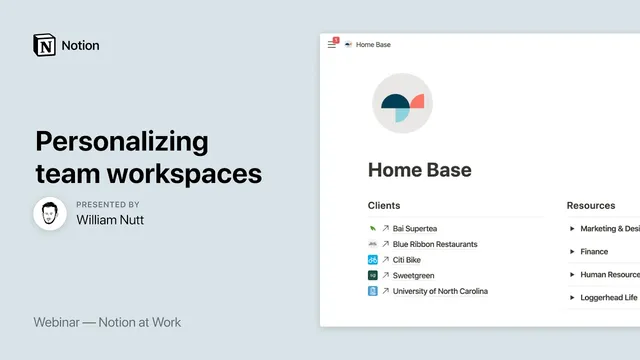
Notion at Work: Personalizing Team Workspaces
Based on Notion's video on YouTube. If you like this content, support the original creators by watching, liking and subscribing to their content.
Build member-specific private page templates by linking and filtering shared master databases rather than duplicating team data.
Briefing
Personalizing a Notion team workspace starts with one practical move: build a “private page” template for each team member that pulls only the relevant slices of shared master databases, then layers on personal planning tools. In the Loggerhead Labs example, Carly Gant’s page becomes a daily hub—showing the areas, projects, and assigned tasks that matter to her—while also giving her a dedicated planner for how she schedules her work and a separate tracker for recurring weekly goals. The payoff is clear: team data stays centralized, but each person gets a focused workspace that reduces noise and makes planning easier.
The foundation is an intelligent workspace approach built around master databases. Instead of having people freestyle across many pages, the system concentrates information into a small set of “master” databases—adapted from PARA-style buckets—so filtered views can be generated reliably. In this setup, three master databases drive Carly’s page: Areas (high-level categories like marketing or finance, plus client-specific areas), Projects (initiatives with defined outcomes completed through tasks), and Tasks (the work items aggregated under projects). A separate “home base” concept uses gateways—filtered links into those masters—so people interact with context-specific views rather than the entire dataset.
Carly’s personalized page uses linked databases to create filtered lists of team information. For Areas, the template creates two tailored views—one for client-related areas and one for internal operations—both filtered so only entries where Carly appears in the relevant person property (“users”) show up. Projects are filtered similarly using a project-team person property (“team”), with optional status filters to avoid showing completed or past initiatives. For Tasks, a linked database is filtered so only tasks assigned to Carly appear, and it’s presented in three views: a table for quick reference, a list for readability, and a calendar view that maps upcoming deadlines over the next few weeks. This task database is placed inside a toggle so it stays out of the way until Carly needs it.
The page then shifts from “team visibility” to “personal execution.” Carly’s planner is a separate, non-linked database where she manages both copied-in assigned tasks and her own independent tasks. It uses productivity-inspired structure: a Context select property (inspired by Getting Things Done) powers a context board for grouping tasks by where she needs to be—like desk work, client meetings, or commuting. An Area select property lets her group tasks by organizational category (including client-related and internal initiatives). Most importantly, a Scheduling select property creates a scheduling board with buckets such as Today, Tomorrow, Soon (2–5 days), Later (next week), Someday, and Waiting (dependent tasks). Drag-and-drop between these buckets supports re-planning when priorities shift.
Finally, the template includes two more personal layers: a weekly goal tracker database organized as a board with columns for days of the week and a completion checkbox, and a curated links/resources section that can include internal linked pages (like a filtered contacts view) plus external web bookmarks (e.g., a JavaScript 30 course). The session also flags a permissions reality: even when sharing a filtered view, sharing a database can expose the full underlying dataset, so view-only access and careful sharing settings matter.
Cornell Notes
Carly Gant’s personalized Notion page is built by filtering shared master databases into member-specific views, then adding personal planning tools on top. The template relies on master databases for Areas, Projects, and Tasks, each containing person properties (e.g., “users,” “team,” and task assignees) so linked databases can show only items relevant to one person. Carly’s planner is a separate, non-linked tasks database that uses Context, Area, and Scheduling select properties to power boards for focus and drag-and-drop re-planning (Today, Tomorrow, Soon, Later, Someday, Waiting). A weekly goals tracker database adds a day-by-day board with checkboxes for completion. This matters because it keeps team data centralized while giving each person a focused workflow.
How does the template ensure Carly only sees the team items that apply to her?
Why create multiple views (table/list/calendar) for Carly’s assigned tasks?
What’s the difference between Carly’s linked “assigned tasks” and her personal planner database?
How do Context and Scheduling properties change how Carly works day-to-day?
How does the weekly goal tracker work, and what makes it recurring?
What permissions caveat comes up when sharing filtered views in Notion?
Review Questions
- If Carly’s Areas database contains both internal and client categories, how would the template create two separate filtered lists without duplicating the underlying data?
- Describe how the Scheduling select property supports drag-and-drop re-planning. Which board buckets are used and what does each bucket represent?
- Why is Carly’s planner implemented as a non-linked database rather than another filtered linked view of the team Tasks master database?
Key Points
- 1
Build member-specific private page templates by linking and filtering shared master databases rather than duplicating team data.
- 2
Use person properties in master databases (e.g., “users,” “team,” and task assignees) so linked views can reliably show only one person’s relevant items.
- 3
Present assigned tasks in multiple formats—table, list, and calendar—so planning supports both quick review and deadline-based scheduling.
- 4
Keep personal execution separate: Carly’s planner is a non-linked database that she can re-schedule freely using board buckets.
- 5
Use Context and Scheduling select properties to power boards that match real-world work situations and daily planning rhythms.
- 6
Add a recurring weekly goals tracker as an independent database with day-of-week columns and a completion checkbox that resets each week.
- 7
Treat permissions carefully: sharing a filtered view of a database can still grant access to the full underlying dataset unless access is restricted.