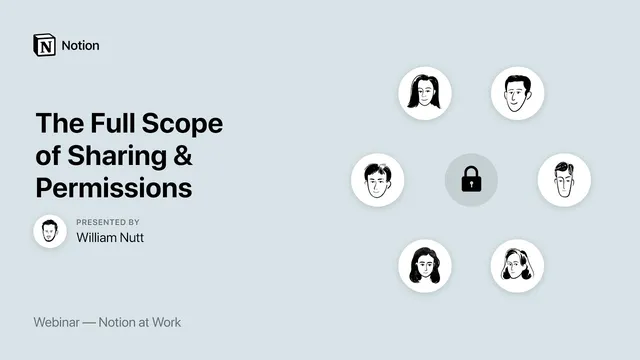
Notion at Work: The Full Scope of Sharing and Permissions
Based on Notion's video on YouTube. If you like this content, support the original creators by watching, liking and subscribing to their content.
Notion’s sharing hierarchy runs from public pages to invited guests, workspace members, and groups, with page-level permissions controlling what each group can do.
Briefing
Notion’s sharing model hinges on a practical “hierarchy” of who can see what—public pages, invited guests, workspace members, and groups—plus a crucial rule: sharing a database view effectively grants access to the full underlying database. That combination determines how safely teams can collaborate and how carefully admins must structure permissions to avoid accidental overexposure.
At the top level, pages can be made public or shared with specific people. Public sharing is controlled through a share menu that toggles “public access” and sets an access level: “can read” for anonymous visitors, or “can’t comment” vs comment-enabled access for logged-in users. Admins can also allow search engines to index the page (disabled by default) and decide whether duplication is allowed (enabled by default), letting logged-in users copy the page as a template. Once public access is configured, a unique URL can be copied and shared; settings can be revisited later to revoke public access.
For controlled access, Notion requires invitees to be signed in. If an email isn’t tied to an existing account, the invite prompts account creation and onboarding. The system distinguishes between “guests” (typically contractors, clients, or partners) and “members” (team/enterprise workspace participants). Both can be granted page-level permissions, but the permission granularity matters: “can read” and “can comment” limit what users can do, while “can edit” allows changes without granting sharing power, and “full access” includes the ability to invite others—often too permissive for external collaborators.
Permissions also extend beyond individual people through workspace-wide access and groups. A page can be toggled to “workspace access,” which moves it into the workspace category for all members, with a default permission of full access that can be reduced to can read or can comment. Groups—created by admins—let teams grant access to a set of users as a unit (for example, a marketing group), avoiding repetitive per-person sharing.
A key nuance appears in how Notion handles page structure and database relationships. When a page is shared, sub-pages created within it via page blocks are shared too. More importantly, sharing a view of a database or a linked database can expose more than intended: the full original database becomes accessible. The presenter flags a hoped-for improvement—sharing database views without granting access to the entire database—but for now recommends workarounds such as building client “portal” pages with simplified, filtered representations rather than exposing a master database wholesale.
Admin controls round out the model. Admins can manage guests and members, convert guests to members on team/enterprise plans, remove users, and create or manage groups. Security settings can restrict sharing behaviors, including preventing public sharing and disabling guests from sharing with non-members. In the Q&A, several practical scenarios are addressed: external sharing can’t be made truly “unshareable” if someone has full access; requiring sign-in and limiting permissions can prevent further sharing. For database-linked structures, linked databases remain protected unless explicitly shared. Finally, Notion can function as a private community space (often better than Facebook groups for structured collaboration), though membership-site features like dated releases aren’t automated—tiered access can be approximated using groups and page-level permissions.
Cornell Notes
Notion’s sharing system is organized into a hierarchy: public pages, invited guests, workspace members, and groups. Each category can be granted page-level permissions such as can read, can comment, can edit, or full access (which includes the ability to invite others). A major security constraint is that sharing a database view grants access to the full underlying database, and sharing a page also shares its sub-pages. Linked databases are protected unless they’re shared as well, so client-facing “filtered” experiences often require separate portal pages rather than exposing master databases. Admin settings add guardrails by limiting public sharing and guest sharing, and groups help scale permissions across teams.
What are the main permission levels for a shared page, and why does “full access” matter?
How does public page sharing work, and what settings affect discoverability and reuse?
Why is sharing a database view risky under the current model?
How do guests and members differ, and how can admins control who can join a workspace?
What’s the practical way to share with a specific person without letting them share further?
How do linked databases behave when sharing filtered client content?
Review Questions
- If a user is granted full access to a page, what additional capability does that permission include beyond editing?
- What security limitation affects database views, and how does it influence how teams design master databases and client portals?
- How can admins use groups to manage permissions at scale without inviting each person individually?
Key Points
- 1
Notion’s sharing hierarchy runs from public pages to invited guests, workspace members, and groups, with page-level permissions controlling what each group can do.
- 2
Public access can be configured with can read vs comment-enabled access, optional search indexing, and duplication behavior (enabled by default).
- 3
Invitees must sign in; if they lack an account, the invite triggers onboarding, and their access is governed by the permission level granted.
- 4
Sharing a database view grants access to the full underlying database, so filtered client experiences often require separate portal pages or separate data structures.
- 5
Linked databases accessed via relation properties stay protected unless those linked databases are shared explicitly.
- 6
Admins can scale permissions using workspace access toggles and groups, and can restrict sharing via security settings (e.g., blocking public sharing and guest sharing).
- 7
To prevent further sharing by an external person, avoid full access and use invite-by-email so access is tied to a signed-in account.