Notion Database View Options: Quick Guide for Beginners (+ Easy Tutorial)
Based on The Organized Notebook's video on YouTube. If you like this content, support the original creators by watching, liking and subscribing to their content.
Access database view options via the database’s three-dot menu, then adjust icon, name, layout, and interaction behavior from that menu.
Briefing
Notion database view options let users reshape the same dataset into different layouts—table, board, timeline, calendar, list, and gallery—while controlling what information appears, how entries open, and how data is grouped, filtered, and sorted. That matters because most Notion workflows fail not from missing features, but from presenting too much (or the wrong kind) of information at the wrong time. With the right view settings, a single database can function as a clean dashboard, a planning tool, or a detailed task tracker without duplicating data.
The workflow starts by creating a database (the guide uses a “sample database” with properties like a date, tags, and a status). From there, view options are accessed through the three-dot menu for the database. One of the first customization points is the view’s icon and name, which can be selected from Notion’s icon library and then reflected on the tab for quick navigation.
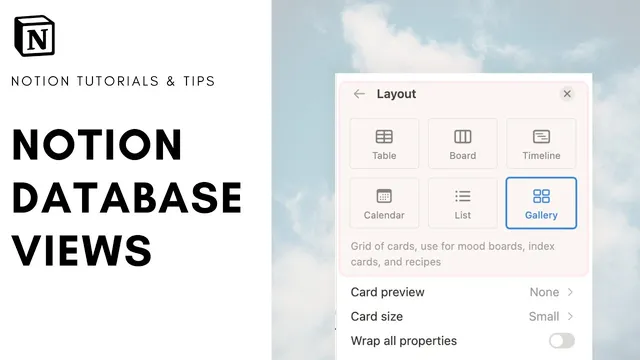
Layout settings drive the biggest changes. In table view, users can toggle the database title on or off for a cleaner look, enable or disable vertical lines, and choose whether text should wrap within columns (wrapping shows more content but can consume space). Another key control is “open pages in,” which determines how an entry opens: side peak (with adjustable width), center peak, or full page. The guide emphasizes that side/center peak options keep context by showing the database while previewing the entry.
Board view adds card-focused controls. Users still manage the database title, but also decide whether cards show the page cover or the page content, adjust card size (small/medium/large), and choose whether to wrap properties. Board views require a “group by” setting—commonly grouping by status or tags—along with options to sort alphabetically (or reverse), hide or show empty groups, and optionally color columns. The guide notes that board views can be made more readable by choosing the right grouping property and by tuning card density (for example, using smaller cards when there are many statuses).
Timeline and calendar views introduce date-driven configuration. Timeline view requires a date property and can display the timeline by one chosen date field; it can also show a table panel at the side with toggles for which table properties appear. Calendar view similarly lets users pick the date field and choose month or week layouts.
List and gallery views focus on compact presentation. Gallery view includes card preview choices (page cover vs content), card sizing, and whether images are fit to the cover area or not, plus property wrapping and the same “open pages in” behavior.
Beyond layout, the guide highlights database-level view controls: which properties are shown outside the entry (name can’t be hidden), how properties can be reordered, and how filters and sorts work. Filters can restrict entries by property values (e.g., showing only a specific status), while sorting can order by date or alphabetically. Grouping can be removed to return to a full table view.
Finally, the guide touches on advanced database features that affect how entries behave in views: sub-items for hierarchical task structures, dependencies for tracking what must be completed before the next task, load limits to cap how many entries appear before hiding the rest, automations for trigger-based updates, and locking a database to prevent accidental structural changes (like adding properties). It also covers practical utilities like duplicating views, deleting views, and copying a link to a specific view.
Cornell Notes
Notion database view options turn one database into multiple “perspectives” without changing the underlying data. Layout controls (table, board, timeline, calendar, list, gallery) determine how entries are displayed, while “open pages in” controls whether clicking an entry previews it in side/center peak or replaces the page with a full view. Users can fine-tune table readability with toggles like database title, vertical lines, and text wrapping; board views add card preview choices, card size, and required “group by” settings (including sorting, empty groups, and optional color columns). Filters, sorts, and property visibility decide what information appears and in what order, and features like sub-items, dependencies, load limits, automations, and database locking shape how entries scale and stay consistent.
How do view options change what users see without changing the database itself?
What are the most important table-view toggles for readability?
Why does board view require “group by,” and how does it affect organization?
How do timeline and calendar views use date properties?
What do filters, sorts, and property visibility control in a view?
Which advanced features can change how entries relate and scale inside views?
Review Questions
- When switching from table view to board view, what setting becomes mandatory, and what property types can be used for it?
- How do “open pages in” options (side peak, center peak, full page) change the user’s workflow when clicking an entry?
- What combination of view settings would you use to keep a board readable when there are many statuses and long text fields?
Key Points
- 1
Access database view options via the database’s three-dot menu, then adjust icon, name, layout, and interaction behavior from that menu.
- 2
Use table view toggles—database title, vertical lines, and wrap all columns—to balance cleanliness against information density.
- 3
In board view, set “group by” (such as status or tag) to create columns; then tune card preview (cover vs content), card size, and optional color columns for readability.
- 4
Timeline and calendar views require a date property; timeline can also show a side table panel, while calendar supports month or week layouts.
- 5
Control what appears in the view by toggling property visibility (name can’t be hidden) and then refine results with filters and sorting.
- 6
Use “open pages in” to choose between contextual previews (side/center peak) and full-page navigation, depending on how much context users need.
- 7
Stabilize complex databases with sub-items, dependencies, load limits, automations, and database locking once the structure is finalized.