Notion-like content calendar in Obsidian // Obsidian Projects plugin
Based on Nicole van der Hoeven's video on YouTube. If you like this content, support the original creators by watching, liking and subscribing to their content.
Obsidian Projects keeps content scheduling consistent by separating note metadata (input) from how it’s displayed (output views).
Briefing
Obsidian Projects is positioned as a cleaner, more reliable way to build a Notion-like content calendar inside Obsidian—by separating the “input” metadata in each content note from the “output” views that display and manage that metadata. That separation matters because it fixes common pain points from earlier setups that relied on multiple plugins reading different fields in different ways, leading to calendar overlaps and duplicated entries.
The workflow starts with one note per content item—video, blog post, article, or feature—containing the structured details and a checklist for follow-through. In the creator’s older approach, Fantasy Calendar and Kanban were used together, but they weren’t truly synchronized. Fantasy Calendar required specific YAML front matter parameters (calendar selection, scheduled release date, and category for color coding). Kanban, by contrast, didn’t read those same YAML fields; it stored its board as a markdown file with links and images, so the two systems effectively tracked different sources of truth. The result was a less seamless experience: overlapping events on busy days and occasional repetitions where the same note appeared more than once.
Obsidian Projects is introduced as a modular layer that keeps everything aligned. Instead of forcing each view plugin to interpret separate data formats, Projects treats the note’s metadata as the canonical input and then renders it through configurable views. Each view becomes an “atomic component,” letting users rearrange how content is presented without changing the underlying note structure.
The setup begins by creating a Templater-based template for new content notes (example: a “video” template). The template includes fields such as a scheduled date (initialized from today), a Published boolean, and a Status field that uses a Templater prompt to choose from stages like ideas to research, to film, to edit, to publish, and done. The template also leaves URL blank initially and sets a tag to YouTube, with cover left empty.
Next, a folder named content is created, and Obsidian folder templates are configured so new notes inside content automatically use the video template. After that, Obsidian Projects is installed (via the Community plugins section) and a new project is created for the content calendar, pointing to the content folder and selecting the templates video template.
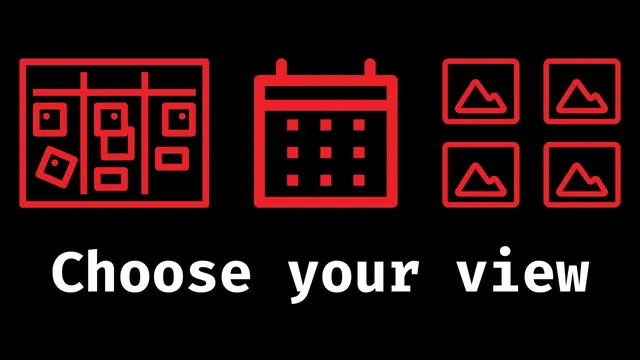
From there, the same underlying items are shown in multiple synchronized views: a Table view for quick field editing, a Calendar view (“Schedule”) that automatically uses the date parameter and can display a Published checkbox, and a Board view (“Kanban”) that groups items by the Status field. A Gallery view (“Thumbnail”) demonstrates how cover images can be mapped—by adding a thumbnail image to the note, copying the image filename into the cover field, and then selecting the cover parameter as the gallery’s source.
The payoff is practical: changing values in a view updates the note’s YAML metadata, and the calendar, board, and gallery all stay consistent. The broader claim is that Projects isn’t limited to its built-in views; it provides a framework for adding additional plugins as views—opening the door to specialized editors or generators (the transcript mentions possibilities like Excalibrain/Excalidraw-style drawing or other workflow tools) as future integrations.
Cornell Notes
Obsidian Projects turns a single set of note metadata into multiple synchronized “views,” making it easier to run a Notion-like content calendar in Obsidian. The approach starts with one template-driven note per content item, including fields like scheduled date, Published (true/false), and Status (ideas to research → to film → to edit → to publish → done). After installing Obsidian Projects, a project is created pointing at the content folder and using that template. Built-in views—Table, Calendar, Board (Kanban-style), and Gallery—render the same data consistently, including checkboxes for Published and cover thumbnails sourced from a cover field. This modular separation reduces overlap and duplication problems that arise when different plugins read different data formats.
Why did the earlier Fantasy Calendar + Kanban setup become unreliable for content scheduling?
What is the core design idea behind Obsidian Projects in this workflow?
How does the template define the scheduling and workflow state for each content note?
How does the Calendar view automatically connect to the correct date field?
How does the Board view (Kanban-style) know which field to group by?
How is a thumbnail image wired into the Gallery view?
Review Questions
- What kinds of problems can occur when two plugins manage the same content calendar but read different data sources or formats?
- Describe how Published and Status fields are used across the Calendar and Board views in Obsidian Projects.
- How does the cover field enable thumbnail rendering in the Gallery view?
Key Points
- 1
Obsidian Projects keeps content scheduling consistent by separating note metadata (input) from how it’s displayed (output views).
- 2
A single template-driven note per content item becomes the shared source of truth for Table, Calendar, Board, and Gallery views.
- 3
Fantasy Calendar and Kanban can conflict when one relies on YAML front matter while the other stores its own board structure in a separate markdown file.
- 4
The template’s Published boolean supports a checkbox workflow that can be toggled in the Calendar view and reflected back into YAML.
- 5
The Board view groups items by a chosen parameter (Status), turning workflow stages into a Kanban-style pipeline.
- 6
Gallery thumbnails work by mapping a note’s cover field to the image filename and selecting that cover parameter in the Gallery view.
- 7
Projects is designed as a framework so additional tools can be added as new views, not just the built-in ones.