Notion Mail + Notion Forms + Layouts — Guided Introductions
Based on August Bradley's video on YouTube. If you like this content, support the original creators by watching, liking and subscribing to their content.
Notion Mail is built from scratch to match Notion’s interface patterns, including keyboard-first navigation and database-style inbox “views.”
Briefing
Notion Mail is arriving as a new browser-based app built from scratch to feel like Notion—complete with the familiar interface, keyboard-first workflows, and database-style “views” for slicing an inbox. The big practical shift is that email management is being reimagined around Notion’s organizational model: tags become filters, inbox items can be organized into multiple saved views, and the composer supports Notion-style blocks (headings, lists, callouts, code, and more). It’s positioned as an early beta now, with a wider public beta later and a full release planned for 2025.
Setup starts with an “inbox zero” style workflow: new messages land in an inbox, can be archived after processing, and then appear in an archive area. Power users get heavy keyboard support—Command K opens quick access, and the app includes a broad set of shortcuts for efficient navigation and actions. The inbox itself behaves like a database: “views” act as saved slices of the same underlying email data, including tag-based views and smarter filters such as a calendar-focused view that surfaces messages containing calendar invites. Additional views can be created and managed via filter controls, letting users prioritize inbox items by criteria like status (e.g., unread) or domain-specific categories (the transcript gives examples like recruiting and GitHub-related prioritization).
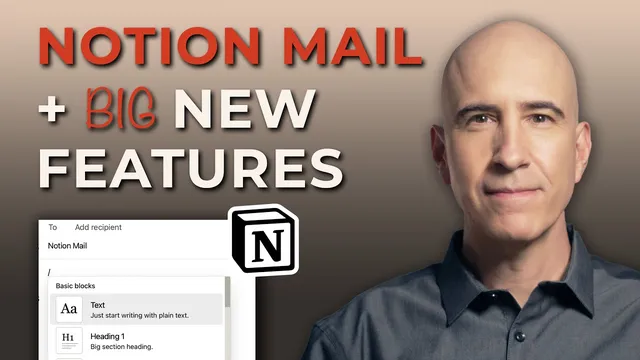
Composing messages also leans into Notion’s block paradigm. Typing “/” inside the email editor brings up block types such as headings, bullets, numbered lists, code, and quote callouts—features that make email feel less like a rigid form and more like a structured document. Built-in AI adds another layer: auto-reply prompts can generate draft responses to incoming emails, and users can customize autopilot instructions, templates, and reusable “snippets” for standard replies.
Despite the Notion-native look and feel, the most notable gap is integration depth with core Notion workspaces. At this stage, Notion Mail doesn’t sync contacts or automatically route selected emails into Notion databases (like action items, knowledge vaults, or media vaults). The transcript frames that missing linkage as what would truly make the app more than a standalone email client—something that could selectively push chosen messages into the right database with tags and properties for automatic filtering.
Two other major features extend Notion’s database experience in different directions. Notion Forms adds a minimalist form builder that outputs responses into a database table, with question types ranging from text and checkboxes to dates, single/multi-select, file uploads, URLs, email, and phone numbers. Permissions can be set for workspace-only, logged-in users, or public access via web link, and each submission becomes structured data ready for database-style querying.
Notion Layouts then tackles how database pages look and feel. Layout editing introduces sections, pinned properties, and flexible placement of property groups across the main area and right sidebar—allowing long property lists to be organized into cleaner, role-specific page designs. Layouts can be applied to all pages or previewed per entry, supporting different “page personalities” within the same database.
Finally, automation gains two enhancements: Gmail email sending as an action, and the ability to use Notion formulas inside automation actions via variables and a formula editor. Together, these updates push Notion further toward a system-building platform where communication, data capture, page design, and automation can be assembled into life-management workflows.
Cornell Notes
Notion Mail brings a Notion-native email experience—keyboard shortcuts, light/dark mode, and database-style “views” that slice the inbox using tags and smart filters (like calendar-invite messages). The composer supports Notion-style blocks, and built-in AI can generate auto-reply drafts using customizable prompts, templates, and snippets. The current limitation is the lack of deep integration with core Notion databases: emails aren’t yet automatically synced into contacts or routed into action items/knowledge vaults. Notion Forms adds a clean form builder whose responses land in a database table, turning submissions into structured data. Notion Layouts adds major page-design control for database entries using sections, pinned properties, and flexible sidebars, while automations gain Gmail-sending actions and formula-based actions.
What makes Notion Mail feel “Notion” rather than a pasted-in email client?
How do “views” change the way an inbox is managed?
What role does AI play in Notion Mail right now?
What’s missing from Notion Mail that would make it more valuable inside a Notion workspace?
How do Notion Forms and Notion Layouts extend the database experience?
What automation upgrades were highlighted?
Review Questions
- Which Notion Mail features help users manage email like a database (name at least two), and which one is still missing for deeper workspace integration?
- Describe how Notion Forms turns user input into a structured dataset. What permission options were mentioned?
- What layout controls does Notion Layouts introduce (sections, pinned properties, sidebars), and why would those matter for system design?
Key Points
- 1
Notion Mail is built from scratch to match Notion’s interface patterns, including keyboard-first navigation and database-style inbox “views.”
- 2
Inbox “views” let users filter and prioritize email using tags and smart filters such as calendar-invite messages.
- 3
The email composer supports Notion-style blocks via “/”, and AI can generate auto-reply drafts using customizable prompts, templates, and snippets.
- 4
Notion Mail’s biggest current limitation is the lack of automatic integration with core Notion databases (contacts sync and routing emails into action items/knowledge vaults are not present yet).
- 5
Notion Forms adds a minimalist form builder whose responses land in a database table with full property controls and multiple question types.
- 6
Notion Layouts introduces major page-design flexibility for database entries using sections, pinned properties, and configurable placement of properties/media/comments.
- 7
Automations expand with Gmail email-sending actions and the ability to use Notion formulas inside automation actions via the formula editor and variables.