Notion Office Hours: Contextual Dashboards 🧭
Based on Notion's video on YouTube. If you like this content, support the original creators by watching, liking and subscribing to their content.
Build a small set of core master databases first (knowledge hub/notes-and-ideas, projects, and actions/tasks) so dashboards can embed filtered views.
Briefing
Contextual dashboards in Notion are presented as a way to stop treating information as a static archive and start using it to drive action. The core idea is to build a small set of “master” databases (for projects, tasks, notes/ideas, and a knowledge hub), then embed filtered views of those databases into purpose-built dashboard pages for different work modes—focus, learning, planning, and reflection. Instead of searching across a cluttered workspace or bouncing between tools, the dashboards surface only what matters in the moment, keeping people in the right context long enough to do the work.
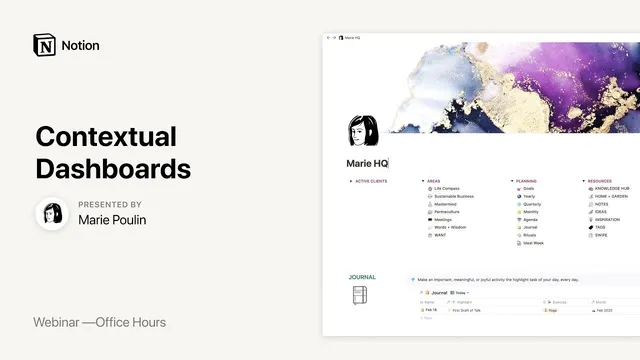
A central example is “Memory HQ” (Murray HQ), a dashboard system that organizes life into zones rather than one all-purpose page. Goals are shown via an embedded monthly database filtered to goals and outcomes, while quarterly planning is supported by a theme-and-outcomes view. Projects and notes are separated into contextual dashboards so that “projects area” doesn’t become a catch-all that hides what’s currently relevant. The learning dashboard demonstrates the same principle: a large knowledge hub can be overwhelming, so a smaller “learn” page filters active courses and active reading, then pulls in related notes and quotes directly alongside the content being studied. This design reduces friction by letting users open related items without leaving the dashboard.
The session also emphasizes how the underlying data model makes these dashboards possible. Most dashboard sections are built from master databases stored in a structured PARA-style setup (Projects, Areas, Resources, Archives), with heavy use of relations and tags to connect everything. A “master tag” relational database acts as a unifying layer because Notion’s native select/multi-select tags don’t unify across the whole workspace. Rollups then pull properties from related databases so dashboards can display derived signals—such as what words appear most often in journal entries or which themes are receiving attention.
Practical workflow guidance focuses on reducing “busy work” and “tab hoarding.” The approach is to create the core databases first (especially a knowledge hub for clipped articles, courses, and inspiration), then embed filtered views into dashboards. For mundane tasks and recurring reviews, the weekly agenda becomes a contextual dashboard itself: a “mind sweep” review is baked into the weekly template using triggers inspired by Getting Things Done concepts, so users can capture lingering thoughts and next actions without jumping to separate pages. Daily journaling is also integrated through rollups, so weekly reflections can be generated from filled journal entries rather than rebuilt manually.
Throughout the Q&A, the guidance repeatedly returns to boundaries and evolution. Notion setup takes time, so users are encouraged to iterate gradually rather than chase a perfect system. If tweaking becomes distracting, time limits help. The system is designed to evolve—dashboards can be added or refined as new contexts emerge (like a gardening dashboard or a connect/CRM-style dashboard). Finally, the session frames Notion as complementary rather than necessarily replacing every tool: tasks, calendars, and busy work can remain in other apps, while Notion becomes the place where strategy, notes, and action stay connected in one relational structure.
Cornell Notes
The session’s main takeaway is that Notion becomes more productive when information is organized into a few master databases and then surfaced through contextual dashboard pages. Instead of one giant workspace, dashboards act like curated “zones” (focus, learning, planning, reflection) that embed filtered views of projects, tasks, and a knowledge hub. Relations, tags, and rollups connect the databases so dashboards can show derived signals—like next actions tied to active courses or weekly reflections pulled from journal entries. This design reduces tab hoarding and context switching by keeping users inside the right page while they drill into related items. The system is meant to evolve over time, with guardrails to prevent endless tweaking.
How do contextual dashboards differ from a single all-purpose Notion page?
Why are master databases (not just pages) the foundation of the system?
What role do relations, tags, and rollups play in making dashboards “smart”?
How does the system reduce “busy work” and tab hoarding?
How are weekly and daily reviews integrated without constant page-jumping?
What’s the recommended starting order for building the system?
Review Questions
- If someone tried to build contextual dashboards without master databases, what capabilities would they lose (filtering, embedding, rollups, relations)?
- How would you design a learning dashboard so it stays inspiring and actionable instead of overwhelming?
- What specific mechanisms in this system (relations, master tag database, rollups, embedded filtered views) help prevent context switching and manual weekly reflection work?
Key Points
- 1
Build a small set of core master databases first (knowledge hub/notes-and-ideas, projects, and actions/tasks) so dashboards can embed filtered views.
- 2
Use contextual dashboard pages as “zones” (learning, focus, planning, reflection) that show only what matters for that mode.
- 3
Connect everything with relations and a workspace-wide master tag database to unify tagging across many item types.
- 4
Rely on rollups to generate dashboard signals from other databases (e.g., journal-derived reflections feeding weekly review).
- 5
Integrate reviews into the templates where work already happens—like baking a mind sweep into the weekly agenda—to reduce page-jumping.
- 6
Set personal guardrails for setup tweaking time; the system should evolve gradually rather than be perfected upfront.
- 7
Treat Notion as the action-and-thinking layer while other tools (like calendars) can remain for time-based scheduling if that fits the workflow.