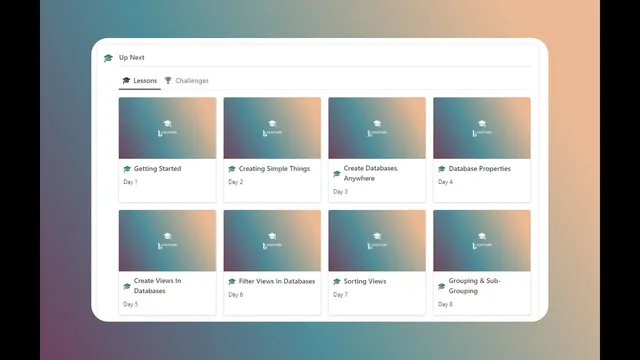
Notion's Most Underrated Feature: Grouping & Sub-Grouping (Notion For Business Course: Day 8)
Based on Landmark Labs's video on YouTube. If you like this content, support the original creators by watching, liking and subscribing to their content.
Use “Group this table” in a table view to cluster records by a property such as “intent,” adding toggleable groups and automatic item counts.
Briefing
Notion’s native “Grouping” and “Subgrouping” tools let database views automatically cluster records by a chosen property—complete with collapsible group toggles and live item counts—without relying on manual sorting or filters. In a keywords database, grouping a table by an “intent” property recreates the same intent-based organization that sorting previously achieved, but adds a key usability upgrade: each intent category becomes a toggleable group, and Notion shows how many keywords fall into each group.
Setting up the grouping is straightforward. In a table view, opening “Edit view” reveals a “Group this table” option under the sort controls. Choosing the “intent” property creates separate clusters for each intent value. A related option, “Hide empty groups,” can remove categories with no matching records from the view, keeping the layout cleaner. By default, grouping pulls every record that matches the property value into its corresponding cluster, and the view updates automatically as records change.
A crucial detail is how grouping behaves with single-select versus multi-select properties. Grouping works not only for single select but also for multi-select. If “intent” is changed to a multi-select property and a keyword receives multiple tags, that keyword appears in multiple groups—effectively creating duplicates in the grouped view. For example, a single keyword tagged with both “informational” and “purchase” will show under both clusters. Because of that, grouping tables by single-select properties tends to produce the clearest, most readable overview, especially for knowledge or content-style databases.
Grouping isn’t limited to table views. Kanban boards already rely on grouping: the board’s columns come from a property (commonly “status”). When a Kanban view is created, Notion uses an assigned property to generate the column groups automatically. The same “subgrouping” concept then applies to Kanban boards, letting users break each column into smaller sections based on another property.
For instance, a contacts pipeline can be grouped by “status” (left to right), then subgrouped by “source” so that each status column contains separate subgroups for sources like “Community event” or “freelance marketplaces.” This produces a more focused pipeline view where users can quickly scan, filter mentally, and work within a specific slice of the data (e.g., only freelance marketplace contacts).
The practical takeaway is to use grouping for clarity and subgrouping for precision. The lesson ends with a challenge: build a tasks Kanban board grouped by “status,” then subgroup by “priority,” so high-priority items appear in the “Not started” column and low-priority items land in “Done,” with empty groups optionally hidden for a cleaner workflow.
Cornell Notes
Notion’s grouping feature clusters database records in a view based on a selected property, adding collapsible group toggles and automatic counts. In a table view, grouping by a single-select property like “intent” creates clear category clusters; switching to multi-select causes records to appear in multiple groups when they have multiple tags. Kanban boards use grouping automatically via a property such as “status,” and subgrouping can further split each column by another property like “source.” This combination lets users build focused, navigable dashboards for pipelines, tasks, and resources without manual sorting.
How does Notion’s grouping change a database view compared with sorting and filtering?
What’s the difference between grouping by single-select versus multi-select properties?
How do you set up grouping in a table view?
Why do Kanban boards already show grouped columns?
How does subgrouping work on a Kanban board?
Review Questions
- When would multi-select grouping produce duplicates in a grouped view, and how would that affect readability?
- How would you configure a Kanban board to group by “status” and subgroup by “priority” (which properties go in each setting)?
- What does “Hide empty groups” (or “Hide empty subgroups”) change in a grouped view, and why might that matter for daily use?
Key Points
- 1
Use “Group this table” in a table view to cluster records by a property such as “intent,” adding toggleable groups and automatic item counts.
- 2
Grouping by single-select properties typically produces the clearest overview because each record belongs to one group.
- 3
Grouping by multi-select properties causes records to appear in multiple groups when multiple tags are selected.
- 4
Kanban boards automatically group columns based on a chosen property like “status.”
- 5
Subgrouping lets users split each Kanban column by a second property such as “source” for a more targeted pipeline view.
- 6
Use “Hide empty groups/subgroups” to reduce clutter and keep dashboards focused on active categories.
- 7
Apply the same pattern to tasks: group by “status” and subgroup by “priority” to surface high- and low-priority work in the right columns.