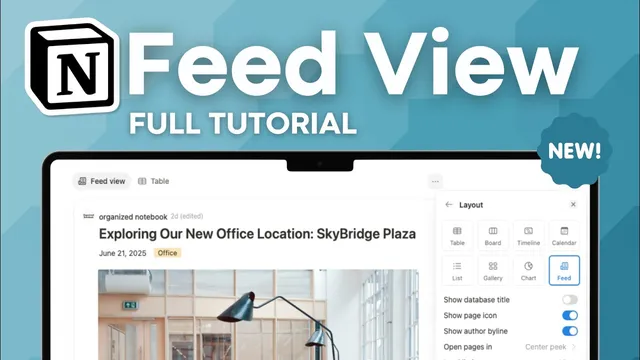
Notion's NEW Feed View Database | Use Cases & Full Tutorial
Based on The Organized Notebook's video on YouTube. If you like this content, support the original creators by watching, liking and subscribing to their content.
Feed View presents database entries as a single-column feed where page content (text and images) is visible without opening each entry.
Briefing
Notion’s new Feed View database turns records into a single-column “feed” that lets people read key page content at a glance—text, images, and other page elements—without opening each entry. Instead of the card-like layouts of Gallery view, Feed View emphasizes a scrollable stream where each page’s contents appear directly in the main column, making it well-suited for updates, announcements, and personal dashboards.
Adding Feed View is straightforward: create it like any other database, then choose the Feed View option (for example, by typing “/feed”). The result behaves like a feed in one column while still surfacing what’s inside each page. When a new page is added, Feed View immediately populates the feed with that page’s content. Even edits made within the feed—such as adding text or images—show up inline, supporting a “read here, click through if needed” workflow.
Feed View also brings familiar database controls, plus a notable twist. In layout settings, users can show or hide the page icon and toggle the author byline. Turning off the author byline removes the attribution line, which can be useful for announcements or blog-style posts where the focus is on the content rather than the writer. Layout options also include how pages open and a load limit.
Property visibility and filtering work much like other database views. Users can choose which properties appear in the feed’s top area; Feed View tends to place visualized properties into rows, so adding more properties increases what appears above the page content. Filtering can limit what appears—for instance, showing only tasks.
Sorting is a key capability, and the transcript highlights a practical recommendation: include a date property so the feed can be sorted reliably. Sorting can be applied by name, tags, or any property, but a date field (such as “last edited time” or an “announcement date”) makes it easy to keep the newest items at the top using descending order.
A less obvious customization is the ability to remove comment functionality. By adjusting the customized layout and turning off page discussions, the feed can become cleaner by eliminating the option to add comments under entries.
Several use cases illustrate why Feed View matters. For task management, adding a “last edited time” date property and sorting it descending creates a live activity stream showing what changed most recently—useful for team awareness and follow-ups, with comments available when needed. For company updates, Feed View can function like a blog or announcement feed: posts can include an announcement date and tags (e.g., office locations), and the feed can be sorted so the newest announcements surface first. For personal productivity, a “daily checklist” feed can be templated so each new day loads the same checklist items; hiding the author byline and sorting by date keeps the workspace minimal and organized day-to-day.
Cornell Notes
Feed View in Notion presents database entries as a single-column “feed,” showing each page’s content (including text and images) directly in the stream. It supports standard database controls—layout, property visibility, filtering, and sorting—plus a distinctive author byline toggle and an option to remove page discussions (comments) for a cleaner look. Sorting works best when paired with a date property, enabling “newest first” behavior via descending order. These features make Feed View practical for task activity feeds, announcement/blog-style posts, and personal daily checklists using templates and default content.
How does Feed View differ from other Notion database views when it comes to reading entries?
Which Feed View settings help tailor the feed’s appearance and attribution?
How do property visibility, filtering, and sorting work together in Feed View?
What’s the practical value of removing page discussions (comments) in Feed View?
What are three concrete use cases for Feed View, and what properties make them work?
Review Questions
- What types of content does Feed View display inline, and why does that matter for day-to-day reading?
- Which date property would you add to create a “newest updates first” feed, and how would you configure sorting?
- How would you design an announcement feed in Feed View using tags and an announcement date?
Key Points
- 1
Feed View presents database entries as a single-column feed where page content (text and images) is visible without opening each entry.
- 2
Create Feed View like other databases, then use layout settings to control icons, page opening behavior, and load limits.
- 3
Toggle the author byline to remove attribution when building announcement or blog-style feeds.
- 4
Use property visibility to choose which properties appear above each entry, and rely on filtering to narrow what appears.
- 5
Sorting is most effective when paired with a date property; descending order keeps the newest items at the top.
- 6
Turn off page discussions to remove the comment area and produce a cleaner feed layout.
- 7
Feed View supports practical workflows: task update streams via “last edited time,” announcement/blog feeds via “announcement date,” and personal daily checklists via templates and date sorting.