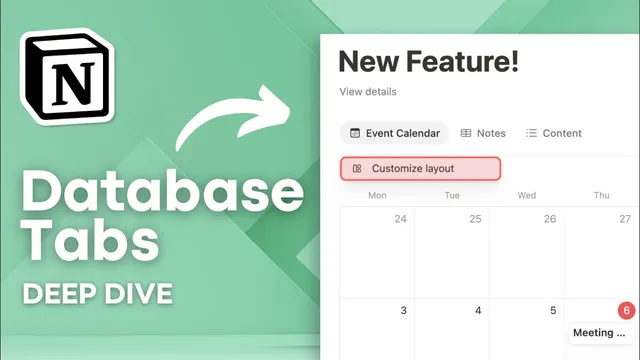
Notion's NEW Tabbed Layout! | Step by Step Tutorial, Pros & Cons
Based on The Organized Notebook's video on YouTube. If you like this content, support the original creators by watching, liking and subscribing to their content.
Database tabs let a parent database page embed related database content using relation-based filtering inside a tabbed layout.
Briefing
Notion’s new database tabs feature lets a single database page (like a “Notebook” entry) embed related database content through a tabbed layout—while updates can be applied across every existing page automatically. That combination—relation-based filtering plus “apply to all pages”—is the feature’s biggest practical shift, because it reduces the maintenance burden that used to come with database templates and linked views.
In the tutorial setup, the creator builds a workspace with three databases: notebooks, notes related to notebooks via a relation property, and an event calendar database. When opening a notebook page and choosing “Customize layout,” the page settings now include a “Structure” option with “Simple” and “Tabbed.” Selecting “Tabbed” reveals a content area where tabs can be added. Adding a tab tied to the notes relation automatically filters the notes to only those connected to the current notebook page. Tabs can also embed other linked databases—for example, inserting the event calendar and switching its layout to “Calendar”—so each notebook entry can show both its related notes and the shared event schedule.
The key advantage shows up when changes need to be rolled out. Previously, similar behavior was achieved with database templates that created linked views filtered by relations. But templates only affect future entries; past pages require manual updates. With tabs, layout tweaks such as sorting by “created time” can be adjusted once and then applied to all pages, updating every notebook entry immediately. The result is a more uniform, scalable way to reference other databases inside many parent records—especially useful when managing large collections (the tutorial cites scenarios like updating hundreds of notebooks without editing each one).
The pros center on replacing template-driven workflows and making layout changes propagate consistently. Tabs are also presented as more intuitive than template + linked view filtering for some users because the relation options appear directly in the layout builder. The structure can feel more “locked in” for team settings since the embedded content is defined through the layout customization rather than being easily deleted from a linked view.
Still, the feature has friction points. Edits must go through the layout builder, so quick adjustments aren’t as fast as editing a linked view directly. Tabs also don’t offer the same variety of pre-saved views that linked views provide, meaning users may have to recreate view configurations from scratch (properties, ordering, and layout choices). The layout UI also places the “content” section above the property group, which some users may find unintuitive, and there’s a limit on how many properties can be pinned—pushing additional properties into less convenient “view details” or “move to page” options.
Finally, tabs lack “sub tabs,” which can make complex setups harder to navigate. If someone previously relied on many views (or grouped tabs by database), the tab list can become long and ambiguous. The creator’s bottom line: database tabs are a meaningful step forward for simpler relational builds and for teams who want one-time layout updates across many pages, but power users with many reference databases and lots of views may want to wait for improvements like view reuse and sub-tab organization.
Cornell Notes
Notion’s database tabs let each parent record (like a notebook page) embed related database content using relation-based filtering inside a tabbed layout. Tabs can display multiple related sources—such as notes filtered to the current notebook and an event calendar—while changes can be applied across all existing pages. This replaces a common workaround that relied on database templates and linked views, which often failed to update past entries. The tradeoffs are mainly workflow and flexibility: edits require the layout builder, tabs don’t reuse saved views as easily, property placement can be awkward, and there’s no sub-tab structure. Overall, tabs are best for simpler relational setups where consistent, bulk layout updates matter.
How do database tabs filter related content to the correct parent page?
Why do database tabs reduce the need for database templates?
What’s the practical difference between tabs and linked views when it comes to updating layout?
What limitations make tabs harder for advanced view-heavy setups?
How do property display constraints affect the tabbed layout experience?
Review Questions
- In what way do database tabs update existing pages differently than database templates?
- What workflow steps are required to change a tabbed layout, and why might that be slower than editing a linked view directly?
- How could the lack of sub-tabs and the absence of saved-view reuse affect a database design that relies on many views?
Key Points
- 1
Database tabs let a parent database page embed related database content using relation-based filtering inside a tabbed layout.
- 2
Switching a page to “Structure: Tabbed” exposes a layout builder where tabs can be added and linked to relations or existing databases.
- 3
Changes made in “Customize layout” can be applied to all pages, avoiding the manual upkeep common with template-based approaches.
- 4
Database tabs are positioned as a replacement for template + linked view workflows, especially when past entries must reflect updated layout settings.
- 5
Tabs require layout-builder edits, which can slow down quick adjustments compared with directly editing linked views.
- 6
Tabs don’t reuse saved views as seamlessly as linked views, so recreating multiple view configurations can be time-consuming.
- 7
Property pinning limits and the placement of the content area can make complex property-heavy layouts less convenient.