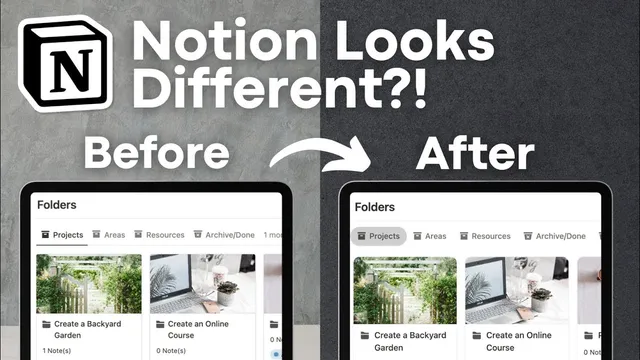
Notion's New UI Design Update?! | What's changed, tips, and more (June 2025)
Based on The Organized Notebook's video on YouTube. If you like this content, support the original creators by watching, liking and subscribing to their content.
Inline databases now hide view tabs and keep database titles at the top, changing how users scan and navigate views.
Briefing
Notion’s June 2025 UI update makes databases look sleeker and more “minimal,” but it also changes how people build, edit, and interact with them—especially in filtered views and when creating properties. The biggest shift lands in the database interface: inline databases now hide view tabs, titles stay pinned at the top, and the default database setup starts out more bare until new pages and properties are added. Full-page databases still support views, but the main area won’t show view tabs unless a new view is explicitly added.
Property management is where the workflow changes feel most immediate. Creating a property now flips the order: users must enter the property name first, then select the property type (for example, choosing “date” after typing “due date”). Editing also gets split from visibility. In settings, the interface separates “editing properties” from “property visibility,” so clicking a property may only allow hiding/showing it; actual edits require going into “edit properties” and selecting the property there. Even calculations move: instead of hovering to calculate columns, the new UI requires clicking into a calculations control to access options like “count all.”
Filtered tables and lists—often used as inboxes—also behave differently. When a filter hides most results, the empty state now includes a “no filter results” style page and removes the older “plus new page” affordance in the same way. That means inbox-style workflows can look emptier or more constrained when there’s nothing matching the filter. Grouping inside filtered views changes too: adding a new page within a group requires clicking a specific control, and the first page in a filtered view comes from a “plus” button rather than from clicking directly underneath the group as before. The creator flags this as an area Notion may need to revisit.
Drag-and-drop is another casualty of the new layout. If someone has been typing tasks and dragging them into a table or list view, that interaction no longer works in the same way. A workaround is to switch the database layout to a gallery view, where drag-and-drop returns.
AI properties are also more hidden and more conditional than before. To add an AI summary, users must first create a compatible base property (typically a text property), then enable “AI autofill” from the property’s AI setup, and only then choose the AI function (like “summary”). Number properties won’t surface AI options, so users may need to convert to a type such as multi-select or text before AI autofill can be configured.
Finally, the update nudges dashboard design. The curved tab layout can make “quick add” buttons look less clean when placed directly above databases, so the creator moves quick-add controls into a separate section or adds spacing via dividers. With fewer visible tabs, dashboards can become more minimal by renaming views with icons and reducing clutter. Database titles, previously often hidden, now make more sense to show when titles sit at the top—particularly for single inline databases. Still, the settings icon change—from the familiar three dots to a slider-style icon—adds friction for tutorials and muscle memory, and several workflow shifts require re-learning.
Cornell Notes
Notion’s June 2025 database UI update prioritizes a cleaner, more minimal look, but it changes core workflows. Inline databases hide view tabs and keep titles at the top, while full-page databases require explicitly adding views to show tabs. Property creation now requires entering the property name before selecting the type, and settings split “edit properties” from “property visibility,” so hiding/showing and editing are no longer in the same place. Filtered tables/lists used as inboxes look different when empty, grouping adds pages via a different control, and drag-and-drop works only in certain layouts (like gallery). AI properties are also gated: users must set up “AI autofill” on compatible property types (often text or multi-select) before AI options appear.
What are the most noticeable interface changes to databases in the new UI?
How does the new property-creation workflow differ from the old one?
Why do some property edits feel “missing” after the update?
What breaks for inbox-style filtered views, and what workaround is suggested?
How does drag-and-drop behavior change across database layouts?
How do AI properties work now, and why might AI options not appear?
Review Questions
- When creating a new property in the updated Notion UI, what order must be followed to successfully set the property type?
- In a filtered inbox-style view, where does the ability to add the first new page come from, and how does that differ from unfiltered views?
- What property types are most likely to support AI autofill, and what steps are required to enable an AI summary?
Key Points
- 1
Inline databases now hide view tabs and keep database titles at the top, changing how users scan and navigate views.
- 2
Property creation requires entering the property name first, then selecting the property type; the old type-first flow is gone.
- 3
Database settings split property visibility from property editing, so hiding/showing and editing live in different places.
- 4
Calculations now require clicking into a calculations control rather than hovering to access options like “count all.”
- 5
Filtered tables/lists used as inboxes show a different empty-state experience, and adding pages inside grouped filtered views uses a different control.
- 6
Drag-and-drop into databases no longer works the same way in table/list layouts, but gallery view restores drag-and-drop.
- 7
AI properties are gated behind “AI autofill” setup and compatible property types; number properties won’t surface AI options without changing type.