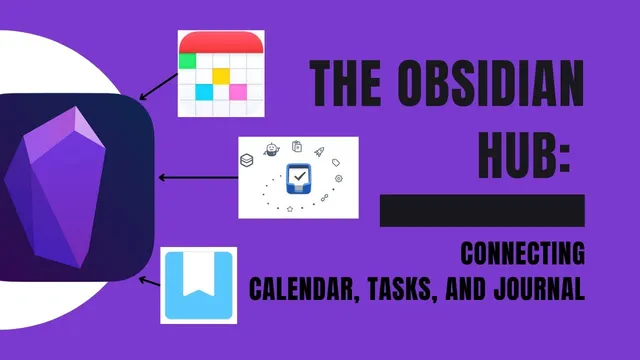
Obsidian as Hub - Day One, Things 3, and Fantastical
Based on Knowledge Work Nexus's video on YouTube. If you like this content, support the original creators by watching, liking and subscribing to their content.
Create a vault structure with a Daily Notes folder and a Templates folder so templates and date-based notes stay organized.
Briefing
Obsidian can be turned into a daily “work hub” by wiring together three apps—Day One for journaling, Fantastical for calendar views, and Things for task capture—so a single daily note becomes the launchpad for the day and the navigation center across time. The core setup hinges on three pieces: a templated daily-notes workflow, periodic notes for automatic date-based note creation, and deep links that open the right external app on the correct day.
The workflow starts with structuring the vault around two folders: a Daily Notes folder and a Templates folder. With those in place, the setup relies on enabling community plugins in Obsidian—most importantly Templater, plus Periodic Notes and a Calendar helper plugin for Periodic Notes. To avoid conflicts, two core plugins are turned off: Obsidian’s built-in Daily Notes plugin (because Periodic Notes will handle date-based notes) and the core Templates plugin (because Templater will manage template logic). The result is a system where new daily notes can be created automatically from templates and placed into the correct date folder.
The daily note template is where the hub behavior is made concrete. It uses YAML front matter to store metadata like an alias (so the note can be referenced by day-of-week or day-of-year style labels) and includes a version marker for tracking template revisions. Templater code injects the file’s creation date into the note, which matters when notes are created the night before or edited later. The template also generates navigation links—yesterday, tomorrow, and larger time spans (week, month, quarter, year)—so clicking within a daily note jumps to the corresponding date-based notes.
The “hub” part comes from the agenda section, which mixes internal navigation with external app links. The template includes links that open Day One on the specific date represented by the Obsidian note, and links that open Fantastical to the same date. Those links are date-aware: revisiting an old daily note months later still routes to the historical date, not the current day. Things is linked to the Today view as a practical workaround, since the transcript notes difficulty in forcing Things to open an arbitrary specific day.
A final daily-note element closes the loop: a “Note to Next Day Self” link that triggers Day One to create a new entry titled for tomorrow inside the “Note to Next Day Self” journal. There’s also a log section placeholder for quick capture, plus space for a “work bench” area tied to a Dataview-based page-tracking setup in the larger vault.
After the template is configured, Periodic Notes is set to use the template file (stored under Templates/daily notes template). Creating “Open today” generates a fully populated daily note with working deep links. The Calendar/Periodic Notes UI can also light up adjacent dates (yesterday and tomorrow), and weekly/monthly notes can be opened via command palette or the sidebar. The transcript finishes by showing how the monthly template includes navigable links to weeks and quarters, and by demonstrating a shortcut that logs a quick entry into Obsidian with timestamped text.
Cornell Notes
The setup turns Obsidian into a daily hub by combining Templater templates, Periodic Notes date automation, and deep links to external apps. A Daily Notes template injects creation date, generates navigation links (yesterday/tomorrow and week/month/quarter/year), and builds an agenda that opens Day One, Fantastical, and Things. The deep links are date-aware for Day One and Fantastical, so old daily notes still route to the correct historical date. Periodic Notes then uses the template automatically when creating daily notes, and the Calendar UI helps navigate across days, weeks, and months. This matters because one note becomes the control panel for journaling, scheduling, and task workflows across time.
Why are Templater and Periodic Notes both needed for the hub workflow?
What core plugins get turned off, and what problem does that prevent?
How does the daily note template make navigation across time work?
What makes the Day One and Fantastical links “date-aware”?
Why does the Things link behave differently from Day One and Fantastical?
How does the “Note to Next Day Self” link function in practice?
Review Questions
- What changes when Obsidian’s core Daily Notes and core Templates plugins are disabled in favor of Periodic Notes and Templater?
- How does the daily note template ensure that deep links open Day One and Fantastical on the correct date even months later?
- Which parts of the daily note are responsible for time navigation (yesterday/tomorrow and week/month/quarter/year), and which parts are responsible for external app launching?
Key Points
- 1
Create a vault structure with a Daily Notes folder and a Templates folder so templates and date-based notes stay organized.
- 2
Enable Templater for template logic, and use Periodic Notes (plus its calendar helper) to generate daily/weekly/monthly notes by date.
- 3
Turn off Obsidian’s core Daily Notes plugin and core Templates plugin to prevent overlap and ensure the system uses Periodic Notes + Templater consistently.
- 4
Build the daily note template to inject date metadata (like creation date) and generate internal navigation links to yesterday/tomorrow and larger time spans.
- 5
Use deep links in the agenda section to open Day One and Fantastical on the date represented by the Obsidian note (not the current day).
- 6
Link Things to the Today view as a practical workaround, since forcing a specific day in Things wasn’t solved in this workflow.
- 7
Set Periodic Notes to use the template file path (Templates/daily notes template) so newly created daily notes automatically populate with the hub layout.