Obsidian: Building the Meta-Templater from Scratch
Based on Pamela Wang's video on YouTube. If you like this content, support the original creators by watching, liking and subscribing to their content.
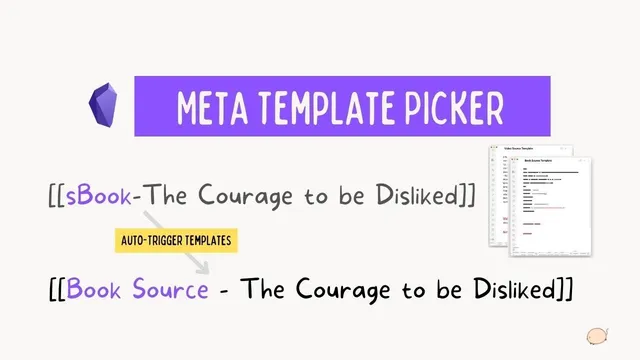
Use a meta template picker in Templater so new notes automatically route to the correct template based on a trigger phrase in the title.
Briefing
Obsidian users can automate note creation so the right template, metadata, and structure appear based purely on a trigger phrase typed into the new note’s title—eliminating repeated manual steps like inserting templates. The approach centers on a “meta template picker” built with the Templater plugin plus a small JavaScript helper that cleans titles, renames files, and routes creation to the correct template.
The workflow begins with the idea behind “meta templating”: Brian Jenks popularized a symbol-based convention where characters placed in front of links tell Obsidian what kind of note to create (for example, a curly bracket for book sources, an at sign for people, and an exclamation mark for tweets). Pamela Wang’s version avoids remembering symbols and instead uses trigger phrases placed before a dash in the filename. Typing something like “vid - Moonlander keyboard” (or “end - Project updates” for meetings) causes the file to be renamed according to the vault’s naming convention, while metadata fields and the note’s standard sections (task lists, IDs, headings, thumbnails, etc.) are filled in automatically.
To make this reliable, the system relies on consistent tagging and templated metadata. Notes are organized primarily through tags rather than folders, which pairs well with Obsidian’s graph view and DataView. The transcript describes how “uncreated” notes can still appear in the graph when they’re linked, and how filtering in the graph helps surface notes that exist only as links until they’re actually created. Supercharged links can also reflect note status (e.g., turning green when a note is marked complete), reinforcing the tag-driven organization.
Building the system from scratch starts with creating a few base templates in a Templates folder—such as a default note template that stamps the current date and sets a blank status, plus weekly and monthly review templates. A “simple zettel template” is then created with Templater code that runs JavaScript to: (1) extract the trigger phrase from the title, (2) clean the remaining title text, (3) rename the new file accordingly, and (4) insert structured content and metadata (including mode tags and aliases). Because the title-cleaning logic needs to handle edge cases (like missing dashes or extra dashes), the setup uses a user script function stored in Templater’s user script functions area.
With the individual templates working, the meta template picker template is added as the default creation handler for new notes created in a chosen vault location. The picker runs only on the first file creation, then checks the new note’s title: if it contains a dash, it extracts the trigger (lowercased and trimmed) and uses conditional logic to include the correct template (e.g., “z” for zettel, “s” for source book, “vid” for video source). Additional branches handle other naming patterns like “weekly review” and “monthly review,” and even “template” notes that should be moved into a templates folder automatically.
The final layer connects the automation to discovery. With tags like mode and kind, DataView can generate tables and “processing lists” (e.g., a list of book source notes filtered by tags and sorted by modified time). The result is a repeatable system where typing a short trigger phrase produces a fully formed note ready for writing, and later search and dashboards work off the metadata that was inserted automatically.
Cornell Notes
The system automates Obsidian note creation by using a “meta template picker” that selects the correct template based on a trigger phrase typed into the new note’s title. Instead of remembering symbols, triggers are placed before a dash (e.g., “vid - …” for video source, “z - …” for zettel). A JavaScript helper cleans titles, renames files, and inserts structured content plus metadata tags. The picker template then routes creation to the right template using conditional logic, including special cases like weekly/monthly review notes and “template” notes that get moved into a templates folder. Because notes are tagged consistently, DataView can later build dashboards and tables (like lists of book sources) without manual bookkeeping.
How does the trigger phrase in a note title determine which template gets used?
Why is title-cleaning logic necessary even when triggers are consistent?
What role do tags play in making the system useful after notes are created?
How does the workflow avoid manual template insertion for common note types?
What extra automation is added beyond basic template selection?
How does DataView turn the metadata into dashboards or tables?
Review Questions
- When the meta template picker sees a title with multiple dashes, what mechanism prevents the trigger extraction from breaking?
- How would you add a new trigger phrase (e.g., “pod - …”) to route to a podcast source template while keeping default behavior intact?
- What tag fields must your templates populate so DataView can reliably build a filtered table of “processing” notes?
Key Points
- 1
Use a meta template picker in Templater so new notes automatically route to the correct template based on a trigger phrase in the title.
- 2
Adopt a consistent naming convention where the trigger phrase appears before a dash, and ensure the picker lowercases and trims the extracted trigger.
- 3
Implement robust title-cleaning logic to handle missing dashes and titles containing multiple dashes.
- 4
Insert structured metadata and note sections inside each template so downstream search, graph filtering, and DataView dashboards work without manual edits.
- 5
Prefer tag-based organization over folders to reduce mental overhead and improve filtering across the vault.
- 6
Add conditional branches for special title patterns (weekly review, monthly review, and “template” notes) to prevent routing errors.
- 7
Use DataView queries that filter by tags inserted by templates to generate tables like book processing lists.