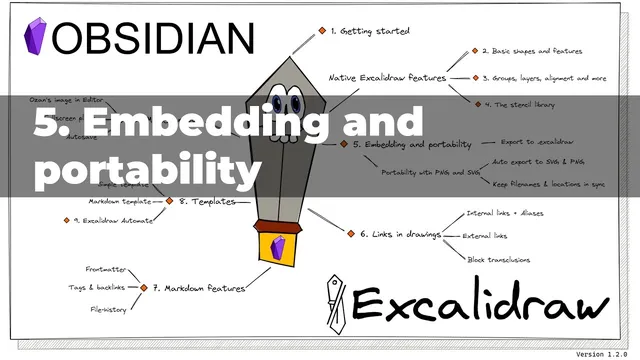
Obsidian-Excalidraw 1.2.0 Walkthrough Part 5/10: Embedding and portability
Based on Zsolt's Visual Personal Knowledge Management's video on YouTube. If you like this content, support the original creators by watching, liking and subscribing to their content.
Transclude an Excalidraw drawing in Obsidian markdown by using a leading “!” before the drawing reference.
Briefing
Embedding Excalidraw drawings into Obsidian markdown is straightforward: drag a drawing file into a note with a leading exclamation mark, and the drawing appears via transclusion—even while editing—so long as the Obsidian Excalidraw image-in-edit plugin is enabled and configured to render in edit mode. A key practical detail is file naming: the Excalidraw image-in-edit behavior is sensitive to the extension. If the filename no longer matches what the plugin expects, the embedded drawing can disappear in edit mode; adding the correct “.md” extension restores rendering because Obsidian treats it as the full markdown filename. In preview mode, rendering can still work even when the extension is off, but edit-mode visibility depends on the plugin’s naming rules.
Beyond basic embedding, the walkthrough shows faster insertion and layout control. An “embed” function can pull in the most recently edited drawing automatically, while a common “gallery” style picker lets users choose any drawing from the vault. Once embedded, the syntax supports formatting parameters: setting a width (e.g., “400”) controls the image size, and alignment options like “right” place the drawing accordingly. Text can be added alongside the embed, and a “right wrap” option enables wrapping so text flows around the image rather than stacking below it. The formatting after the second “|” (pipe) character is treated as style instructions, effectively mapping to HTML/CSS-like behavior (e.g., div and img tags), which gives CSS-oriented users a way to fine-tune presentation.
Portability hinges on exporting embedded drawings into standalone files. When opening an embedded drawing, the options menu allows exporting to an “.excalidraw” file (saved outside the vault), and also exporting to formats like SVG (and PNG, depending on settings). The workflow supports moving and syncing exported assets: a setting keeps filenames in sync across the exported variants, so renaming or relocating the drawing folder updates the related files together. There’s also an auto-export feature: enabling auto export to SVG (and/or PNG) generates an up-to-date copy whenever the drawing is edited and the file is closed. That creates a platform-independent artifact that can be embedded elsewhere without relying on Obsidian-specific transclusion.
Overall, the core takeaway is that reliable embedding requires correct extension handling for edit-mode rendering, while portability comes from exporting synced, auto-updated SVG/PNG (and Excalidraw) outputs. Together, these features let users keep drawings editable in Excalidraw while still producing reusable assets for documents and other tools.
Cornell Notes
Obsidian can display Excalidraw drawings inside markdown notes using transclusion (a leading “!” before the filename). Edit-mode rendering depends on the image-in-edit plugin settings and on filename/extension expectations; changing the extension can make the embed disappear until the correct “.md” suffix is restored. For layout, embed parameters control width and alignment, and options like “right wrap” let text flow around the drawing; style instructions after the second “|” map to HTML/CSS-like behavior. Portability comes from exporting drawings to standalone formats such as SVG (and PNG) and optionally auto-exporting those files whenever drawings change. Filename syncing and auto-export keep exported assets organized and current for use outside Obsidian.
How does transclusion work for embedding an Excalidraw drawing in Obsidian markdown?
Why can an embedded drawing vanish in edit mode after renaming the file?
What embed formatting controls are available for layout and text flow?
How can the most recently edited drawing be embedded quickly?
What export options make Excalidraw drawings portable outside Obsidian?
How do filename syncing and auto-export help keep exported assets organized?
Review Questions
- What specific filename/extension change breaks edit-mode rendering, and what adjustment restores it?
- How do width, alignment, and “right wrap” parameters change the embedded drawing’s layout relative to surrounding text?
- Which export and auto-export settings produce portable SVG/PNG files, and how are they kept in sync when drawings are renamed or moved?
Key Points
- 1
Transclude an Excalidraw drawing in Obsidian markdown by using a leading “!” before the drawing reference.
- 2
Edit-mode rendering depends on enabling the image-in-edit plugin and turning on render-in-edit settings.
- 3
Filename/extension expectations matter: changing the extension can hide the embed in edit mode until the correct “.md” suffix is used.
- 4
Embed parameters can control width and alignment, and “right wrap” enables side-by-side text wrapping around the drawing.
- 5
Style instructions placed after the second “|” character influence the embedded element’s HTML/CSS-like behavior.
- 6
Export drawings to “.excalidraw” and SVG/PNG to make them usable outside Obsidian.
- 7
Auto-export (SVG/PNG) and filename syncing keep exported assets current and organized after edits, renames, and folder moves.