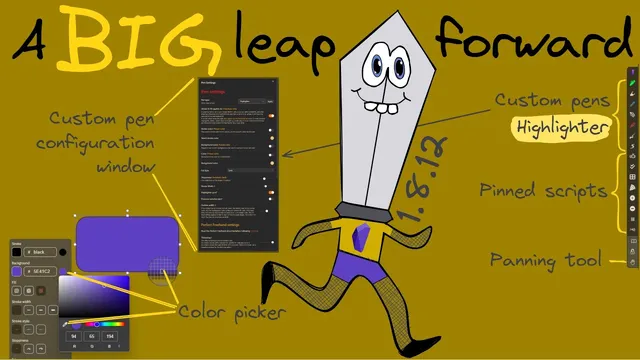
Obsidian-Excalidraw 1.8.12 - QoL Improvements: pens, pinned scripts, panning tool, and color picker
Based on Zsolt's Visual Personal Knowledge Management's video on YouTube. If you like this content, support the original creators by watching, liking and subscribing to their content.
Custom pens are configurable in a dedicated pen configuration window (up to 10) and no longer rely on pen files.
Briefing
A major quality-of-life update brings faster drawing workflows in Excalidraw inside Obsidian: custom pens can now be configured in a dedicated pen window (up to 10), favorite scripts can be pinned to a right-side toolbar, a new hand-shaped panning tool makes canvas navigation easier, and a Color Picker lets users select any color—including from anywhere on the screen. Together, these changes reduce the need for manual setup and make common actions available at a glance, especially on iPad-style workflows.
Custom pens are the centerpiece. The update adds a right-hand toolbar with up to 10 user-defined pens plus a highlighter option. Instead of editing pen files, users enable the feature in plugin settings and then configure pens through a UI window. The pens are not supported by excalidraw.com itself: documents can still load, but the pen styling may look different outside Obsidian. Because of that compatibility gap, custom pens are disabled by default and must be turned on under Excalidraw’s “non-excalidraw.com supported features.”
In practice, the pens support multiple styles tailored to common diagramming tasks. There’s a default “raw” pen with configurable default colors, a fine tip pen for legible handwriting, a pressure-sensitive fountain pen that varies thickness with applied pressure, a marker pen with outline behavior, and mind-mapping pens that create thick-to-thin or thin-to-thick strokes. Users can double-click a pen to open its configuration, adjust stroke and background colors (notably for the highlighter), and even change a pen’s type to create multiple highlighters with different defaults. Switching tools also behaves intelligently: when returning to free draw, the most recently used custom pen is automatically reselected, enabling rapid keyboard-driven workflows.
The update also clarifies how pen color behavior propagates. Some pens apply stroke/fill settings globally to shapes, while others can be restricted to free draw only—useful when users want node colors to stay consistent while still changing line colors for mind maps. A fine tip pen is highlighted as an example where object colors may be reconfigured (e.g., text turning red), depending on the chosen settings.
Beyond pens, the right-side toolbar can now host pinned scripts. Only certain actions are pinnable—utility actions like export/insert are not—while user scripts and downloaded scripts can be pinned. A pinned “bucket” script demonstrates how closed shapes can be filled with color, with the fill behavior triggered by selecting the script button after drawing a closed region. Scripts can be removed the same way they’re added: press-and-hold to toggle the button’s presence.
Navigation improves with a new hand tool that pans the canvas, functioning similarly to the eraser tool’s toggle behavior. Finally, a Color Picker button sits next to the palette chooser and provides two key advantages: users can select any color (not limited to the palette), and they can pick colors directly from anywhere on the screen—useful for color-matching text to embedded images. A “tray mode” toggle also rearranges the interface so custom tools can move between top and bottom/right placements, depending on user preference.
Cornell Notes
The update overhauls Excalidraw-in-Obsidian drawing by adding configurable custom pens (up to 10) via a pen configuration window, plus a highlighter, without needing pen files. Users can pin frequently used scripts to a right-side toolbar and quickly switch tools with a new hand-shaped panning tool. A Color Picker adds true “any color” selection, including sampling from anywhere on the screen, which is especially helpful for matching colors to embedded images. Custom pens are not supported by excalidraw.com, so styling may change when exporting and reloading elsewhere; the feature must be enabled in plugin settings.
Why do custom pens require enabling in plugin settings, and what happens when exported to excalidraw.com?
What kinds of pens are available, and how do they differ in behavior?
How does pen configuration change the look of a highlighter?
What does “pinned scripts” mean here, and which scripts can be pinned?
How does the new hand tool improve navigation compared with drawing tools?
How does the Color Picker work, and why is it useful beyond the palette?
Review Questions
- What compatibility limitation affects custom pens when exporting to excalidraw.com, and how can users enable them in Obsidian?
- Describe two different ways pen color behavior can be applied (global vs free-draw-only) and why that distinction matters for mind maps.
- How do pinned scripts and the hand tool reduce friction during drawing compared with repeatedly navigating menus?
Key Points
- 1
Custom pens are configurable in a dedicated pen configuration window (up to 10) and no longer rely on pen files.
- 2
Custom pens are not supported by excalidraw.com, so exported files may display different pen styling outside Obsidian.
- 3
Favorite scripts can be pinned to the right-side toolbar, but only user/downloaded scripts are pinnable (not utility actions like export/insert).
- 4
A new hand-shaped panning tool lets users move the canvas using the same toggle-style workflow as the eraser.
- 5
Pen types include raw, fine tip, fountain (pressure-sensitive), marker, and mind-mapping thick-to-thin/thin-to-thick options.
- 6
Pen configuration can control whether stroke/fill color applies to all shapes or only free draw, affecting how mind-map nodes and lines recolor.
- 7
A Color Picker enables selecting any color and sampling directly from anywhere on the screen for image-based color matching.