Obsidian Excalidraw 2.13: Complete Control Over Auto-Export Location & Type
Based on Zsolt's Visual Personal Knowledge Management's video on YouTube. If you like this content, support the original creators by watching, liking and subscribing to their content.
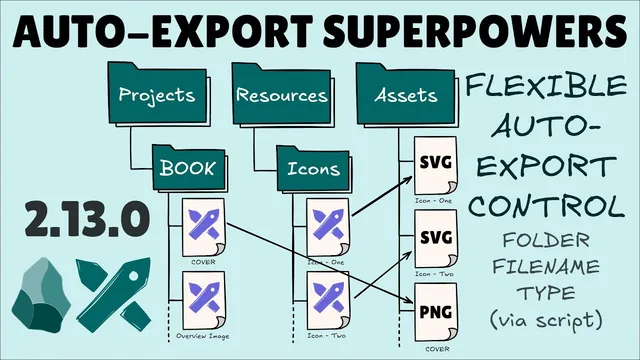
Excalidraw 2.13 adds startup-script hooks that let users redirect auto-exported PNG/SVG files to custom folders instead of keeping them beside the source drawing.
Briefing
Auto-exported Excalidraw images no longer have to land beside the source file. Version 2.13 adds JavaScript “hooks” that let users redirect PNG/SVG exports to custom folders (like an assets tree) and control what gets exported and what gets deleted—solving a long-running pain point where Excalidraw automatically creates duplicate files in the same directory.
The core workflow starts with understanding the existing auto-export settings inside the Obsidian Excalidraw plugin: users can enable automatic export of all drawings to PNG and/or SVG. Many avoid this blanket approach because it can generate thousands of extra files in a vault. Instead, the more precise method uses per-note control via front matter (document properties). When a drawing is saved, Excalidraw can auto-export an SVG/PNG right next to the .excalidraw file—useful for some cases, but limiting when the goal is to keep vault organization clean.
Excalidraw 2.13’s solution is more flexible but requires setup. Users create a startup script from the plugin settings (under “Excalidraw automate”), which installs a file into the vault. Two new triggers are highlighted: an “on image export path” hook and an “on trigger auto export” hook. The first hook receives detailed data about the export event—export file path, the source Excalidraw file, export extension, theme variants (light/dark), and the action type (export/rename/move/delete). That action detail matters because during delete, the source .excalidraw file is already gone, so front matter-based logic can’t be read.
A practical example shows SVG/PNG files being redirected into a target folder instead of being created beside the source drawing. Renames and moves stay linked: when the source file is renamed or deleted, the exported asset follows. But when deletion logic depends on front matter, exported files can be left behind because the metadata disappears before the hook runs. To avoid clutter, the script can instead rely on stable identifiers such as filename conventions (for example, names starting with “icon -” for logos/icons). With that approach, exports can be routed to the correct asset folders and removed reliably when the source drawing is deleted.
The second trigger—“on trigger auto export”—runs before Excalidraw performs its automatic export. It receives an auto-export configuration object (including whether the output should be PNG, SVG, or the legacy Excalidraw format, plus theme handling). This enables rule-based automation that can override plugin settings. For instance, a naming convention can force SVG export (and suppress PNG/legacy outputs) for certain assets, regardless of what the global auto-export configuration says.
Finally, the automation supports deeper organization. The script can mirror the source folder structure under an assets root (e.g., assets/<vault path>/...), preventing overwrites that might occur in a flat folder. The tradeoff is that automation increases the risk of naming conflicts, so careful testing is recommended—especially when multiple files could generate the same export filename. The result is a highly controllable pipeline: export routing, conditional output types, and consistent cleanup, all driven by front matter, filenames, and folder-aware path logic.
Cornell Notes
Excalidraw 2.13 introduces startup-script hooks that give fine-grained control over automatic exports inside Obsidian. Instead of always creating PNG/SVG files next to the source .excalidraw drawing, users can redirect outputs to custom locations (like an assets folder) and tailor which formats get produced. The “on image export path” hook receives event data including export path, extension, theme variants, and the action type—so renames/moves can be mirrored and deletions can be handled correctly. Because front matter isn’t available during delete, deletion-safe routing often needs stable rules like filename conventions. A second hook, “on trigger auto export,” runs before export and can override output decisions based on naming or folder criteria, enabling fully automated, organized asset pipelines.
Why does front matter-based routing break during deletion, and how does that affect exported files?
What data does the “on image export path” hook receive, and why is the action type important?
How can filename conventions be used to make deletion cleanup reliable?
What does the “on trigger auto export” hook enable that the basic auto-export settings don’t?
How does mirroring folder structure under an assets root help avoid overwrites?
Review Questions
- What specific limitation of front matter during delete makes orphaned exported assets possible, and what alternative rule can prevent it?
- How do the two hooks differ in timing and purpose: one for choosing the export path, and one for deciding whether/what to auto-export?
- Why can a flat assets folder cause export conflicts, and how does path mirroring reduce that risk?
Key Points
- 1
Excalidraw 2.13 adds startup-script hooks that let users redirect auto-exported PNG/SVG files to custom folders instead of keeping them beside the source drawing.
- 2
The “on image export path” hook provides export path, source file, extension, theme variant behavior, and—critically—the action type (including delete).
- 3
Front matter/document properties can’t be relied on for deletion cleanup because the source file is already gone when delete hooks run.
- 4
Filename conventions (e.g., a prefix like “icon -”) can drive both export routing and reliable deletion of the corresponding exported assets.
- 5
The “on trigger auto export” hook runs before auto export and can override output type and theme behavior using the autoexport configuration passed into the hook.
- 6
Mirroring the source folder structure under an assets root helps prevent filename collisions that can occur in a flat export directory.
- 7
Automation increases the chance of unintended overwrites or leftover files, so testing with realistic naming and folder scenarios is essential.