Obsidian Excalidraw: A Guide to Marker Frames (Print Layouts, Presentations, Image References)
Based on Zsolt's Visual Personal Knowledge Management's video on YouTube. If you like this content, support the original creators by watching, liking and subscribing to their content.
Marker frames don’t capture or clip elements when content is drawn on them or when the marker frame is resized.
Briefing
Marker frames in Obsidian Excalidraw are designed as “placeholders” that don’t capture or clip artwork—solving a common frustration with traditional frames when building presentations, print layouts, and image callouts. Unlike normal frames (with rounded corners and solid borders) that automatically pull in and clip elements when resized or moved, marker frames (dashed border, sharp corners) stay inert: drawing or resizing inside them doesn’t cause content to become part of the frame. That behavior matters because it prevents accidental clippings and messy, unwanted structure—especially when slide-like regions are meant to guide layout or referencing rather than act as containers.
The practical motivation shows up in presentation workflows. With normal frames, highlighting areas for slides can trigger automatic capture of elements and clipping, creating a structure the user doesn’t want for slide content. Marker frames instead let creators mark regions for export, referencing, or slide sequencing without turning those regions into cropping containers. The transcript contrasts the two behaviors directly: shapes placed on a marker frame remain unaffected, resizing a marker frame doesn’t capture elements, and adding a marker frame doesn’t reorganize existing items into a new clipped group.
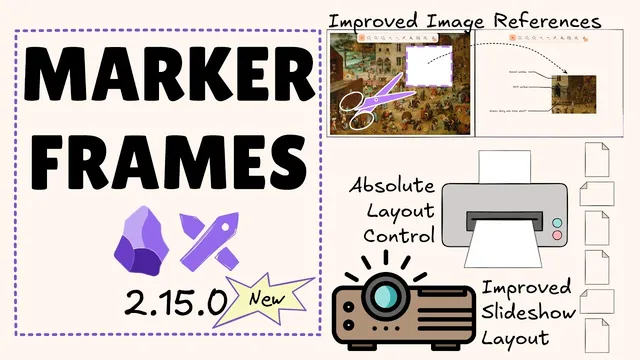
Marker frames also support a clean referencing workflow for image parts. A marker frame can be named (for example, “brain”), then referenced from a Markdown document so the selected region appears in-line without being intrusive to the underlying image. Visibility controls add another layer of usability: marker frames can be hidden in the view while still functioning as reference anchors. Even more importantly, marker frames are not exported to images—so the placeholder overlay can guide layout and references without polluting the final exported output. This makes marker frames useful for building logical “image maps” that exist during editing and viewing, but disappear when exporting to documents or images.
Beyond image referencing, marker frames integrate with print layout and slideshow tooling. In the printable layout wizard workflow, the creator demonstrates building multi-page exports with explicit page management, including mixing orientations (landscape and portrait) within a single document. Additional controls allow hiding frame titles for a cleaner canvas, and grouping/locking the page layout so it doesn’t interfere with drawing. Marker frames fit this model by marking print areas without forcing element capture.
For presentations, marker frames provide slide scaffolding without the clutter that normal frames can introduce. Slides can be laid out as separate marker-frame regions, then sequenced by renaming frames so the slideshow script follows the intended order. The transcript also highlights a newer export capability: printable layout output can follow the frame sizes to generate PDFs with different-sized pages, while the slideshow script can still produce standard 16:9 slide prints. Finally, a key behavioral decision is noted: switching a normal frame to a marker frame retains its existing elements, reducing the risk of losing content during a type change.
Overall, marker frames offer a more controlled overlay approach—ideal for print templates, presentation slide boundaries, and image-region references—while avoiding the clipping and element-capture side effects that make traditional frames cumbersome for these tasks.
Cornell Notes
Marker frames in Excalidraw act as non-interactive placeholders: they don’t capture elements drawn on them and resizing doesn’t clip or group content. That design fixes a major pain point with normal frames, where slide or layout regions can accidentally absorb artwork and create unwanted clipping structures. Marker frames can be named and referenced from Markdown to show specific parts of an image without exporting the placeholder overlay. They also support print layout and slideshow workflows by marking page/slide areas without getting in the way, with options to hide titles or marker frames entirely. Export behavior is especially important: marker frames are not exported to images, keeping final outputs clean.
How do marker frames differ from normal frames in day-to-day editing?
Why are marker frames useful for presentations built with frames?
What makes marker frames effective for referencing parts of an image in Markdown?
How do marker frames fit into the printable layout wizard workflow?
How does slide sequencing work when using marker frames with the slideshow script?
What happens when switching a normal frame to a marker frame?
Review Questions
- What specific behaviors confirm that marker frames are placeholders rather than containers?
- How do marker frames improve the workflow for slide boundaries compared with normal frames?
- What export-related properties of marker frames help keep final images and documents clean?
Key Points
- 1
Marker frames don’t capture or clip elements when content is drawn on them or when the marker frame is resized.
- 2
Normal frames act like containers: moving/resizing can move and clip contained elements, and resizing can pull items into the frame.
- 3
Marker frames can be named and referenced from Markdown to display specific image regions without exporting the placeholder overlay.
- 4
Marker frames can be hidden during editing and are not exported to images, preventing dashed/placeholder artifacts in final outputs.
- 5
Printable layout workflows can mix page orientations and use marker-frame-style page areas while keeping templates organized via grouping and locking.
- 6
Slide creation can use marker frames as inert slide boundaries, with slideshow order controlled by renaming frames.
- 7
Switching a normal frame to a marker frame retains existing elements, reducing the risk of accidental content loss.