Obsidian Graph Filters — The Universe is on Fire!
Based on Linking Your Thinking with Nick Milo's video on YouTube. If you like this content, support the original creators by watching, liking and subscribing to their content.
Obsidian Graph view in version 0.9.0 adds filters and layout controls that make the graph usable for writing decisions, not just navigation.
Briefing
Obsidian’s Graph view in version 0.9.0 adds filters and layout controls that turn a sprawling network of notes into a practical creativity engine—especially through two friction-reducing switches: “existing files only” and “orphan notes.” Instead of wandering through a graph “universe,” users can search by term or tag, then quickly surface the next notes worth writing or expanding, including concepts that are already present and those that are still waiting to be created.
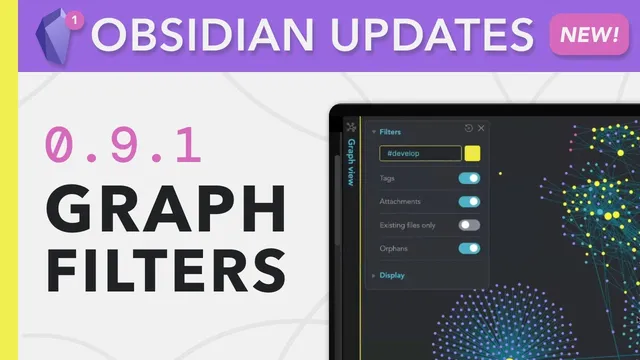
The workflow starts with the new filter panel in the upper-left of Graph view. A search box lets users pull up notes containing any term, then refine the results by toggling tags, attachments, and orphan notes. Tags matter here because the graph can show connections not only from titles but also from the body text—making it easier to see how ideas actually link across a library. Attachments can be included or excluded, and orphan notes—described as “boats” or atomic blocks of thought floating without connections—can be shown or hidden.
A key detail is how links are visualized. Links are bidirectional in practice, but the interface can optionally display arrows to make directionality explicit. With arrows enabled, some connections show two-way influence while others show a single direction, helping users understand which note points to which concept.
Beyond filtering, the layout controls provide “gravitational” tuning: center force pulls nodes together, repel force pushes them apart, and link force and link distance adjust how strongly and how closely connected notes cluster. The practical takeaway is that these settings are meant to be adjusted once, then left alone—so the graph becomes a stable workspace rather than a constantly re-tuned visualization.
The most actionable part of the update is how filters support targeted writing. Using hashtag-based searches, the user demonstrates a habit-focused workflow. With “existing files only” turned on, the graph shows only notes that already exist—useful for finding “easy wins,” such as an evergreen habits note that can be expanded immediately. Turning “existing files only” off reveals grayed-out nodes representing linked-but-not-yet-created ideas. That view helps identify where to go next: for example, a new concept like “flywheel effect” can be spotted as an obvious next draft even if it hasn’t been written yet.
A second workflow applies the same logic to concept development. Searching for notes tagged with a concept (like “seasonality”) and toggling “existing files only” helps surface linked ideas that are ready to build out—or linked concepts that are still missing. A third example uses a “develop” tag to find expansion paths across cultural references and philosophical threads (e.g., “groundhog day” leading to related ideas), again using the “existing files only” toggle to choose whether to start from what’s already written or to draft what’s missing.
Finally, orphan notes become a deliberate backlog. When “orphan notes” are enabled, the graph turns isolated “boat notes” into a queue of unfinished ideas ready to be crafted and connected. When orphans are hidden, the graph returns to a cleaner, more conventional view.
In short: Obsidian’s Graph filters and layout controls make it easier to search, understand connections, and—most importantly—choose the next note to write with less friction and more momentum.
Cornell Notes
Obsidian Graph view in version 0.9.0 adds filters and layout controls that help users move from “browsing” to “building.” The most useful switches are “existing files only” (show only notes already created vs. also showing linked-but-missing notes as grayed-out nodes) and “orphan notes” (isolated “boat notes” with no links). Combined with search and tag toggles, these settings let users find easy wins, then jump directly into the next concept to expand. Optional arrows clarify link directionality, while layout forces (center, repel, link force, link distance) help cluster related ideas so the graph stays readable. The result is a lower-friction workflow for writing, developing concepts, and turning unfinished ideas into connected knowledge.
How does “existing files only” change what a user sees in Graph view, and why does that matter for writing?
What role do orphan notes (“boat notes”) play in the workflow?
Why are tags still useful in this filtered graph workflow?
How do arrows and link directionality help interpret relationships?
What do the layout force controls (center, repel, link force, link distance) do in practical terms?
How does the graph support a “concept development” loop beyond simple note retrieval?
Review Questions
- When would you prefer “existing files only” on versus off, and what decision does each setting help you make?
- How can orphan notes function as a backlog, and what’s the next step after you identify an orphan “boat note”?
- Which combination of filters (search term, tags, attachments, or orphans) would best support a workflow for expanding a specific concept?
Key Points
- 1
Obsidian Graph view in version 0.9.0 adds filters and layout controls that make the graph usable for writing decisions, not just navigation.
- 2
The “existing files only” toggle is the core friction reducer: it separates ready-to-open notes from linked-but-missing drafts shown as grayed-out nodes.
- 3
Orphan notes (“boat notes”) provide a deliberate queue of isolated ideas that can be connected and expanded when needed.
- 4
Search and tag toggles can surface connections based on both titles and note body text, helping users trace how ideas actually relate.
- 5
Optional arrows clarify link directionality, distinguishing two-way relationships from one-way pointers.
- 6
Layout force controls (center, repel, link force, link distance) help cluster related nodes so the graph remains readable and stable.
- 7
A practical workflow emerges: search by hashtag/concept, toggle filters to find the next actionable note, then jump directly into drafting or expanding it.