Obsidian - Image Window
Based on Josh Plunkett's video on YouTube. If you like this content, support the original creators by watching, liking and subscribing to their content.
Install Image Window to enable a dedicated player-facing image display in Obsidian via right-click “open in a new window.”
Briefing
Obsidian can be turned into a “player view” system for tabletop games by installing a community plugin called Image Window, which lets a DM right-click an image link and open it in a separate window for players to see on a dedicated monitor. The practical payoff is straightforward: monsters, NPCs, magic items, and locations can be displayed instantly during play—mirroring the “show to players” workflow many Realmworks users already rely on.
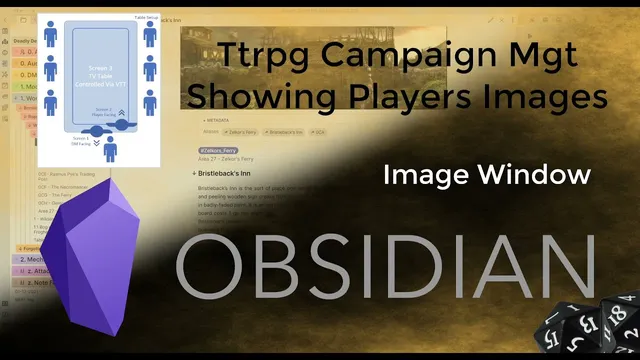
The workflow starts with a quick demonstration. In an Obsidian vault, a DM can right-click an image link and choose “open in a new window,” which then displays the selected image in a player-facing view. The presenter describes a typical multi-screen setup: one screen for running Obsidian, a second screen facing the players for images, and a third for the digital tabletop maps. While real dice and character sheets remain physical, the visual storytelling—especially combat and exploration visuals—moves to the screens, reducing the friction of switching between notes and what the table needs to see.
Image Window is not included out of the box, so it requires enabling beta plugin support via another tool named BRAT (Beta reviewers auto update tester). After installing BRAT from Obsidian’s community plugins, the user enables it and then adds a beta repository. The repository points to Jeremy Valentine’s GitHub project for “Obsidian Image Window,” which is then installed like any other plugin. Once installed, Image Window appears in Obsidian settings and can be toggled on or off.
After enabling the plugin, the DM uses Obsidian’s edit mode to insert images in a way that works with the player view. The transcript highlights a key formatting trick: using an exclamation mark to render an image, then adding a second line that includes a label like “Display to players” in a way that prevents the content from rendering as an image inside the editor. That label becomes the clickable/right-clickable link that can be opened in a new window—ensuring the player view shows the image without exposing editor-side menus or controls.
The setup also depends on hardware. The presenter notes that three monitors can be challenging, but there are multiple paths: a docking station that supports extra displays, Microsoft display adapters, or a graphics card with multiple outputs. For those who want a more immersive setup, the presenter even floats the idea of using a large wall-mounted TV for background visuals when not actively showing handouts.
Finally, Image Window is positioned as intentionally simple. It focuses on images rather than videos or rich text, and the presenter says that limitation is manageable—handouts can be converted into images (for example, a “folded letter” graphic with embedded text) and then displayed the same way. For DMs who want a Realmworks-style “show this to players” experience inside Obsidian, the combination of BRAT plus Image Window provides a fast, practical path to a dedicated player-facing display.
Cornell Notes
Image Window adds a Realmworks-like “player view” to Obsidian by letting users right-click an image link and open it in a separate window for players. Because it’s not built into Obsidian, it’s installed as a beta plugin using BRAT (Beta reviewers auto update tester), which enables early-release repositories. After enabling Image Window, the user inserts images with a specific link/label pattern so the editor doesn’t render the image as a normal picture, but the player-facing window still displays it instantly. The main requirement is a multi-monitor (or multi-display) setup so the player view can appear on a screen facing the table. The plugin is image-focused, so text handouts are typically converted into images.
How does the “player view” actually work during a session?
Why is BRAT needed, and what does it enable?
What formatting trick makes the player view link behave correctly?
What hardware setup is recommended for the player view to be useful?
Does Image Window support videos or text directly?
Review Questions
- What steps are required to install Image Window if it isn’t available by default in Obsidian?
- How does the transcript’s two-line image/link approach help ensure the player view opens the correct content?
- What are practical options for setting up multiple displays so the player view lands on the right screen?
Key Points
- 1
Install Image Window to enable a dedicated player-facing image display in Obsidian via right-click “open in a new window.”
- 2
Use BRAT (Beta reviewers auto update tester) to install Image Window as a beta plugin through a repository.
- 3
Jeremy Valentine’s GitHub repository is the source used to add the Image Window beta plugin for installation.
- 4
Insert images using a labeled link pattern (e.g., “Display to players”) so the editor doesn’t render the image normally while the player view still opens it.
- 5
Plan for a multi-monitor setup so the player view window appears on a screen facing the table.
- 6
Image Window is designed for images, so text handouts are best converted into image graphics before displaying.