Obsidian Templater Snippets I Wish I Knew Sooner
Based on Prakash Joshi Pax's video on YouTube. If you like this content, support the original creators by watching, liking and subscribing to their content.
Install Templater, set the template folder location, and enable triggering on new file creation to make templates available automatically.
Briefing
Obsidian’s Templater plugin can go far beyond basic “insert a date” templates: it can automate navigation, generate periodic notes, pull structured data from the web, and streamline capture workflows—turning manual note-taking steps into repeatable, one-keystroke actions. The practical takeaway is that most of the real power comes from combining Templater variables/functions with file metadata (like the note title) and with other Obsidian plugins (notably Periodic Notes), so templates can behave differently depending on where and how they’re triggered.
The walkthrough starts with setup: install Templater, set the template folder location in Templater settings, and enable triggering on new file creation. Hotkeys then become the control layer—assigning a shortcut to open the template picker lets users insert the right snippet instantly. From there, the simplest templates focus on date and title automation. One snippet inserts today’s date using Moment.js formatting, and another builds daily-note headers using the date embedded in the daily note’s filename (via `tp.file.title`). A key nuance appears when daily notes don’t match the expected title format: the template outputs can be “wrong” because the template is reading the title, not the calendar.
Daily-note navigation is handled with templates that compute “previous” and “next” days by subtracting or adding to the date parsed from the file title. The same logic extends to “day of the year” calculations that can run on any note, while daily-specific versions require the daily-note title format to include the date in the expected pattern. Weekly navigation then uses Periodic Notes: weekly note templates can link out to the daily notes within a week, but again depend on the weekly note filename format matching the template’s parsing rules. The walkthrough highlights a common failure mode—templates working for the next week but not the last—until the title format is corrected.
Beyond navigation, the snippets shift into automation and content generation. There’s a periodic-note template that checks whether daily/weekly/monthly/yearly files exist in a target path and creates missing ones. Other templates help maintain structure: generating a persistent table of contents inside long markdown notes, converting selected text into callouts, and adding file creation/modification dates into front matter for reliable DataView-style querying later.
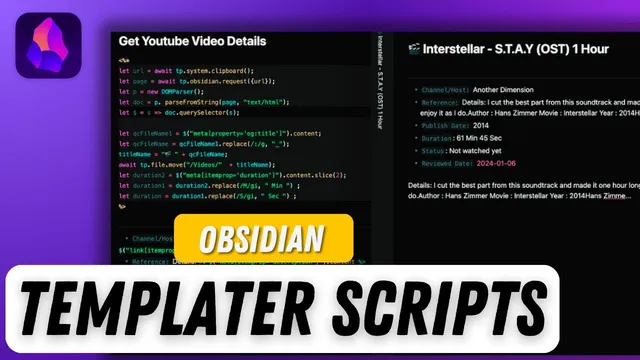
Capture and knowledge workflows get special attention. A “quick capture” template opens a lightweight input box so ideas can be stored immediately in a dedicated note with timestamps, without breaking the current writing flow. Another snippet extracts highlighted text into a new note (supporting progressive summarization workflows). For reading workflows, a Kindle clippings template processes a Kindle highlights file to organize book notes automatically. Finally, web-oriented snippets can fetch structured “YouTube details” from a copied link, and other web/image templates can insert random images or banners into notes.
Overall, the core message is that Templater becomes “pro-level” when templates are treated as small programs: they read filenames/front matter, compute dates, generate links, create missing files, and pull external data—so the same note system stays consistent while the workload drops dramatically.
Cornell Notes
Templater in Obsidian can automate much more than inserting dates. By using variables like `tp.file.title`, Moment.js formatting, hotkeys, and (for weekly navigation) the Periodic Notes plugin, templates can generate daily/weekly navigation links, compute “previous/next” dates, and calculate day-of-year values. The same approach supports workflow upgrades: quick capture with timestamps, extracting highlighted text into new notes, and organizing Kindle clippings. For long-form writing, templates can insert a persistent table of contents and convert selected text into callouts. The main constraint is correctness of filename/title formats—templates often depend on those formats to parse dates reliably.
How does a “today’s date” template work, and why does Moment.js matter?
Why do daily-note templates sometimes produce unexpected dates?
What’s the difference between templates that work on daily notes versus templates that work on any note?
How do weekly navigation templates rely on Periodic Notes, and what breaks when formats don’t match?
What does the periodic-note automation template do, and what doesn’t it do?
How do quick capture and highlight extraction templates support knowledge workflows?
Review Questions
- Which Templater variable/function is used to read a note’s title, and how does that affect date-based templates?
- What filename/title format mismatches can cause daily or weekly navigation templates to link to the wrong days?
- How would you combine folder templates with a periodic-note “create missing files” snippet to ensure both file creation and consistent template application?
Key Points
- 1
Install Templater, set the template folder location, and enable triggering on new file creation to make templates available automatically.
- 2
Use hotkeys to trigger the template picker quickly, then standardize common actions like inserting formatted dates.
- 3
Date templates that rely on `tp.file.title` require the note title/filename to match the template’s expected date format.
- 4
Daily navigation templates can compute previous/next dates and day-of-year values, but daily-specific versions depend on daily-note title structure.
- 5
Weekly navigation depends on Periodic Notes and correct weekly note title formatting; mismatches can break links for boundary weeks.
- 6
Automation snippets can create missing periodic files in target folders, while folder templates control which snippets get applied to those files.
- 7
Workflow templates can improve capture and synthesis: quick capture with timestamps, highlight extraction, and Kindle clippings organization.