Obsidian - Workspaces Plus
Based on Josh Plunkett's video on YouTube. If you like this content, support the original creators by watching, liking and subscribing to their content.
Workspaces let Obsidian restore complete saved layouts, including pages, columns, and sidebar state—not just a single document.
Briefing
Workspaces Plus for Obsidian turns a messy “find the right note” workflow into instant, one-click navigation between pre-arranged layouts—an upgrade that matters most for people who need to switch contexts quickly during live sessions. Instead of manually hunting for a map, a rules page, or a DM reference note, users can jump between saved workspace configurations that restore not only the target page but also the window layout and sidebar state.
In practice, the workflow looks like this: while running a game and using Obsidian as a reference hub, the user clicks a workspace shortcut to open a specific page (for example, a map note). Another click returns to a different saved setup (like a “journey board” notes view). With a two-screen setup, the same workspace switch can also re-create the correct arrangement across screens, and it can jump back to a dedicated DM screen layout. The key benefit isn’t that navigation becomes faster in theory—it’s that the layout becomes predictable. Notes that are “always first” (like the starting board for the session) don’t require repeated searching or reconfiguring.
Obsidian’s built-in “Workspaces” core plugin provides the underlying capability: users can manage, save, and load workspaces, and can optionally assign hotkeys. The transcript walks through enabling the core plugin via Settings → Core plugins → Workspaces, then using the workspace controls to save configurations. A saved workspace can include multiple panes and columns, so switching workspaces can change the entire interface layout—not just the document shown.
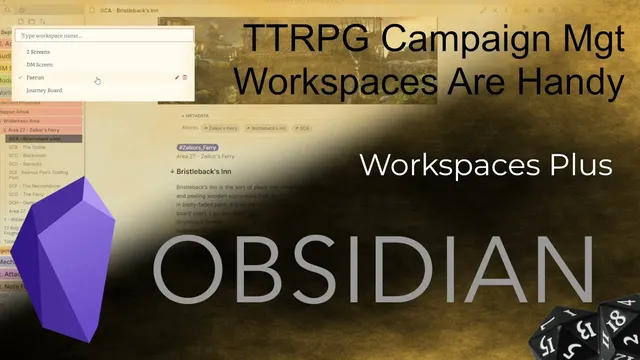
The tutorial then contrasts the default approach with Workspaces Plus, a community plugin that adds a simpler, more accessible set of workspace buttons. Instead of relying on the core plugin’s button-heavy interface (which can feel overwhelming when many plugins are installed), Workspaces Plus places a compact control in the right-hand corner. From there, users can save a workspace by naming it (using Shift+Enter to confirm) and later load it directly from the same interface.
The overall takeaway is pragmatic: Workspaces Plus doesn’t introduce fundamentally new workspace mechanics, but it streamlines how those mechanics are accessed. For tabletop gaming in particular, that reduction in friction can mean fewer seconds spent locating known notes and more time running the session. The transcript closes with a reminder that the plugin is optional and that the core Workspaces plugin remains the foundation, while Workspaces Plus mainly improves day-to-day usability.
Cornell Notes
Workspaces Plus adds a lightweight, corner-based button interface for switching between saved Obsidian workspaces. The core Workspaces plugin lets users save and load complete interface configurations—pages, columns, and sidebar state—so switching can restore an entire layout, not just a single note. During a tabletop session, that means one click can bring up a map, another can return to a “journey board,” and another can re-create a DM screen arrangement, including multi-screen setups. Workspaces Plus mainly improves access and reduces UI clutter compared with the default workspace controls. The result is faster context switching and less time spent navigating to notes that are already known and organized.
What problem do workspaces solve for someone using Obsidian during a live session?
What does Obsidian’s built-in Workspaces plugin actually restore when a workspace is loaded?
How does Workspaces Plus differ from using the core Workspaces plugin directly?
How are workspaces created and saved in the workflow described?
Why might a multi-screen setup benefit from workspaces?
Review Questions
- When switching between two saved workspaces, what parts of the Obsidian interface can be restored besides the target note?
- Why would someone prefer Workspaces Plus over the core Workspaces controls if they already know where their notes are?
- What steps are involved in enabling and then using workspaces in the workflow described (including where the settings live)?
Key Points
- 1
Workspaces let Obsidian restore complete saved layouts, including pages, columns, and sidebar state—not just a single document.
- 2
Switching workspaces can be used as one-click navigation between session contexts like maps, boards, and DM reference screens.
- 3
The core Workspaces plugin is enabled via Settings → Core plugins → Workspaces and supports managing, saving, and loading workspaces.
- 4
Workspaces Plus mainly improves usability by placing workspace controls in a compact right-hand corner interface.
- 5
Workspaces Plus is optional; it relies on the same underlying workspace saving/loading behavior provided by Obsidian’s core plugin.
- 6
For tabletop gaming, faster context switching reduces time spent navigating to notes that are already organized and known.