Organising your Research Notes Efficiently on Protolyst
Based on Protolyst's video on YouTube. If you like this content, support the original creators by watching, liking and subscribing to their content.
Create a Protolyst document-style table in “Vertical View” to mirror Word template headings as row titles.
Briefing
A Protolyst workspace can turn familiar Word-style research templates into a structured database that automatically extracts citations, converts highlighted snippets into labeled “atoms,” and then displays those atoms across filterable tables. The payoff is less time hunting through PDFs and more time recombining notes—by keyword, by question category, or by combinations of both—without rebuilding everything in a separate system.
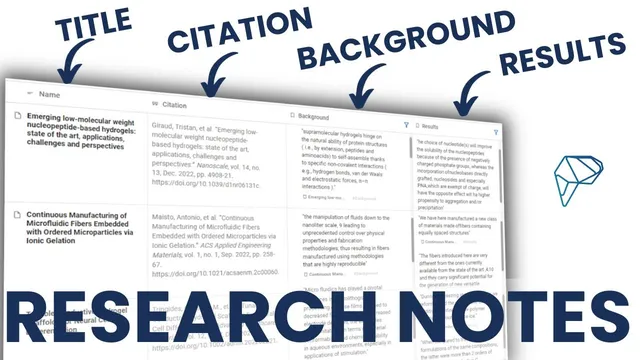
Setup starts in a document-style table. After adding a table, the table type is switched to “Vertical View,” which effectively transposes the layout so that what would normally be columns become row titles. A title is added to anchor the paper being uploaded, and headings are recreated to match the existing Word template. From there, key Protolyst properties are added to the table: a “citations” property that auto-populates reference details when a PDF is uploaded (with selectable citation styles), and an “atoms” property that uses filters tied to the template’s questions. Those filters matter because any atom dragged into the atoms field inherits the corresponding label (for example, background information) automatically.
The template also becomes a tagging and media capture system. Global tags aren’t handled as simple labels; instead, they’re created as pages so they can be applied across the workspace. For each question category, new pages are created to match the template’s structure. An “image” property is added so figures can be captured and stored alongside notes, and a “multi select” property is used to organize papers by keywords (topics). With this in place, each row in the table functions like a paper record: upload a PDF and Protolyst pulls in the title and citation information automatically.
As reading begins, the workflow shifts from manual copying to drag-and-drop extraction. When a user highlights text in a paper, a capture atom option appears; instead of copying text into a separate document, the highlighted content can be dragged into the relevant atoms property. Because the atoms field is filtered, the atom is automatically categorized and labeled. If figures are needed, screenshots can be pasted into the figures image property. Each captured atom can also include annotations—rewriting the sentence in one’s own words or adding new ideas—stored alongside the atom text.
Once multiple papers are added, the workspace becomes navigable in two complementary ways. In document-style view, the table shows each paper’s properties and the categorized atoms, letting researchers scroll through notes similarly to a Word document. In table view, specific properties can be displayed or hidden, and filters can be saved as reusable views. Keyword filters (from the multi select property) can show only papers tagged with a term like “hydrogels” or “3D printing,” and the logic can be adjusted to include or exclude papers based on tag presence.
Finally, the system supports writing without reference hunting. Atoms collected from relevant papers can be dragged into a writing page; Protolyst carries over atom text and any annotations, and it automatically creates citations by pulling reference details from the corresponding paper’s citation property. The result is a research workflow where notes are continuously structured, searchable, and ready to recombine into new drafts.
Cornell Notes
Protolyst can replicate a familiar research-note template while upgrading it into a structured system. A document-style table is set up with properties for citations, filtered atoms (mapped to template questions), images for figures, and multi-select keywords for topic tagging. Uploading a PDF auto-fills the title and citation details, and dragging highlighted text into the atoms field creates labeled “atoms” with optional annotations. Saved filters and table views let researchers browse and regroup papers by keywords or question categories, and keyword search can find both captured atoms and mentions inside PDFs. When writing, atoms can be dragged into a draft page with citations automatically attached from the source paper’s citation property.
How does Protolyst keep a Word-like template structure while making it more searchable?
What’s the practical difference between tags and “pages” for global labeling?
How are citations handled when PDFs are added and when atoms are moved into writing?
How do researchers capture both text highlights and figures without leaving the workspace?
What do keyword filters enable once multiple papers are imported?
How can a researcher find information that wasn’t captured as an atom?
Review Questions
- When setting up the atoms property, how does the filter determine where an extracted highlight ends up?
- What is the workflow for adding a figure to the workspace, and where does it get stored?
- How do keyword filters and saved table views change the way a researcher browses a growing library of papers?
Key Points
- 1
Create a Protolyst document-style table in “Vertical View” to mirror Word template headings as row titles.
- 2
Add a “citations” property so PDF uploads automatically populate reference metadata in the chosen citation style.
- 3
Use an “atoms” property with filters tied to each template question so dragged highlights are automatically labeled.
- 4
Store figures using an “image” property by pasting screenshots from PDFs into the figures area.
- 5
Organize papers with a “multi select” keyword property and use filter logic to show subsets like “hydrogels” or “3D printing.”
- 6
Use annotations on atoms to rewrite in one’s own words or add new ideas, with the notes saved alongside the atom text.
- 7
Drag atoms into writing pages to automatically carry atom text, annotations, and citations from the source paper’s citation property.